Class registration
Find and register for classes
#Before you begin
- Sign in to the account that contains the student you intend to register. A guest may be able to browse, but the standard registration chooser needs the family relationship and eligibility data from a signed-in account.
- Confirm the student's name, birthday, and any studio-required profile information.
- Review the season, class dates, location, age or level, prerequisites, capacity, and registration state.
- Have an approved payment method ready if checkout will collect money.
- Ask the studio what its package, tuition, cancellation, refund, and waitlist policies mean before submitting an option you do not recognize.
Your studio controls which classes appear, which filters and details are shown, when enrollment opens, whether guests can browse, and whether prices or waitlists are visible.
#Choose the right browsing view
The Online Client has related class views that serve different purposes.
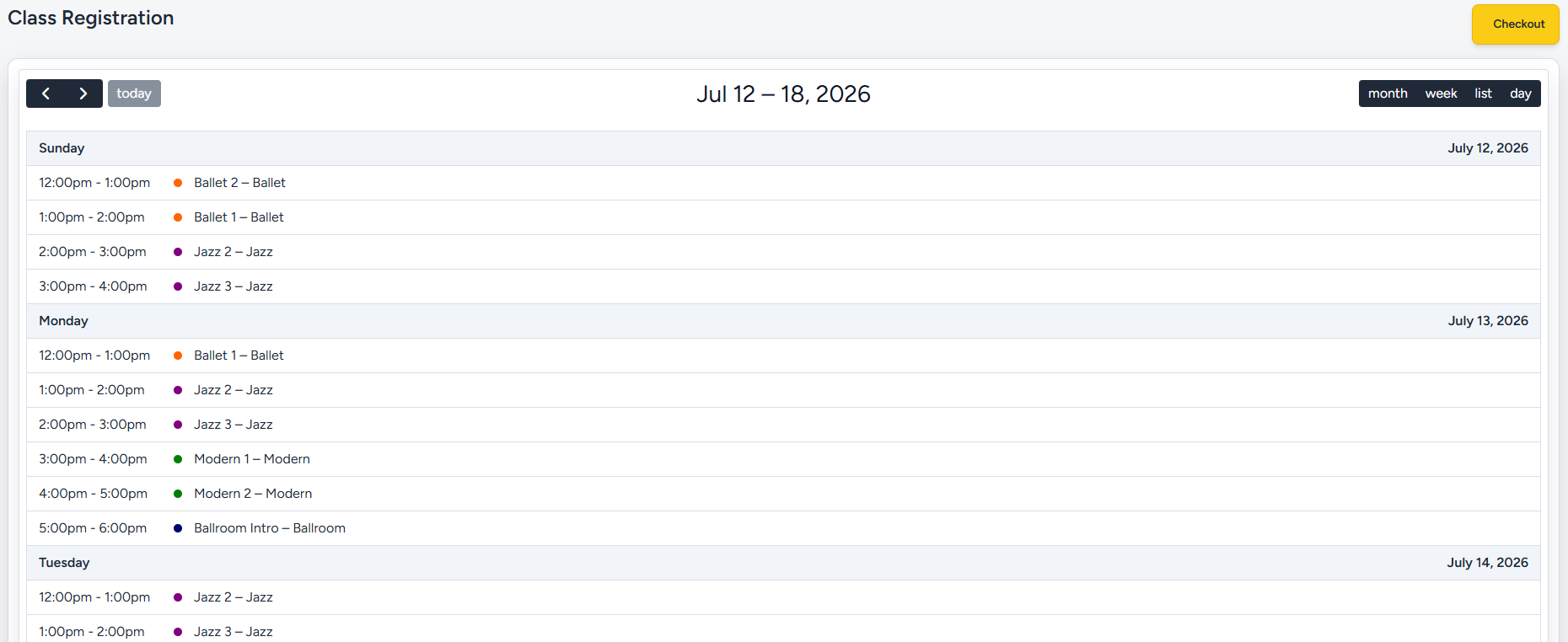
#Class Registration list and calendar
Home commonly opens a page titled Class Registration, although a studio can customize that title.
- List view is best for scanning dated class times. It can provide Today, Prev, Next, Select Date, category or class filters, and a See full schedule link.
- Calendar view is best for comparing classes by time. Calendar controls and the available month, week, day, or list layouts depend on studio settings.
Both views show scheduled occurrences. Start here when the date and time are the most important part of your decision.
#Browse Classes catalog
The separate Browse Classes catalog groups results by class rather than beginning with one calendar date. It can offer Search plus season, level, location, program, category, day, and age filters. Select View Details to review the class and its future schedules.
Use the catalog when you know the program or level you want but have not chosen a date.
#My Classes
Classes in the account menu opens My Classes. That page is for classes already connected to your family; it is not the complete catalog for finding a new class.
#Review a class and schedule
- From the list, calendar, or catalog, select the class you want.
- Confirm the class name and description.
- Review every visible detail, such as genre, location, level, age range, code, capacity, or instructor.
- Under Available Schedules, find the exact date and time you intend to book.
- Read the availability badge and registration action before continuing.
A class can have several future schedules. Selecting the right class name but the wrong dated schedule can produce a different room, season, price, capacity, or registration result.
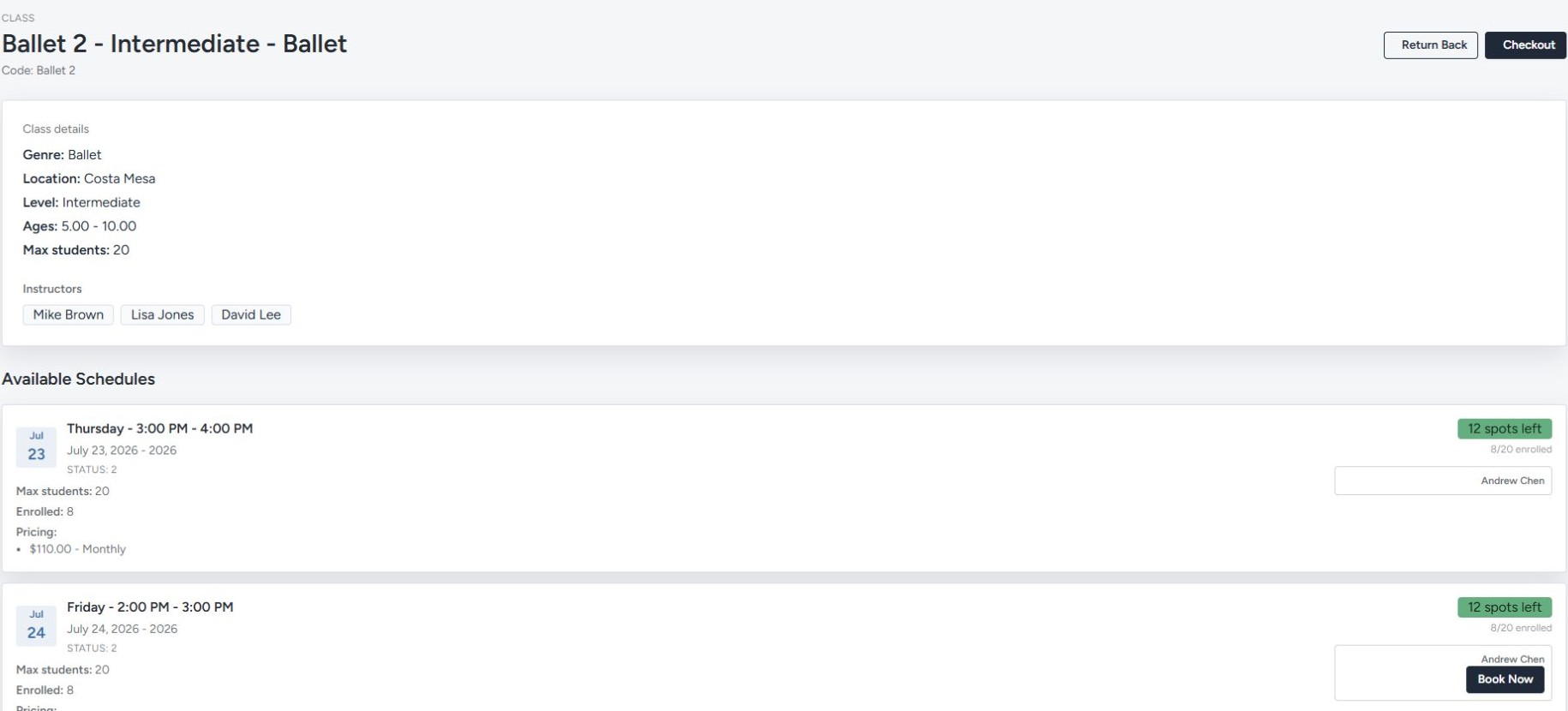
The action beside a schedule explains what is currently possible:
| Action or state | Meaning |
|---|---|
| Book Now or Enroll | Registration can continue. The next page normally asks for the participant and purchase option. |
| Wait List | The schedule is full and the studio's class, season, and Online Client waitlist settings allow a waitlist. Continue through the displayed cart or checkout path, then confirm the result in My Classes. |
| Full | Capacity has been reached and no Online Client waitlist action is available. |
| Ineligible | No eligible family member, or the selected family member, currently meets a registration rule. Read the reason shown. |
| Closed or Cancelled | New registration is not available for that schedule. |
| Booked, Attended, or Waitlisted | The account already has the corresponding relationship to that schedule, so the action is disabled. |
An action can also be absent when enrollment has not opened, the studio limits how early or late a class can be booked, registration is blocked for the season, or the studio hides the booking button.
#Choose the participant
- Select Book Now or Enroll for the intended schedule.
- On Choose your purchase option, find Who are you booking for?
- Select the intended student when more than one eligible family member appears.
- Read the badge and explanation beside every unavailable student.
The current eligibility chooser can identify:
- age restrictions when the studio enables age checking;
- required member categories;
- incomplete prerequisite classes; and
- season or member-category enrollment dates that have not arrived.
Only active family members available to the signed-in account are considered. Do not create another account to work around an unavailable student. Ask the studio to correct the profile, category, prerequisite, invitation, or enrollment rule when the displayed result seems wrong.
#Understand full enrollment, drop-in choices, and waitlists
The visible schedule identifies where the registration begins, but the selected purchase option can determine how broadly it applies.
- A Billing Schedule can represent the studio's ongoing tuition arrangement.
- A Sales Item or Package can cover one schedule or a configured set of schedules.
- A studio may offer a one-time option labelled Drop-in or similar.
- Existing credit uses a compatible purchase already on the account.
- Wait List records a waiting state rather than an available place.
Important: Do not infer “one class” or “full season” from the selected date alone. Read the option name, description, included uses, payment schedule, and studio policy. The Online Client does not expose every downstream package-registration rule on this page.
If the class is full, Wait List appears only when waitlists are enabled at all required levels. Joining the waitlist does not guarantee enrollment, a promotion date, or a particular notification.
#Choose a purchase option
- Confirm the class and schedule summary at the top of Choose your purchase option.
- Confirm the selected student.
- Review every available option and its badge.
- Select the option that matches the studio's policy.
- Select Add to cart, or select Register with existing credit when that supported option is available.
Depending on studio setup, the chooser can show:
| Option | What to review |
|---|---|
| Billing Schedule | Tuition amount and the studio's billing schedule rules. |
| Sales Item or Package | Price, included classes or uses, activation, expiration, and eligible student. |
| Payment Plan | First payment, fee, number and amount of later payments, and schedule. |
| Pay in full | Full displayed price and any sale dates or restrictions. |
| Existing credit | Remaining quantity, eligible season, and whether the purchase is already assigned to another schedule. |
An option can be disabled until its sale start date. The server rechecks the student, schedule, season, and purchase restrictions when you submit; a choice that was visible earlier can still be rejected if the underlying data changed.
Note: Register with existing credit still continues through the checkout process so the credit can be applied. Do not assume the registration is complete immediately after selecting it.
#Review the cart and complete checkout
For a normal purchase option, Add to cart opens Cart.
- Confirm the intended student, class, schedule, and purchase choice.
- Check for registration fees, package lines, discounts, tax, or other required amounts.
- Remove any duplicate or unintended line before continuing.
- Select the checkout action.
- Complete required questions, agreements, waivers, profile fields, and payment steps.
- Review the final amount and submit checkout once.
Warning: Submitting checkout can create an order, charge or payment, purchase, enrollment, scheduled payment, and notification according to studio configuration. An item in the cart is not a confirmed registration.
If checkout pauses for a required waiver or agreement, complete that requirement and use the provided return path. Do not add the class to the cart a second time.
#About Quick Registration links
Some studios can distribute a schedule-specific Quick Registration link. That is a distinct, contextual workflow: it can collect profile, security, and agreement information and directly enroll a participant without following the normal cart and payment sequence.
Quick Registration is not a normal Online Client menu destination and is not covered by this procedure. Use it only when the studio deliberately provides the link and instructions. Its intended rollout and payment implications have not been verified for a test studio.
#Confirm the registration
- Read the checkout confirmation before leaving the page.
- Open the account menu and select Classes.
- Find the intended student, class, date, and time.
- Confirm whether the result is enrolled/booked or waitlisted.
- Open Purchases and Finance when the registration was expected to create a purchase, charge, payment, credit use, or scheduled payment.
Do not rely only on an empty cart or an email. If the confirmation and My Classes disagree, contact the studio before submitting the registration again.
#Troubleshooting
#A class does not appear
Clear the date and class filters, check both list and calendar views, and try the Browse Classes catalog. The class or season may be hidden, outside the selected date range, closed, cancelled, or unavailable to the Online Client.
#Book Now is missing
Enrollment may not have opened, may already have closed, may be blocked by an advance-booking limit, or may be disabled for the class or season. Sign in before concluding that the action is unavailable to the intended student.
#No student is eligible
Read each displayed reason. Check the correct account, active family relationship, birthday, required categories, prerequisites, and enrollment date. Contact the studio instead of changing truthful profile information merely to pass a rule.
#The class says Full
If Wait List is not offered, the required waitlist settings are not all enabled. Contact the studio; repeatedly reloading or adding another purchase does not create capacity.
#No purchase option is available
The class may have no active Billing Schedule, Sales Item, Package, Payment Plan, or compatible existing credit for that schedule and student. A sale window or season restriction may also block the choice.
#The option disappeared or was rejected
Availability, eligibility, sale dates, purchase balance, and season restrictions are checked again at submission. Return to the class detail and choose from the current options.
#The cart is empty after an attempt
Check the confirmation page, Classes, Purchases, and Finance before trying again. A failed request and a completed existing-credit registration can have different return paths.
#The same registration appears twice
Stop before submitting checkout again. Capture the student, class, schedule, order or confirmation information, then contact the studio to review the records.
#Related articles
- Control who can register for a class
- How studios manage class prerequisites
- How studios create and verify Member Categories
- How studios manage capacity, waitlists, and drop-ins
- Studio guide: Create and manage a private registration link
- Online Client navigation and account menu
- Complete checkout
- Review My Classes and cancellations
- Buy items and use your cart
- Review purchases and gift cards
- View finance and make payments