Dashboard
Dashboard and navigation
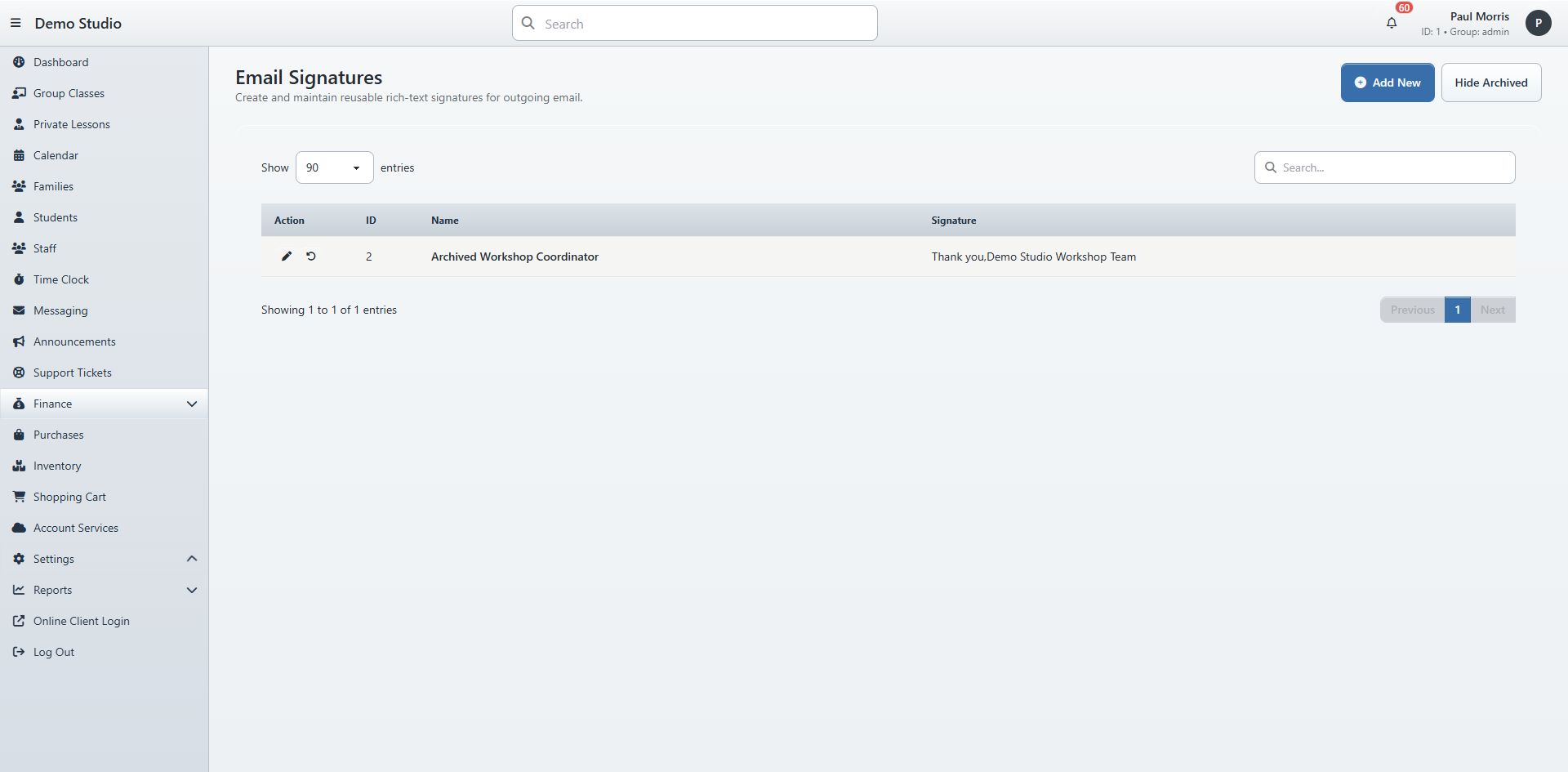
#The top bar
The top bar remains available while you move through the administration area.
| Control | Purpose |
|---|---|
| Toggle navigation | Collapses or opens the left menu when more screen space is needed. |
| Studio name | Returns to the studio dashboard. |
| Global search | Finds studio records from one search field. Result types and availability depend on the signed-in role. |
| Alerts | Opens the alert center. A badge can show the unread count. |
| User name/avatar | Identifies the current account and permission group and provides account actions. |
If a colleague sees different search results or menu items, compare permission groups before assuming data is missing.
#The dashboard
The dashboard is a collection of summary cards and larger widgets. The a test studio administrator view included:
- active family count;
- today’s date/time with a calendar shortcut;
- class count;
- purchase count;
- recent alerts;
- a finance chart;
- clients at risk.
Select the link in a summary card to open its related page. In the alerts widget, select an alert to open the associated account, class, or activity.

#Customize the dashboard
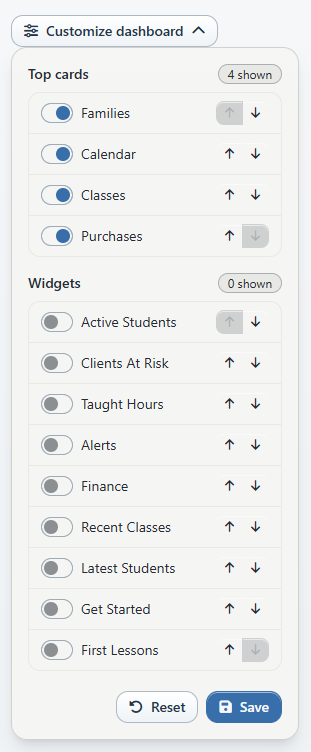
Select Customize dashboard to review available layout options. Individual widgets also have a Widget options menu.
The exact choices can depend on role and feature availability. If a widget is missing, check both the dashboard customization and the permission required for its destination page.
#Main navigation
The administrator menu verified on a test studio included:
- Dashboard
- Group Classes
- Private Lessons
- Calendar
- Families
- Students
- Staff
- Time Clock
- Messaging
- Announcements
- Support Tickets
- Finance
- Purchases
- Inventory
- Shopping Cart
- Account Services
- Settings
- Reports
- Online Client Login
- Log Out
Finance, Settings, and Reports expand to show additional destinations.
#Why a menu item may be missing
Menu visibility can change because of:
- permission group;
- adult, child, or combined studio mode;
- tenant-specific settings;
- payment processor or feature configuration;
- feature rollout state;
- a page being intentionally hidden until its workflow is complete.
Do not solve a missing item by sharing an administrator login. Ask an administrator to review the user’s group in Settings > Group Permissions.
#Alerts
Alerts are short records of activity that may need attention, such as Online Client payments, registrations, purchases, or class notes. Select the bell or View alerts on the dashboard to open the alert center.
An alert links to the related record when a destination is available. The alert count is not the same as a financial balance or an error count.
#Online Client access
The sidebar’s Online Client Login opens the studio’s client area. A family/student account also has an Action > Login As Client option for administrators who are allowed to impersonate that account.
When impersonating, the Online Client area displays a banner identifying the session as an administrator’s client view. Finish the check and return to the administration area rather than leaving the browser in an impersonated session.
#Log out
Use Log Out when finishing on a shared computer. Closing a tab is not a substitute for signing out.