Calendar and Staff
Use Day Overview and instructor Teaching views
These views answer different questions. Day View starts with a date and can contain several instructors. Teaching starts with one instructor and separates class-level assignments from dated occurrences. Neither view, by itself, proves the complete date, location, schedule status, instructor role, or roster state.
#Before you begin
- Confirm the studio date and location you intend to review before leaving Calendar.
- Confirm the instructor profile when using Teaching. Similar names are not enough; use the exact staff record and schedule ID for important work.
- Remember that a class-level instructor is the usual teaching assignment, while a dated schedule can have a substitute, assistant, or other exception.
- Treat roster names, contact details, attendance, purchases, balances, and exported files as private information.
- Use a role approved for both the page and the information it exposes. A visible link does not grant permission to use every action on the destination page.
Important: In the current Calendar menu, both Action > Day Overview and Action > Daily Booking open the page headed Day View. They do not open a separate printable whole-day overview.
#Choose the view that answers your question
| Starting point | Primary scope | What it can confirm | What it does not carry or show |
|---|---|---|---|
| Calendar > Action > Day Overview | The Calendar's current date and, when present, its applied location | Schedules that start on that date, ordered by time | Instructor, genre, program, level, and room-booking filters do not carry into Day View. The Day View header does not repeat the location. |
| Select a Calendar date or event | The selected date and applicable Calendar location; an event also targets one schedule | The same Day View, with the selected occurrence expanded when possible | The other Calendar filters do not become Day View filters. |
| Staff > instructor > Teaching > Classes Assigned | One instructor's class-level assignments | Classes where the instructor is configured as part of the usual teaching team | Exact dated assignments, room, location, roster, and attendance |
| Staff > instructor > Teaching > Upcoming Schedules/History | One instructor's dated schedule assignments in the chosen time range | Active dated occurrences explicitly linked to that instructor | Location, room, instructor role, roster, attendance, and cancelled or otherwise inactive occurrences |
For Calendar view choices and filter behavior, use Use Calendar views and filters. This article begins after you have selected the date, location, or instructor you need.
#Open Day View with a controlled scope
- Open Calendar.
- Move to the intended date.
- Apply the location filter when the studio has more than one location, or use the correct location panel when the studio displays one calendar per location.
- Record the date and location before leaving Calendar.
- Select the event you need, select a blank date, or select Action > Day Overview.
- On Day View, confirm the date field before expanding a schedule.
- Use Prev, the date field, or Next to change the day when necessary.
The Calendar path carries the date and an applicable location into Day View. It does not carry instructor, genre, program, level, or room-booking filters. When no location is carried, Day View can include schedules from all locations even though it does not display a location column or scope label.
Important: For location-sensitive work, keep the source Calendar open in another tab or note the location before opening Day View. Do not infer location from a class name.
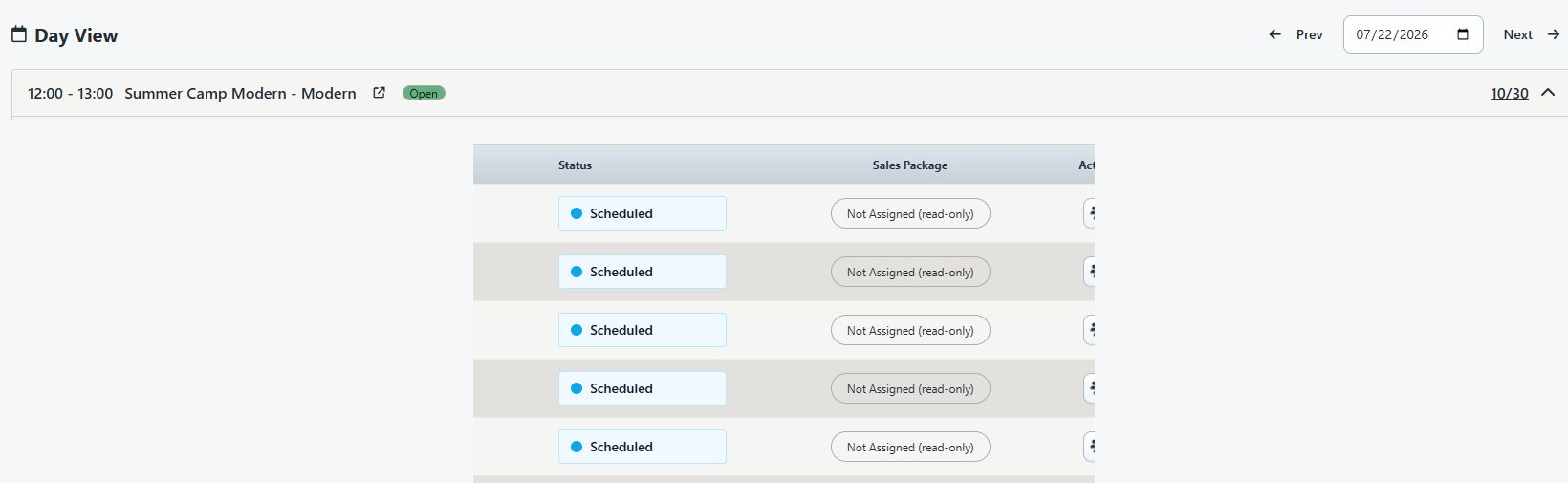
#Read a Day View schedule card
Schedule cards are ordered by start time and normally begin collapsed. An event link from Calendar or Teaching can open the matching card automatically.
The collapsed card shows:
- start and end time;
- class code and name;
- a shortcut to the class's Sales Items;
- an Open, Full, or Wait List capacity badge; and
- an enrolled-versus-maximum count.
Expanding a card can show the dated instructors, student and Sales Package controls, selection tools, schedule actions, and the roster. The roster loads when the card opens.
#Do not confuse capacity with schedule status
The Open, Full, and Wait List badge describes capacity, not whether the occurrence is active or cancelled.
- Open means the counted enrollment is below the displayed maximum.
- Full means counted enrollment has reached the maximum and the combined waitlist settings do not produce the waitlist label.
- Wait List means the occurrence is full and both the class and season waitlist settings are enabled. It is not a displayed waitlist count.
Current Day View can load active, inactive, and cancelled schedule rows without visibly labeling the schedule status on the card. A cancelled occurrence can therefore still look Open. Confirm operational status in Calendar, where cancelled events are labeled, or in the owning class's schedule record before taking attendance, adding a student, or telling clients the meeting will occur.
The card's enrollment numerator counts active students in the scheduled/enrolled capacity states. The expanded roster can include other attendance or waiting states, so its row count can be greater than the numerator. The displayed maximum currently comes from the class record; confirm the dated occurrence in Edit Schedule before making a capacity decision.
Note: A Holiday banner is a day-level warning. It can come from a named holiday record or from every schedule on the day having the cancelled status. Do not assume each visible card is cancelled solely because the banner appears; verify each occurrence that matters.
#Know which Day View actions are safe to use
Opening a date, expanding or collapsing a card, and following a schedule link are review actions. The expanded card also places write and disclosure actions close to those controls.
| Control | Operational boundary |
|---|---|
| Prev, date, Next, expand/collapse | Changes only what you are viewing. Recheck the date after navigation. |
| Student name or account-details link | Opens the related record; it does not change attendance by itself. The destination can contain private information and write actions. |
| Student checkbox | Selects a possible bulk audience or action; selection alone does not send a message or change attendance. Clear an accidental selection before continuing. |
| Attendance/status control | When enabled, this is a write action and can have purchase, fee, and notification effects. When the safety banner appears, status is read-only. Use the attendance procedure rather than this orientation article. |
| Remove student | When enabled, changes roster relationships and can require enrollment, purchase, waitlist, and finance reconciliation. It is unavailable under the currently verified safety banner. |
| Email selected or SMS selected | Hands the selected students to a message-template/composer workflow. It does not send at the first selection, but the later send workflow can deliver messages. |
| Add Student / Add to Class | Changes enrollment or schedule relationships. The control can remain available even while attendance and removals are read-only. |
| Sales Package / Add to Cart | Can assign an existing purchase or create a staff Shopping Cart path. Review the student, item, price, and location before continuing. |
| Note | Currently disabled and reports that class notes are not available yet. |
| Edit | Opens the dated schedule editor. Saving can change time, class, room, instructor, capacity, visibility, and downstream displays. |
| Export CSV | Downloads a private per-schedule roster with student ID, first and last name, email, primary phone, and status. |
| Print Roster | Opens a per-schedule name-and-status roster and invokes the browser print dialog. |
Warning: The current safety banner limits attendance changes and roster removals; it does not make the rest of the card read-only. Add to Class, cart, message, edit, export, and print actions still require deliberate review.
#When attendance is read-only
If the expanded roster says attendance changes and student removals are temporarily unavailable:
- Use the visible statuses only for review.
- Do not look for a hidden status menu or another URL to bypass the notice.
- Record the schedule ID, student, date, and intended correction.
- Ask the studio owner or support contact whether the containment has been lifted before making operational changes elsewhere.
- Use Record attendance and use class rosters only when writable attendance is visibly available and approved for your role.
Deployments without the banner can expose individual and bulk attendance controls. The attendance article covers status meanings, immediate saves, partial bulk completion, fee/package consequences, verification, and recovery; those details are intentionally not repeated here.
#Print or export only the schedule you mean to share
Day View does not currently offer one combined day export or printout. Export CSV and Print Roster belong to the individual expanded schedule.
Before using either action:
- Confirm the Day View date and exact schedule ID.
- Confirm the class and meeting time.
- Expand the roster and check that it is the intended occurrence.
- Choose Print Roster when a simple first name, last name, and status list is sufficient.
- Choose Export CSV only when the recipient is authorized to receive student IDs and contact fields.
- Rename or label the result with the class/date context if the studio's secure storage policy permits it. The current output is identified primarily by schedule ID.
- Secure or delete downloads and dispose of printed copies according to studio policy.
Warning: A CSV can include email and primary phone for every active student relationship on the schedule, including roster states that do not count in the capacity numerator. Never leave it in a shared Downloads folder or attach it to an unreviewed message.
For class-wide enrollment rather than one dated roster, use the class's Students page and its approved export workflow.
#Open and read an instructor's Teaching tab
- Open Staff.
- Select the exact instructor profile.
- Confirm the person's name and, when needed, staff ID.
- Select Teaching.
- Review Classes Assigned first.
- Review Upcoming Schedules using the range that matches your question.
- Select a schedule ID or class link in the schedule panel to open its Day View card.
- Return to Teaching after reviewing the occurrence; do not edit teaching assignments from the review panels.
The Teaching tab appears for a staff profile marked Display as Instructor. It is a review surface. Add or change the usual instructor from the class workflow and add or change a dated instructor from the schedule workflow.

#Classes Assigned
Classes Assigned reads the instructor relationships stored on Group Classes. It lists class ID, code, description, and Active, Archived, or Unknown status. Archived class assignments can remain visible.
This panel answers, "Which classes name this person as part of the usual teaching team?" It does not prove that the person is assigned to every dated occurrence.
The panel has page-size choices of 10, 25, and 50 plus paging. It does not currently provide a search or a location filter. Use the class ID or code rather than page position when reconciling a record.
#Upcoming Schedules and Schedule History
The schedule panel reads exact dated instructor relationships and includes active schedule rows only. It shows schedule ID, class, start, and end. It does not show location, room, instructor role, capacity, roster, or attendance.
The default range is This Week. Its current meaning is a rolling seven days from the present time, not the current calendar week.
| Range | Current meaning |
|---|---|
| Today | Occurrences whose start falls on the database's current date. At the exact midnight boundary, the next day's midnight can also fall into this query. |
| This Week | Active occurrences starting from now up to, but not including, seven days from now |
| All Upcoming | Active occurrences starting now or later |
| History | Occurrences whose start is earlier than now, newest first |
An occurrence moves to History as soon as its start time is in the past, even while it is still in progress. A cancelled or otherwise inactive occurrence is absent from the Teaching schedule panel. Use Calendar or the class's schedule list when you need a status-inclusive history.
The schedule panel defaults to 15 rows and offers 10, 15, 25, and 50 rows per page. Move through every page before concluding that an assignment is missing.
Selecting a schedule link opens Day View for the schedule's date and attempts to expand that schedule. The link does not carry a location filter. Confirm the occurrence after it opens rather than treating the surrounding Day View cards as a location-specific list.
#Reconcile the two instructor assignment layers
A difference between Classes Assigned and Upcoming Schedules is not automatically an error.
| What you see | Likely explanation | Where to verify |
|---|---|---|
| Class appears in Classes Assigned, but no future schedule appears | The dated occurrences do not name this instructor, the selected range is too narrow, the row is on another page, or the occurrence is inactive/cancelled | Class Schedules, then the exact occurrence's Edit Schedule instructors |
| Schedule appears, but the class is absent from Classes Assigned | The person is a dated substitute/exception but is not on the usual class instructor list | Exact occurrence first; then class Details only if the usual team may also need correction |
| Archived class appears under Classes Assigned | Class-level instructor history was retained | Open the class and confirm status before changing anything |
| Calendar shows an occurrence, but Teaching does not | Dated instructor link differs, schedule status is not active, range/page excludes it, or the instructor profile is not the exact one | Calendar event, schedule ID, and dated instructor assignment |
| Teaching link opens a day containing extra schedules | The link targets one schedule but does not carry location; Day View can show all locations | Expanded schedule ID, Calendar location, and schedule editor |
| Day View shows Open, but Calendar says Cancelled | The Day View badge is capacity, not schedule status | Calendar cancellation label and the exact schedule record |
| Roster has more rows than the card numerator | The roster includes states that do not count toward enrolled capacity | Roster status labels; use the attendance guide for corrections |
For an important assignment check:
- Record the instructor's staff ID.
- Record the class ID under Classes Assigned.
- Select All Upcoming or History as appropriate and record the schedule ID.
- Open the schedule link and confirm the expanded Day View card has the same schedule ID, date, class, and time.
- Return to Calendar, clear unrelated filters, and confirm the date, location, and schedule status.
- Open the owning class's Schedules tab or Edit Schedule and confirm the dated instructors and roles.
- Correct the class-level or dated layer only after deciding which one is wrong.
Use Manage class instructors and substitutes for the assignment, propagation, role, conflict, payroll, communication, and recovery procedure.
#Work safely near date and time boundaries
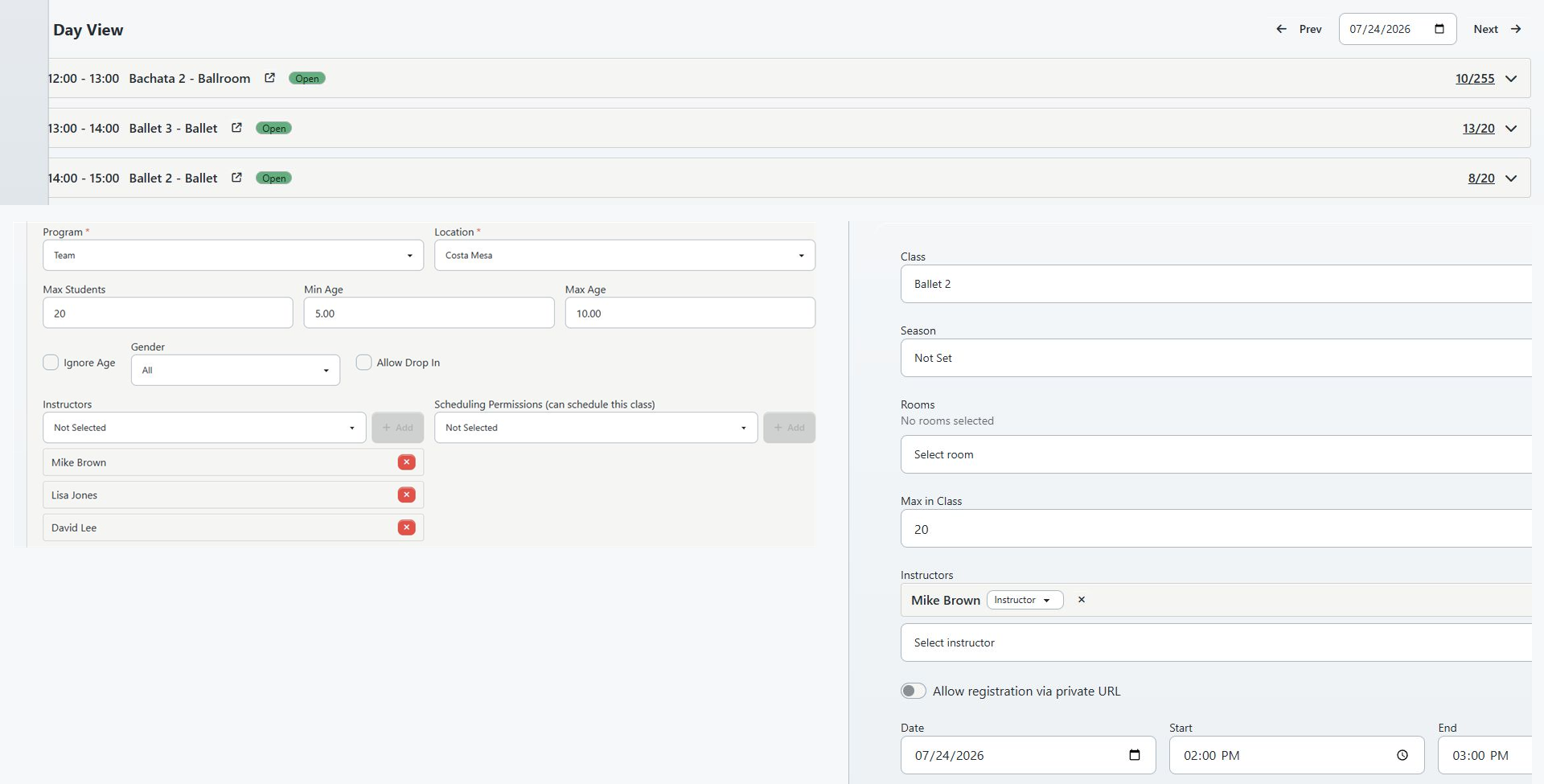
Day View groups an occurrence by its start date. An occurrence that starts before midnight and ends after midnight belongs to the date on which it started; it does not appear again as a new row on the next day.
Teaching also divides upcoming and history by the occurrence start. Its range calculation comes from the studio database clock, while a Day View opened without an explicit date can begin from the application clock, and the Teaching link interprets a displayed timestamp in the browser before building its Day View date. These clocks can disagree near midnight or a daylight-saving transition.
For a late-night, overnight, or time-sensitive reconciliation:
- Select an explicit date in Calendar or Day View instead of relying on the default day.
- Record the displayed start and end timestamp from Teaching.
- Confirm the studio time-zone setting.
- Open the exact schedule ID and compare its stored date and time.
- Check the adjacent date when an expected overnight occurrence is absent.
- Report a repeatable boundary mismatch with the studio time zone, browser time zone, schedule ID, timestamp, and the two screens used.
#Use Day View and Teaching on a phone
Day View changes its roster from a table to stacked student cards on a narrow screen. Schedule actions can reduce to icons, and selected-student email, SMS, or removal actions move under More. The date, schedule, and attendance state remain the critical orientation points.
- Select the occurrence instead of relying on a right-select or long-press Calendar action.
- Read the card's accessible label or icon title before selecting an icon.
- Do not select a status while scrolling. When status controls are writable, one selection can save immediately.
- Clear selected students before moving to another task.
- Use a desktop for large rosters, exports, print review, schedule edits, and assignment reconciliation when possible.
On a narrow Staff profile, the profile tabs can become a section selector. Choose Teaching, then scroll each table horizontally to see all columns. Teaching does not turn its tables into student-style cards.
#Confirm the review result
For Day View:
- Recheck the date in the header.
- Recheck the source Calendar location because Day View does not display it.
- Confirm the schedule ID, class, time, instructors, capacity interpretation, and roster.
- Confirm schedule status in Calendar or the schedule record; do not use the capacity badge.
- If you printed, exported, messaged, enrolled, used the cart, or edited, verify that separate workflow before closing the record.
For Teaching:
- Recheck the instructor profile and staff ID.
- Confirm whether your evidence came from Classes Assigned or the dated schedule panel.
- Confirm the range and every relevant page.
- Open the exact schedule ID in Day View.
- Confirm location, schedule status, dated instructors, and instructor role in Calendar and the schedule record.
#Recover from an unintended action
Changing a date, range, page, or expanded card does not change schedule data. If you used an action from the expanded roster, stop before trying an opposite action as an informal undo.
| Unintended action | First recovery step |
|---|---|
| Attendance status changed | Record the old and new statuses and use the attendance correction procedure. Check purchase usage, fees, scheduled payments, and message history; do not keep toggling the status. |
| Student added or removed | Record schedule and student IDs. Reconcile class enrollment, dated roster, purchases, waitlist position, ledger, and messages before restoring relationships. |
| Item added to Shopping Cart | Open the exact student's staff cart, confirm no checkout occurred, and remove only the unintended line through the approved cart procedure. |
| Message workflow opened | Stop before Start Sending. Verify recipients, type, template, and class context. If sending began, use message history and delivery records rather than sending a correction immediately. |
| Schedule edited | Record the schedule ID and the before/after date, time, class, location, room, instructors, capacity, and roster. Use the one-occurrence correction and reconciliation procedure. |
| CSV downloaded or roster printed | Secure the file or page immediately, confirm who received it, delete or dispose of unauthorized copies, and follow the studio's privacy-incident procedure when disclosure may have occurred. |
#Troubleshooting
#Day View contains schedules from the wrong location
The page does not show an active location label. Return to Calendar, select the correct location or location panel, and reopen the event. If the Day View address has no location scope, it can show all locations.
#Calendar instructor or genre filters appear to be ignored
Those filters apply to Calendar and do not carry into Day View. Open the exact event or reconcile the dated instructor through Teaching and the schedule editor. See Use Calendar views and filters for the Calendar filter boundaries.
#Open is displayed on a cancelled occurrence
Open is a capacity label. Confirm the cancellation in Calendar or the schedule record and do not take attendance or add students until the operational status is clear.
#The roster count and enrolled count differ
The numerator counts only capacity states, while the roster can include waiting, cancellation, no-show, or other attendance states. Review the row labels. Do not change statuses merely to make the two counts match.
#Attendance or removal controls are unavailable
Follow the visible safety notice. Existing attendance can be reviewed, but do not bypass the containment. Record the needed correction and ask the owner or support contact when the controlled workflow will be available.
#Teaching shows no schedules
Try All Upcoming and History, increase the page size, and check each page. Then confirm the exact instructor profile, the dated instructor assignment, and the schedule status. A class-level assignment alone does not create a dated assignment.
#This Week does not match the calendar week
The current This Week range means the next seven days from the present time. Use All Upcoming or Calendar for a calendar-week review.
#A Teaching schedule moves to History while the class is still running
Teaching classifies rows by start time. Once the occurrence has started, it belongs to History even before its end time.
#A Teaching link opens the wrong day near midnight
Select the explicit stored date in Day View and compare the schedule ID, studio time zone, browser time zone, and raw Teaching timestamp. Report repeatable mismatches rather than editing the occurrence to make one screen agree.
#Export or print contains unexpected students
The per-schedule output can include active roster relationships in statuses that do not count in the capacity numerator. Secure the output, compare it with the expanded roster, and use the attendance or enrollment workflow for any correction.
#An extremely large day or roster looks incomplete
The current Day View day list and on-screen roster each stop at 2,000 records. Do not treat the last visible row as proof of completeness at that scale. Record the date, location, schedule ID, visible count, and expected count and contact support for a controlled export or query.
#The Day View shell opens but schedules fail to load
The page shell and its schedule feed have separate authorization and loading paths. Reload once, then return to Calendar and confirm your role. If the problem repeats, report the tenant, date, location, role, URL, and visible error; do not use another person's login as a workaround.
#Related articles
- Use Calendar views and filters
- Create and manage Calendar events
- Record attendance and use class rosters
- Manage class instructors and substitutes
- Create and maintain class schedules
- Manage class capacity, waitlists, and drop-ins
- Add and manage staff
- Choose message recipients and send safely
- Roles and permissions overview
- Use the Shopping Cart and complete checkout