Settings
Configure coupons and multi-class discounts
#Choose the right discount
These settings create different kinds of rules.
| Feature | How it starts | What the settings page proves |
|---|---|---|
| Coupons | A client or staff member enters a Coupon Code during a supported checkout workflow. | The coupon definition was saved and is active. It does not prove that a particular cart is eligible. |
| Multi-Class Discounts | The pricing workflow evaluates the qualifying class count and pricing level when the related discount settings are enabled. | The threshold row was saved. It does not prove that a particular tuition run or cart uses that rate table. |
| Shopping Cart discount | Authorized staff enter a percent or fixed amount in the current staff cart. | A one-cart adjustment, not a reusable coupon or class-count rule. |
Important: Configuration and checkout validation are separate steps. A saved rule can still be unavailable or produce no discount because of a feature setting, date, status, class, category, pricing level, cart contents, client history, or another pricing rule.
#Before you begin
- Write down the business rule in plain language, including who qualifies and what should not be discounted.
- Record the current item and class prices and every related discount rule.
- Decide whether the value is a fixed Amount or Percentage.
- Choose a future expiration date for a coupon. The current form requires Date Expire.
- Prepare one eligible and one ineligible fictional cart.
- Include one-, two-, and three-class examples when changing progressive class discounts.
- Decide how coupons may combine with automatic, personal, account-credit, gift-card, or staff-entered reductions.
Warning: Saving or editing a discount can reduce charges created by registration, checkout, or tuition. Deleting a multi-class rule removes the row instead of archiving it. Confirm the intended prices before changing a live rule.
#Create a coupon
- Select Settings > Coupons.
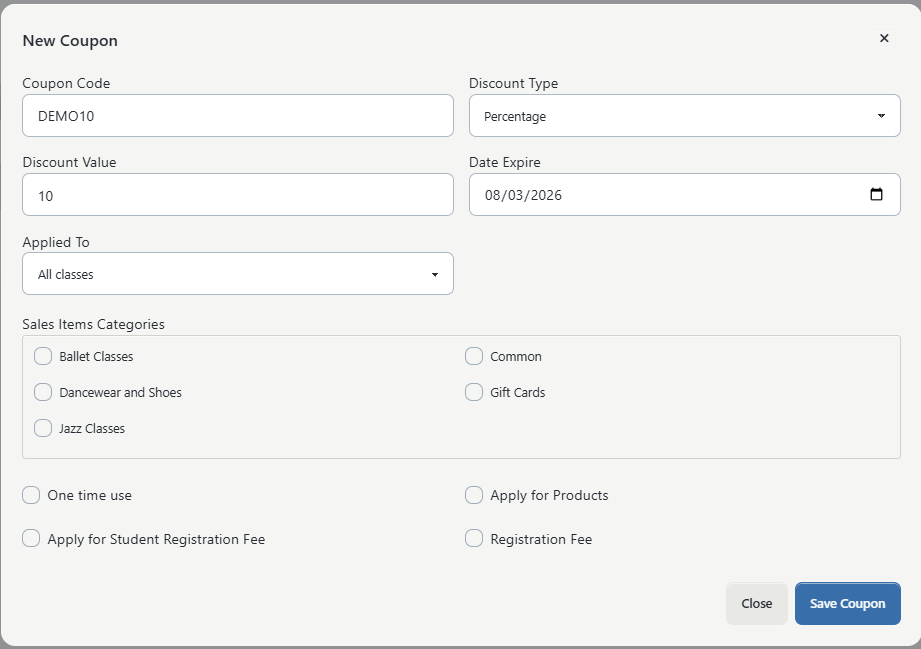
- Select Add New.
- Enter the client-facing Coupon Code exactly as it should be typed.
- Under Discount Type, choose Amount or Percentage.
- Enter Discount Value.
- Set Date Expire to a future date.
- Under Applied To, choose All classes, Only selected classes, or Exclude selected classes.
- When a selected- or excluded-class option is used, choose the appropriate entries under Classes.
- When the coupon should be limited to merchandise or other Sales Items, review Sales Items Categories.
- Review every conditional checkbox shown for this studio.
- Select Save Coupon.
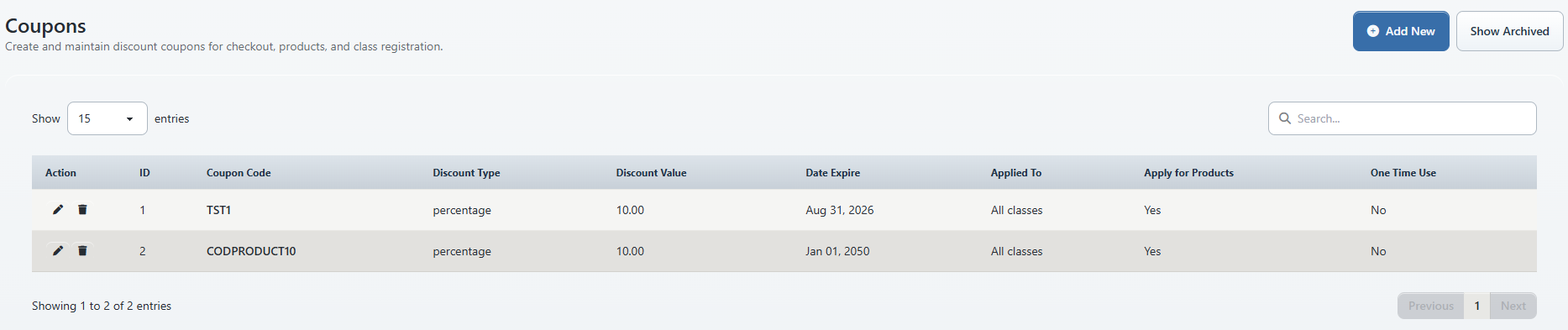
- Confirm Coupon added and find the code in the active list.
Use a code that a client can type reliably, but do not put private information in the code. Avoid ambiguous characters when staff may read it over the phone.
Important: The current software requires Date Expire, and checkout requires the coupon to have a future expiration. Do not follow older instructions that say an expiration can be left blank for an ongoing coupon.
#Understand the coupon controls
The exact checkboxes depend on the studio's schema and enabled features.
| Control | Meaning to verify |
|---|---|
| One time use | Prevents another accepted use for a client context after recorded usage is found. Test with a fresh fictional client and with one that already used the code. |
| Apply for Products | Allows the coupon to participate in supported product pricing. Product eligibility can still depend on Sales Items Categories. |
| Apply for Room Booking | Allows the coupon to participate in room-booking pricing when Online Client room booking is enabled. |
| Apply for Student Registration Fee | Allows the coupon to affect the student registration fee in supported checkout paths. |
| The studio-specific registration-fee checkbox | Allows the coupon to affect the class registration fee. Its on-screen label can be customized. |
| Ignore Charge Categories | Excludes the selected charge categories when the related coupon setting is enabled. |
An unavailable checkbox is not proof that the underlying workflow is unavailable everywhere. The column or feature flag can differ by studio.
For Percentage, use a policy-approved value from 0 through 100. The settings form accepts non-negative numbers, but a technically accepted value is not necessarily a sensible financial rule.
#Validate the coupon at checkout
- Sign in to the Online Client with a fictional client that has not used the code.
- Add an item that should qualify.
- Record the total before the coupon.
- Enter the exact Coupon Code.
- Apply the coupon and confirm the discount appears in the cart quote.
- Compare the reduction with the approved calculation.
- Remove the coupon and confirm the original quote returns.
- Build an ineligible cart, such as an excluded class or unselected Sales Item category.
- Apply the same code and confirm the cart does not receive the discount.
- If staff need to honor the same campaign, document and test the approved staff workflow separately. Do not assume the Online Client coupon-code control is present in the staff Shopping Cart.
The current Online Client validation checks that coupons are enabled, the code is active, the expiration is in the future, and a one-time coupon has not already been recorded for that client context. It then recalculates the cart. If the resulting coupon amount is zero, the software removes the coupon from the session and reports that it is not applicable to the items in the cart.
Important: A message that the coupon was saved on Settings > Coupons is not a checkout result. A message that a coupon was applied is still not a completed purchase. Confirm the final order, charge, and discount records after an approved checkout test.
#Edit, archive, or restore a coupon
To edit a coupon, select its pencil action, update the approved fields, and select Save Coupon. The current form updates the existing definition; it does not create a dated version of the old rule.
To stop future use without losing the row, select the archive action. Use Show Archived to review archived coupons and the restore action to make one active again.
Warning: Restoring a coupon can make its code valid again when the expiration and cart eligibility also pass. Review the complete rule before restoring it.
Changing a coupon does not recalculate or reverse completed purchases. Use the appropriate financial correction workflow for an existing charge or payment.
#Add a multi-class discount rule
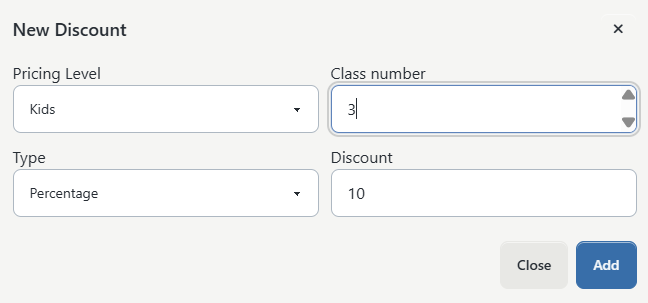
- Select Settings > Multi-Class Discounts.
- Select Add New.
- Choose Pricing Level. Use Not Selected only for the intended default scope.
- Enter Class number as the qualifying class-count threshold.
- Under Type, choose Amount or Percentage.
- Enter the reduction under Discount.
- Select Add.
- Confirm the row appears with the intended Pricing Level, Description, and Discount.
The current rate-table paths treat Class number as a threshold: they can select the highest configured class number that does not exceed the qualifying count, preferring the applicable pricing level and then a default Not Selected rule where supported.
For example, a studio might configure a two-class rule and a three-class rule. Validate one class, exactly two classes, exactly three classes, and a count above the highest rule. Do not assume the label on the settings page proves how another tuition or cart mode groups the count.
The current settings page prevents a second row with the same Pricing Level and Class number in its preferred rate-table shape.
#Validate a multi-class rule
- Confirm the studio's active discount strategy and cart-display settings use multi-class discounts.
- Use a fictional family with known pricing-level assignments.
- Quote one qualifying class and record the result.
- Add classes until the first configured Class number is reached.
- Confirm the expected Amount or Percentage appears.
- Add another class and confirm which threshold is selected.
- Test a different pricing level.
- Test a class marked to exclude discounts, a wait-list item, and a different billing schedule when those states matter.
- Compare the cart quote with a controlled tuition preview if both workflows must agree.
Class counts can be grouped by student or family and by billing schedule, depending on the studio's pricing settings and workflow. The final quote is the observable result; the presence of a rate row alone is not proof that it was selected.
#Edit or delete a multi-class rule
Select the pencil action to open Edit Discount, then select Save after reviewing all four fields.
Select the delete action only when the rule should be removed.
Warning: Delete removes the multi-class discount row; this page does not provide an archive or restore list. Record the old values before deleting. A removed rule can change prices the next time a cart or tuition calculation runs.
Entering a zero Discount creates an explicit zero-value rule. It is not the same as deleting the threshold, and the page warns that a zero rule can cause the class price to be used. Validate the exact count before relying on zero as a boundary.
#What happens next
- A new coupon is active by default when the studio supports an active-status column.
- Checkout evaluates the saved coupon only after the code is entered in a supported workflow.
- An accepted coupon is held in the current client session until it is removed, rejected by a new quote, or handled by checkout.
- Recorded coupon use can prevent a later One time use attempt.
- A multi-class row becomes available to pricing paths that are configured to use the corresponding rate table.
- Editing either feature affects later calculations; it does not automatically rewrite completed transactions.
#Confirm it worked
For a coupon, confirm all of the following:
- the active row shows the expected code, type, value, expiration, and one-time state;
- an eligible fictional cart shows the expected discount;
- an ineligible cart receives no discount;
- an archived or expired code is rejected; and
- the completed test order stores the expected charge and discount.
For a multi-class rule, confirm:
- the row shows the intended pricing level and threshold;
- the rate appears at the intended count and not below it;
- the next threshold behaves as expected;
- student/family grouping matches studio policy; and
- the controlled cart or tuition preview agrees with the approved worksheet.
#Troubleshooting
#A saved coupon is reported as invalid or expired
Confirm coupons are enabled, the code matches exactly, the row is active, and Date Expire is in the future. Then check whether a duplicate code or older active row exists.
#The code is valid but is not applicable to the cart
Review Applied To, Classes, Sales Items Categories, product, room-booking, registration-fee, and ignored-charge-category choices. Confirm the cart contains an eligible subtotal after other discounts.
#A one-time coupon is rejected during testing
The fictional client may already have recorded usage. Use a new fictional client or review the coupon-use records with an authorized finance administrator. Do not delete a real client's history just to repeat a test.
#The multi-class discount does not appear
Confirm the studio is configured to use multi-class discounts in this workflow, the cart-display option is enabled when required, the class count and pricing level match a saved threshold, and the item is not wait-listed or marked to exclude discounts.
#The discount amount is unexpected
Check whether the rule is Amount or Percentage, which threshold and pricing level were selected, whether the calculation groups by student or family, and which other discounts run before the coupon. Rebuild the cart from a known starting state.
#A multi-class rule cannot be added
The same Pricing Level and Class number may already exist, or the value may be missing or negative. Edit the existing row instead of creating an overlapping duplicate.
#A completed purchase has the wrong discount
Do not change the setting and repeat checkout. Review the purchase, charge, discount, payment, and processor result first, then use the approved correction workflow.