Settings
Create and publish a season
#Before you begin
- Choose the season name, class date range, and general enrollment opening date and time.
- Decide whether selected member categories receive earlier enrollment.
- Review the studio's class-registration fees and student-registration fees.
- Decide whether the season will be hidden while staff build and test schedules.
- Create the genres and member categories the season will use.
Important: Season visibility, season status, registration blocking, class Online Client Registration, schedule dates, capacity, and studio-wide Online Client settings are separate controls. No single switch guarantees that a class is visible and registrable.
Warning: Opening enrollment can expose classes and fees to clients. Build with Visible for Client off, then test with a fictional client before opening a live season.
#Understand the season controls
| Control | What it does |
|---|---|
| Name | Identifies the season in class schedules, filters, ledgers, and reports. |
| Start / End | Defines the season date range. End cannot be before Start. |
| Enrollment Start | Sets the general date and time when enrollment can begin. |
| Status | Offers Not Active, Set Course, and Open Enrollment. Not Active is treated as archived and is omitted from the normal season list. |
| Block Registrations: No | Applies no season-level registration block. Other eligibility rules still apply. |
| Block Registrations: New | Is intended to limit registration to existing member accounts. This path still needs end-to-end Online Client verification. |
| Block Registrations: All | Blocks registration at the season level in the current admin enrollment path. Verify every client entry path before relying on it as the only closure control. |
| Visible for Client | Makes the season eligible for client-facing display. It does not override class, schedule, date, or registration rules. |
| Charge Student Registration Fee | Enables the season to participate in the student-registration-fee workflow. It does not charge accounts merely because the season was saved. |
| Allow Wait List | Enables the season's waitlist option. A class also has its own waitlist setting. |
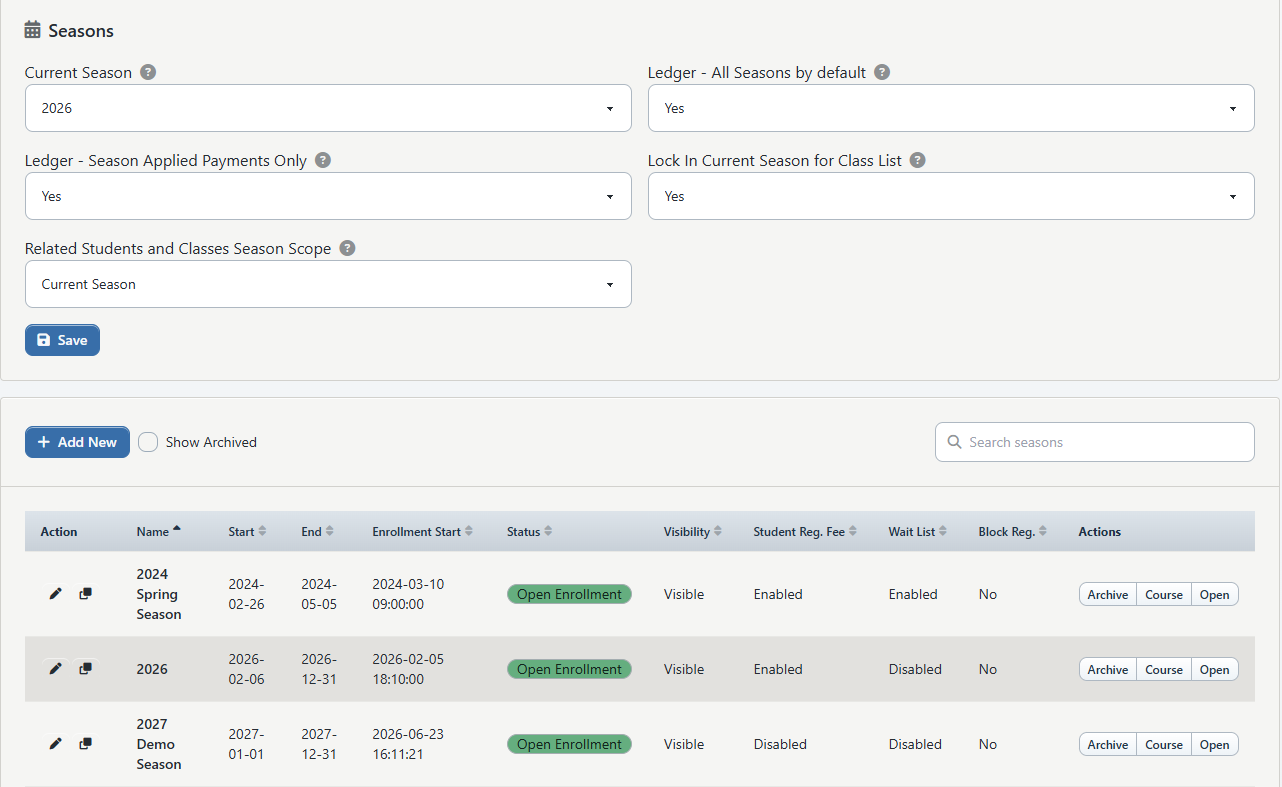
The page can also show Current Season and ledger/class-list scope settings above the season list. These affect what staff see by default across multiple workflows. Change them separately from creating a season, and verify the class list, related students/classes, and ledger afterward.
#Create a closed season
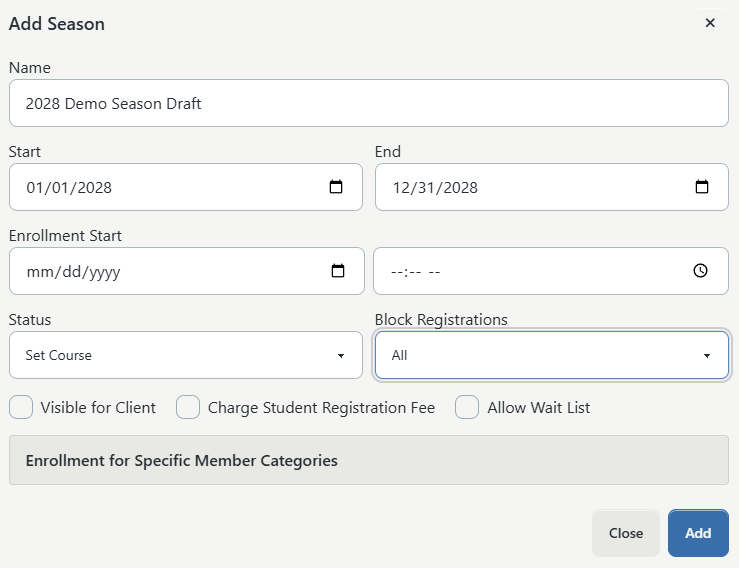
- Open Settings > Seasons.
- Select Add New.
- Enter Name, Start, and End.
- Enter the general Enrollment Start date and time.
- Select Set Course as the working status while building the season.
- Set Block Registrations to All during setup.
- Leave Visible for Client off.
- Select Charge Student Registration Fee and Allow Wait List only when those policies have already been approved.
- If Enrollment for Specific Member Categories appears, enter any approved early-access times.
- Select Add.
Current validation requires a member category's enrollment start to be on or before the general season enrollment start. Use this section for earlier access, not a later opening date.
#Review the genre registration-fee table
After the season exists, edit it to open Registration fees. This table stores an amount by season and genre.
- Select Genre.
- Enter Fee.
- Select Add Fee.
- Repeat only for genres that should have a distinct season fee.
Adding a second fee for the same season and genre updates the existing amount. The trash action removes that genre fee.
Important: Current source confirms that this table can save, delete, and clone its rows, but the inspected DSM Next checkout and student-registration-fee services do not read this table. Its live charging effect remains unverified. Do not promise or publish a genre-specific fee based only on this screen; confirm the cart line and resulting charge in a controlled demo first.
Warning: Dance Studio Manager has separate class-registration-fee and student-registration-fee concepts, and a checkout can contain distinct fee line items. Review the class Registration Fee, the season's Charge Student Registration Fee, related global fee settings, and any legacy genre-fee rows together. Use a fictional cart to confirm the intended total before opening enrollment.
#Add and review class schedules
Create the group class, then add recurring or single-date schedules using this season. Confirm that:
- schedule dates fall inside the intended range;
- rooms and instructors are correct;
- class capacity and waitlist policies agree with the season;
- the class registration mode is appropriate; and
- the Online Client shows the correct price, fee, and action for an eligible fictional student.
#Open the season
- Edit the season after its schedules and checkout behavior pass review.
- Confirm the enrollment opening date and any member-category early access.
- Confirm Block Registrations is No, unless an intentional restriction is still required.
- Select Visible for Client.
- Change Status to Open Enrollment.
- Select Save.
- Check the Online Client as both a signed-out visitor and a signed-in fictional client.
Treat the sequence above as a launch checklist, not proof of availability. The live mutation and registration path still needs to be verified before this draft is published.
#Clone a season
Use Clone when the next season should begin with selected parts of an existing season.
The current clone form can copy:
- member-category enrollment timestamps;
- genre registration fees; and
- schedules, when Copy Schedules is selected.
Copy Member Categories Enrollment and Copy Genre Registration Fees are selected by default. Copy Schedules is not. Skip past dates is selected by default when schedules are copied.
Warning: Cloning creates a new season record. Copied member-category timestamps and genre fee amounts are carried over unchanged, so review every date and amount. Schedule copying reuses the existing class records and builds matching weekly schedules in the new date range; it does not copy student enrollments, attendance, charges, purchases, or a new set of class records.
Warning: A Season cloned confirmation proves that the season record was created. Optional schedule copying is handled separately and can fail without changing that confirmation. Open each affected class's Schedules tab and verify the expected count, dates, rooms, instructors, and capacity before using the clone.
#Archive or restore a season
Use Archive to set a season to Not Active and remove it from the normal list. Select Show Archived to view inactive seasons, then use Restore or Open to reactivate one.
Archiving is not deletion. Historical schedules, enrollments, ledger entries, purchases, and reports can still refer to the season.
#What happens next
The season becomes available to schedule creation, class and finance filters, ledgers, questions, reports, and registration rules according to its status and the studio's configuration. Saving the season does not create class schedules or enroll students.
#Confirm it worked
- Find the season in the normal list and confirm Start, End, Enrollment Start, Status, Visibility, fee, waitlist, and registration-block columns.
- Open one class schedule assigned to the season.
- Test one eligible fictional client and one intentionally ineligible client.
- Review the cart before checkout to confirm pricing and every fee line.
- If the season was cloned, compare schedule counts and a sample of dates, rooms, and instructors with the source plan.
#Troubleshooting
#The season is missing from the normal list
Select Show Archived. A Not Active season appears only in the archived view when the studio supports season status.
#The member-category enrollment date will not save
It must be on or before the general season Enrollment Start. Clear it if the category does not receive early access.
#A class is not visible or cannot be registered
Check season visibility, status, enrollment start, registration blocking, schedule dates, class Online Client Registration, member eligibility, capacity, class and season waitlist settings, and studio-wide Online Client settings.
#A cloned season has missing schedules
Confirm Copy Schedules was selected and that the target season has valid start and end dates. Review the class Schedules tabs; do not repeat the clone until you know whether the first attempt created a season or partial schedules.