Settings
Create and maintain categories
#Before you begin
- Decide which Top Category the new value belongs to.
- Search for an existing value before adding a near-duplicate.
- Agree on short, consistent names and a useful display order.
- Review records and reports that already use a category before renaming, moving, or archiving it.
Common top categories include class genres, levels, programs, locations, billing schedules, charge categories, payment categories, member categories, and Sales Item or inventory categories. The exact list and labels are studio-defined, so your screen may differ.
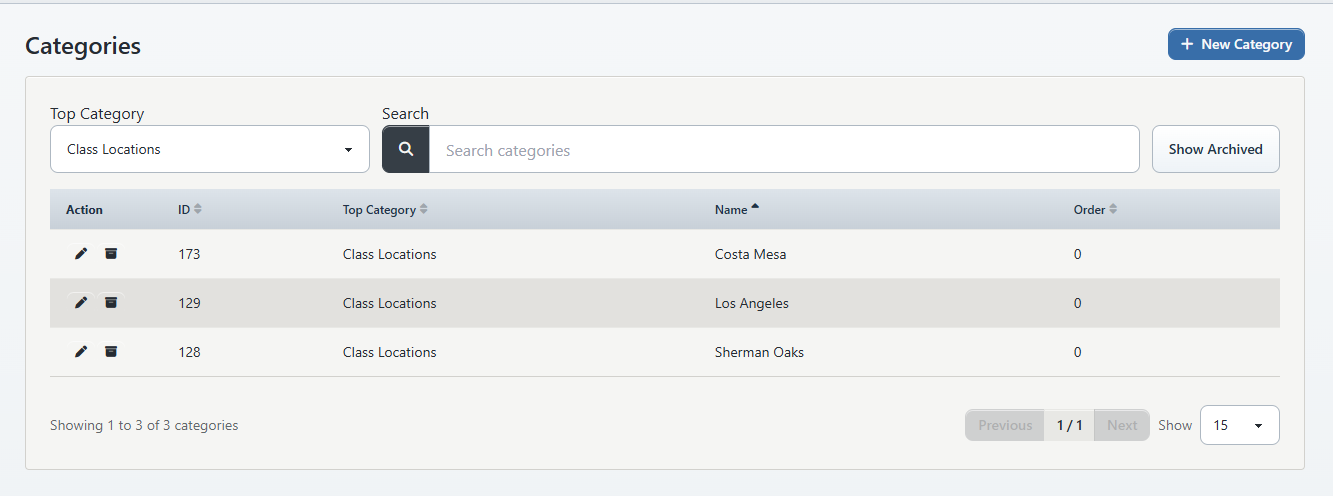
Warning: Changing Top Category changes the category's purpose. A value moved from one top category to another can disappear from the original forms and appear in an unrelated workflow. Create a replacement and migrate dependent records when the intended meaning is changing.
#Add a category
- Open Settings > Categories.
- Select the intended Top Category.
- Use Search to confirm the value does not already exist under a slightly different name.
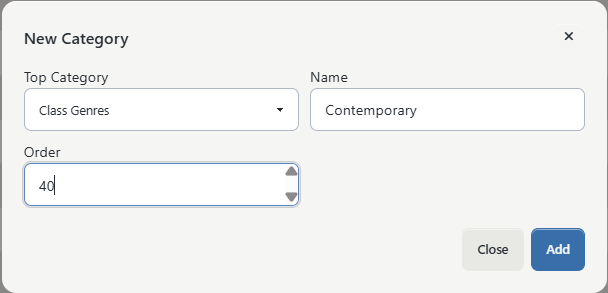
- Select New Category.
- Confirm Top Category, then enter Name.
- Enter Order when it is available. Use a numbering pattern that leaves room for future values, such as 10, 20, and 30.
- If icon fields appear, choose the shape, colors, and one-character label used for that member category.
- Select Add.
The icon controls are conditional. Current source shows them for the membership category group when the studio's category schema supports icons; they are not expected for every top category.
#Field reference
| Field | What it controls |
|---|---|
| Top Category | The parent list and business purpose for the value. |
| Name | The label shown in forms, filters, lists, and reports that use this category. |
| Order | The relative position in category-driven option lists when the studio supports ordering. |
| Icon Shape | An optional visual marker for supported member categories. |
| Shape Color | The icon background color. |
| Icon Letter | A single character shown in the icon. |
| Letter Color | The icon letter color. |
#Edit a category
- Select the intended Top Category and find the row.
- Select the row's Edit action.
- Change only the fields you intend to update.
- Select Save.
- Open one dependent form and one relevant report to confirm the result.
Renaming a category updates the reusable label; it does not create a new historical category. If the old and new meanings need to remain distinct in reporting, add a new category instead of renaming the old one.
#Archive or restore a category
Use the row's Archive action when a value should no longer be available for routine selection. Select Show Archived to find it again, then use Restore if it should return to active lists.
Warning: Archiving is not deletion, but many forms load only active categories. Existing classes, charges, purchases, clients, or reports may still refer to the archived category while staff can no longer select it for new records. Review those dependencies before archiving.
#What happens next
The saved category becomes available to workflows that use its top category and active status. Availability can also depend on the studio schema, settings, and the signed-in role. A category does not configure the workflow by itself: for example, adding a billing schedule name does not set a class price, and adding a charge category does not create a charge.
#Confirm it worked
- Return to the intended Top Category and locate the saved row.
- Confirm its name, order, and icon preview when applicable.
- Open a dependent record, such as a class form for genre, level, program, location, or billing schedule.
- Confirm the new value appears once and under the correct label.
#Troubleshooting
#The top category or value is missing
Check Show Archived, clear Search, and confirm that the signed-in group has settings access. Some category groups and fields depend on the studio's data and schema.
#The category appears in the wrong form
Edit it and inspect Top Category. Moving it back may restore the expected placement, but first confirm that no records were created while it was under the wrong parent.
#A renamed or archived value still appears in history
That is expected when existing records retain the category reference. Use the relevant report or list filters to decide whether those records should stay historical or be migrated by an administrator.
#Related articles
- Settings overview
- Create, use, and retire studio locations safely
- Configure, collect, and reconcile Referral Sources
- Configure Size Systems and verify size suggestions
- Create, assign, and verify Member Categories
- Manage poll questions and review answers
- Create and publish a season
- Create a group class
- Manage class prerequisites and student completion
- Your first 30 minutes