Sales
Manage inventory variants and stock
#Before you begin
- Create the underlying Sales Item first.
- Confirm the Sales Item is active and visible so it can be selected when creating an inventory variant.
- Add the required inventory sizes, inventory colors, and studio locations under the studio's category settings.
- Decide whether each variant uses the Sales Item price or its own sale price.
- Record the opening quantity for each location from a counted inventory source.
Warning: Adding, editing, or deleting a stock row changes the quantity shown as available. Archiving a variant can remove it from normal selling choices. Make inventory corrections from an approved count and verify the correct variant and location before saving.
Important: The current Inventory selector excludes Sales Items that are not both active and visible, and the Sales Item Sell Online and Visible controls are synchronized. For a product that is not ready for public sale, prepare it in a controlled demo or use a future sale window and test-only eligibility. Confirm from a normal fictional client that the product cannot be bought before creating its stock.
#Understand the inventory records
Inventory uses two related records:
| Record | What it defines |
|---|---|
| Inventory item | The Sales Item, size, color, sale price, wholesale price, active status, and optional photo for one variant. |
| Inventory stock row | A quantity recorded for one inventory item at one location and date. |
Create a separate inventory item for each variant clients or staff must choose, such as Youth Medium / Black and Youth Large / Black.
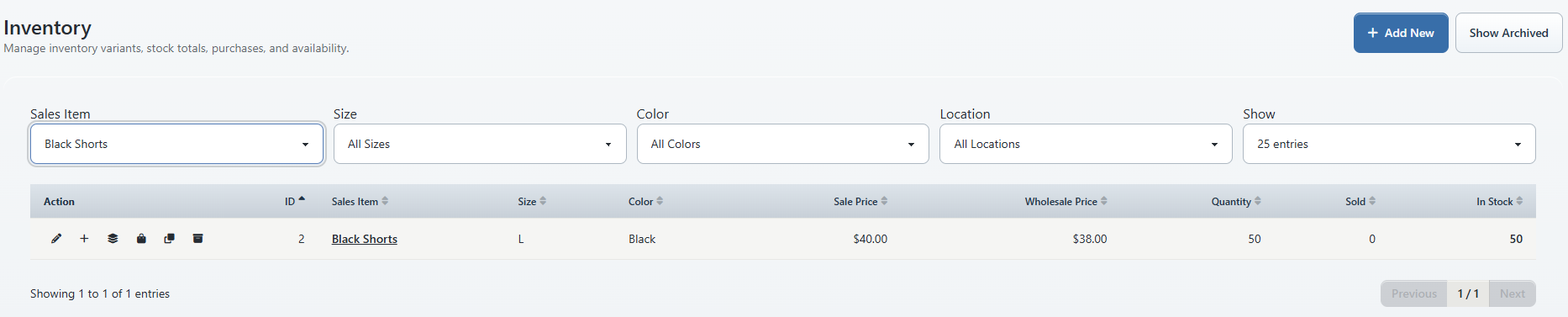
The Inventory list currently summarizes:
| Column | Current calculation |
|---|---|
| Quantity | Sum of stock-row quantities for the variant. When a Location filter is selected, only that location's stock is counted. |
| Sold | Number of purchase records connected to the variant, filtered by location when applicable. |
| In Stock | Quantity minus Sold, with a minimum displayed value of zero. |
Important: Sold is a purchase-record count in the current list, not a sum of line-item quantities. Reconcile unusual totals with Purchases and the inventory reports before making a stock correction.
#Create a variant
- Open Inventory.
- Select Add New.
- Under Sales Item, select the product definition this variant belongs to.
- Under Sale Price, either enter the variant's price or select Use item price.
- Enter Wholesale Price when the studio tracks product cost there.
- Select Size and Color. Leave either unselected only when it is not part of the product variation.
- Set Status to Active.
- Select Create Item.
When Use item price is selected, the inventory record stores a zero variant price and the Inventory list uses the Sales Item's current price. A separate variant price overrides that value for the variant.
Warning: Changing the Sales Item price can therefore change the effective price for every variant using Use item price. Review all affected variants and a fictional cart before publishing the change.
#Add stock at a location
- Return to Inventory and find the variant.
- In Action, select Add Stock.
- Confirm the read-only Inventory Item label.
- Select Location.
- Enter Quantity.
- Review Date. Leave the current date and time unless the studio is recording an approved historical count.
- Select Add.
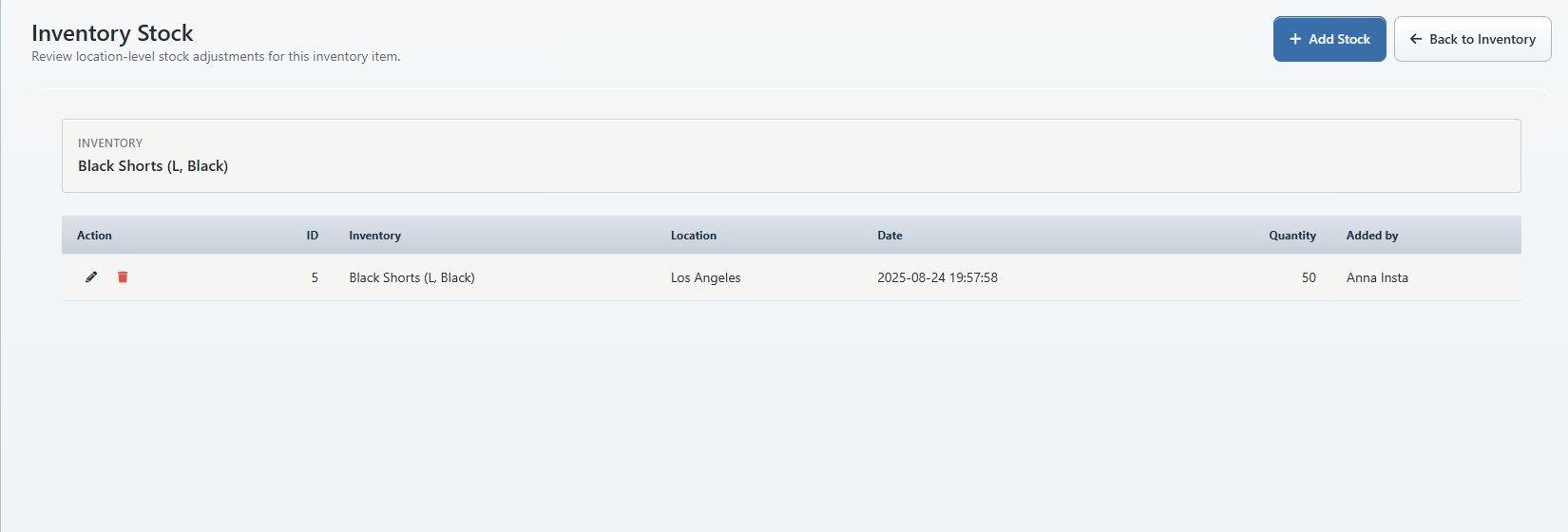
- On Inventory Stock, confirm the new row's location, date, quantity, and Added by value.
Repeat these steps for each location that holds the variant.
Important: The stock form accepts a numeric quantity and records it as a stock row. Use the studio's agreed method consistently—opening receipt, shipment, or adjustment—and do not enter a replacement total when the process calls for an incremental stock row.
#Review and filter inventory
The Inventory page can be filtered by:
- Sales Item;
- Size;
- Color;
- Location; and
- active versus archived records through Show Archived and Hide Archived.
Select a sortable column heading to change the order. The row actions provide:
| Action | Result |
|---|---|
| Edit | Changes variant price, size, color, status, and an optional photo. |
| Add Stock | Creates a new location stock row. |
| Stock | Opens the list of existing stock rows for the variant. |
| Purchases | Opens Purchases filtered to the related Sales Item. |
| Clone | Copies the variant definition as an active inventory item. |
| Archive / Restore | Changes the variant's active status. |
The Sales Item name in the table opens that item's Sales Item setup.
#Correct a variant or stock row
#Change variant details
- Select Edit for the variant.
- Review the fixed Sales Item name.
- Correct Sale Price, Use sales-item price, Wholesale Price, Size, Color, or Status.
- Select Save Item.
- Confirm Inventory updated and recheck the list and a fictional cart.
#Change an existing stock row
- Select Stock for the variant.
- Select Edit on the exact stock row.
- Correct Location, Quantity, or Date.
- Select Save.
- Return to Inventory and confirm the totals.
Warning: Editing a stock row rewrites that row. Deleting it removes the row after confirmation. Either action changes the available total and can also change who appears to have recorded the current quantity. Preserve the reason and original value in the studio's inventory audit process.
#Clone or archive a variant
- Clone copies the connected Sales Item, size, color, prices, supported identifiers, status, and photo into a new active inventory item.
- It does not copy the source variant's stock rows. Add stock to the clone only after changing it to the intended new variant.
- Archive sets the variant inactive and hides it from the normal Inventory list. It does not delete its purchase or stock history.
- Use Show Archived, then Restore, to reactivate it.
Warning: A clone initially has the same visible variant details as its source. Edit it immediately before staff or clients can confuse the two.
#Add or replace a photo
When inventory photos are enabled, open Edit for the variant.
- Under Photo, choose Upload JPEG photo.
- Select a JPEG file no larger than 5 MB.
- Select Upload Photo.
- Confirm the image belongs to the correct size/color variant.
Delete Photo removes the current image after confirmation. Do not upload images containing personal information, order paperwork, labels with client addresses, or other sensitive details.
#Confirm it worked
- Filter Inventory to the Sales Item, size, color, and location.
- Confirm the effective Sale Price, Wholesale Price, Quantity, Sold, and In Stock values.
- Open Stock and reconcile each location row with the approved count or receipt.
- Open Purchases from the row and compare a representative sale.
- Build a fictional Shopping Cart, choose the intended location and variant, and verify availability and price.
- If the product is sold through the Online Client, repeat the check as an eligible fictional client.
#Troubleshooting
#The Sales Item is missing from Add Inventory Item
The selector uses active, visible Sales Items. Confirm the Sales Item is not archived. If it is intentionally not public yet, use a controlled demo or a future sale window and test-only eligibility rather than exposing it broadly just to create a variant.
#A size, color, or location is missing
Confirm that the category value exists and is active under the correct top-level category. Location stock uses active studio locations.
#The sale price changed unexpectedly
Open Edit and check Use sales-item price. If it is selected, the effective value follows the Sales Item price. Otherwise, the variant's own Sale Price is used.
#In Stock does not match the physical count
Filter to one location, compare Stock rows with Purchases, and remember that Sold currently counts purchase records. Do not add an unexplained balancing row until the discrepancy is understood.
#The clone has no stock
That is expected. Cloning copies the variant definition and supported photo, not its location stock rows.
#A variant is missing from the normal list
Select Show Archived. If the item is present and should be sellable again, review it before selecting Restore.