Classes
Edit a group class safely
Some controls on this page can deliberately copy a change to many related records. Review the complete impact before selecting Save changes.
Important: The class editor has no preview or undo. Three optional checkboxes can rewrite enrollment pricing or future schedule data in bulk. Leave them off during an ordinary details edit.
#Know what belongs on Details
The class record and its related operational records are edited in different places:
| Change needed | Use | Do not expect from Details |
|---|---|---|
| Code, type, genre, level, program, category, location, default room, age range, gender, or color | Details | A new class, season, or schedule |
| Class-level capacity and registration rules | Details | Existing enrollments to be removed or waiting students to be promoted |
| Billing Schedule prices or the choice between Billing Schedule and Sales Items | Details | Existing charges, purchases, payments, or Sales Item assignments to be corrected automatically |
| Season, date range, meeting dates, days, times, schedule room, occurrence instructor, exception, cancellation, or occurrence capacity | Schedules | A date or time change from the class definition |
| Add, remove, or change a student's enrollment status, billing schedule, or individual price | Students and the approved enrollment workflow | A roster change from age, capacity, instructor, or registration-rule edits |
| Assign an item or package that sells the class | Sales Items | Assignment from choosing Sales Items as the payment method |
| Add or correct class-linked charges | Charges and the approved finance workflow | A financial correction from editing the class price |
| Retire or reactivate the class | Action > Archive Class or Restore Class | Archiving from Save changes |
| Start a separate class from selected settings | Clone Class | A duplicate class from editing the existing record |
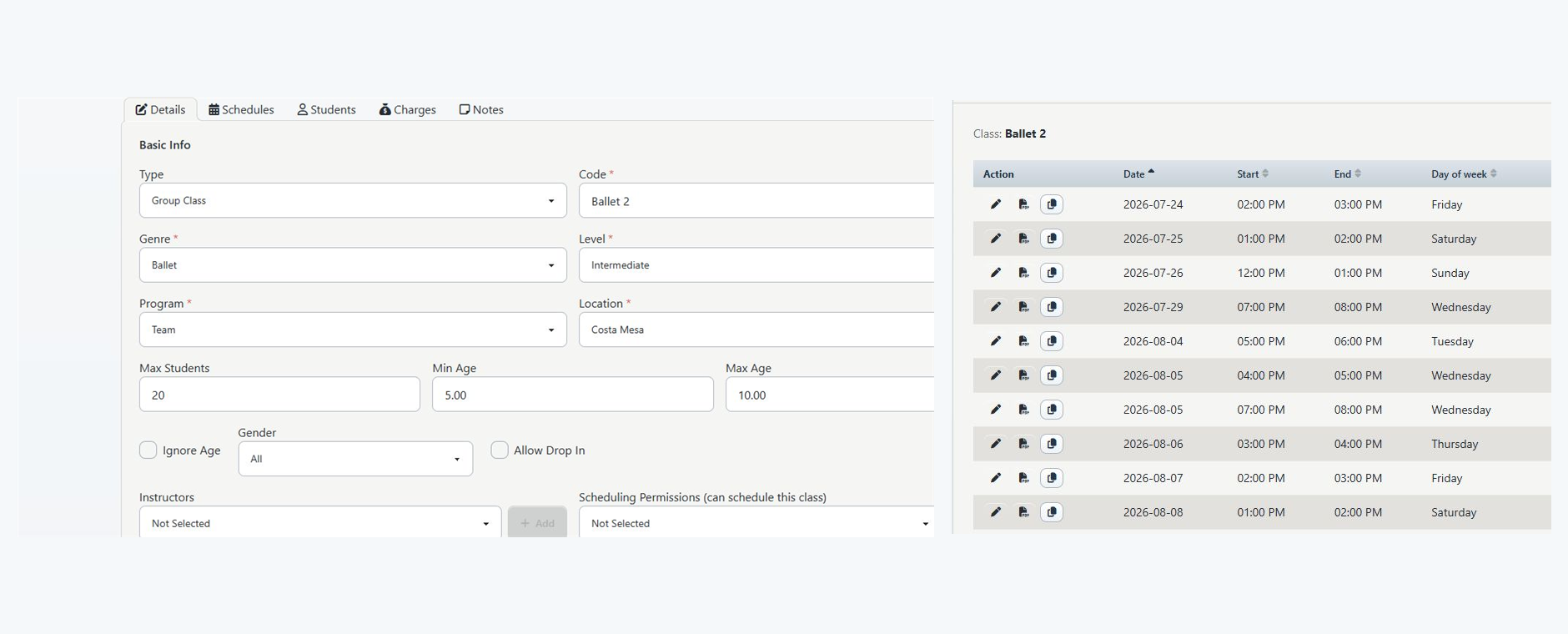
The current Details form has no season, start-date, end-date, weekday, start-time, or end-time fields. A date range shown in Group Classes comes from schedules, not from the fields on this page.
#Before you begin
- Confirm the studio, Class ID, code, and class name before changing anything.
- Confirm that your role is authorized to update class definitions. Access to view a class or teach it is not approval to change registration or pricing.
- Record the current Details values, instructors, scheduling permissions, pricing rows, registration state, and public description.
- Open Schedules in another tab and record future dates, rooms, instructors, and capacities.
- Record the Students status counts and, for a pricing change, the approved enrollment prices and billing schedules.
- For a Sales Items class, record every assigned item before changing the payment method.
- For a live class, note the next registration opening, tuition run, scheduled payment, meeting, and client communication deadline.
- Use a fictional eligible client and a fictional ineligible client for Online Client testing.
If an expected instructor, category, room, waiver, billing schedule, or template is missing from the form, stop before saving. The editor normally lists active choices. Saving rebuilds some related lists from the choices that are currently selected.
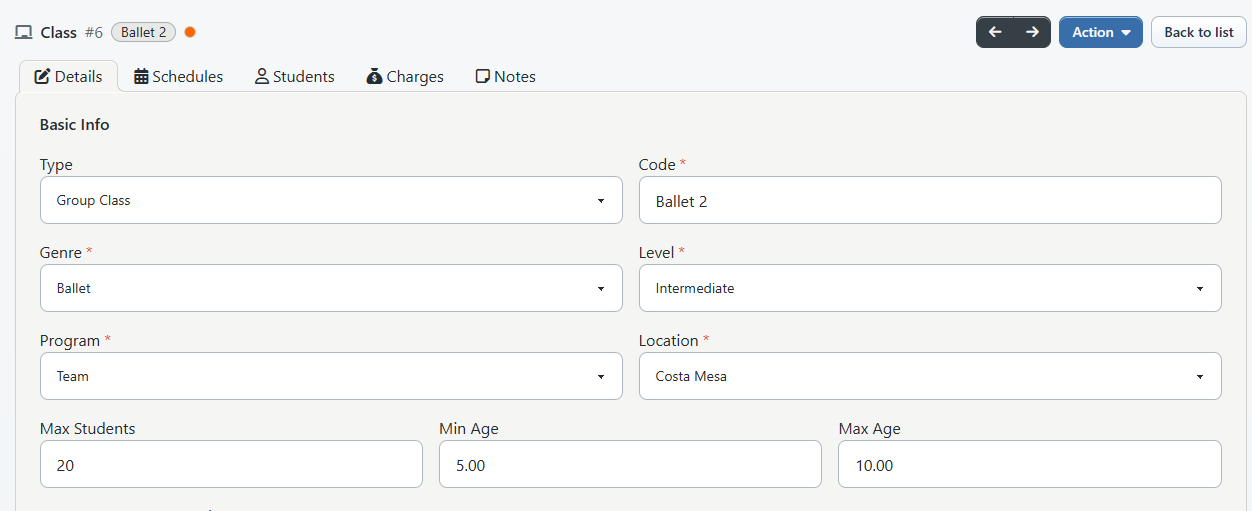
#Review the Basic Info fields
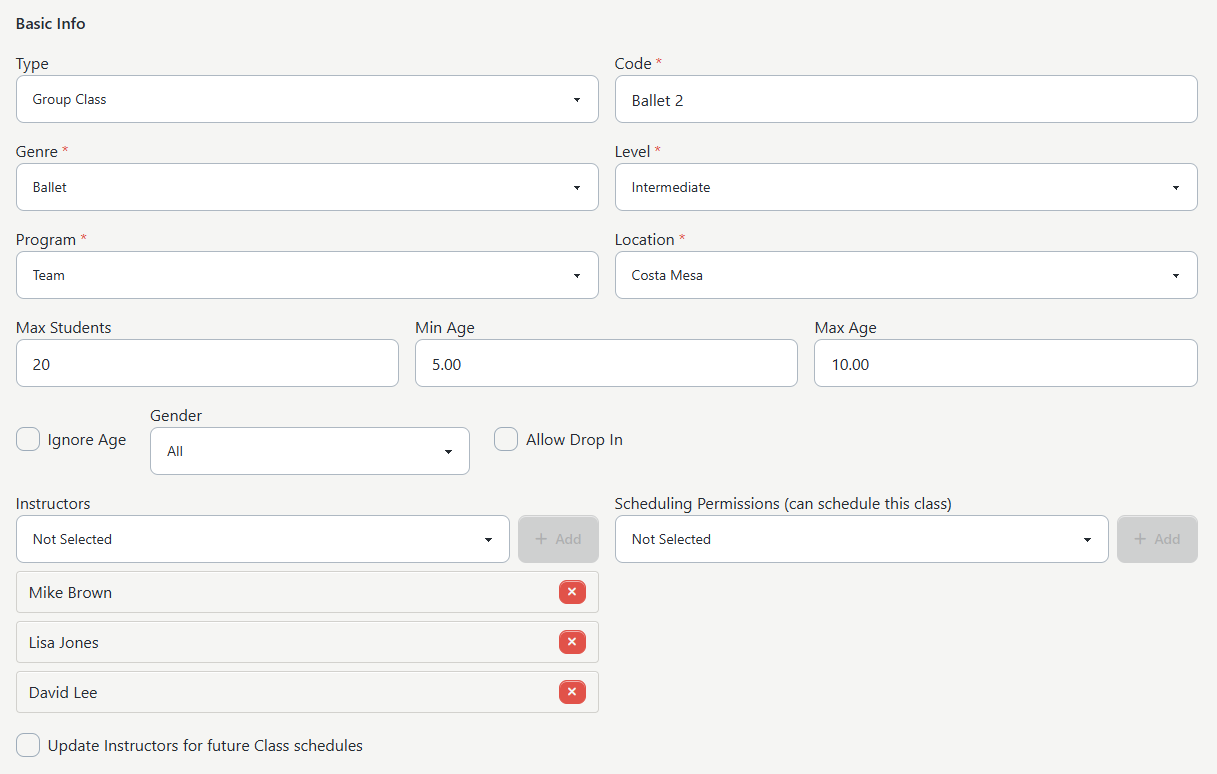
| Field | What it controls | Safe-edit guidance |
|---|---|---|
| Type | The class type and which type-specific tabs or workflows are shown | Do not use Type to repurpose an established class. Changing it can hide tabs without converting or removing the related records behind them. Create or clone a separate class when the operational meaning is changing. |
| Code | The primary short label used in class lists and many reports | Keep it unique and recognizable. The current update validation does not reject a duplicate code, so search Group Classes before saving. |
| Genre, Level, Program, Category, Location | Classification, display labels, filtering, and report grouping | Choose active values from the studio's approved category structure. A classification edit does not move schedules or students, but reports that join the current class record can show the new classification for linked historical activity. |
| Default Room | The class-level room reference used by workflows that read a default | It does not move existing schedules. Edit an occurrence or schedule series separately when its room must change. |
| Max Students | Class-level capacity and a fallback used by registration and reporting paths | It does not change existing schedule capacities unless the separate future-schedule checkbox is selected. It does not remove enrolled students or automatically promote a waiting student. |
| Min Age, Max Age, Ignore Age | The class age rule | Enforcement depends on the studio's age-check setting and the student's birth date. Test the exact boundary with fictional accounts. Ignore Age bypasses the class age limits where the current eligibility checks apply. |
| Gender | The stored class gender value and, when enabled, client-facing class detail | Do not assume that displaying a value proves every registration path enforces it. Verify the intended Online Client result. |
| Allow Drop In | Enables date-level participation behavior for supported Billing Schedule classes | The current form turns this off when the payment method is changed away from Billing Schedule. Verify schedule-level price, capacity, enrollment, and checkout separately. |
| Instructors | The instructors assigned to the class definition | At least one instructor is required. Saving replaces the complete class-instructor list with the visible selections. It does not normally change occurrence instructors. |
| Scheduling Permissions (can schedule this class) | Which listed staff members have the class-specific scheduling assignment | Saving replaces this complete list. It is not the same as assigning an instructor to the class or granting a staff role broad access. |
For a group class, Code, Genre, Level, Program, Location, Payment Method, and at least one Instructor are required by the current save rules. Max Students accepts 0 through 255. A zero value needs tenant-specific capacity testing; do not assume it means either zero seats or unlimited seats in every surface.
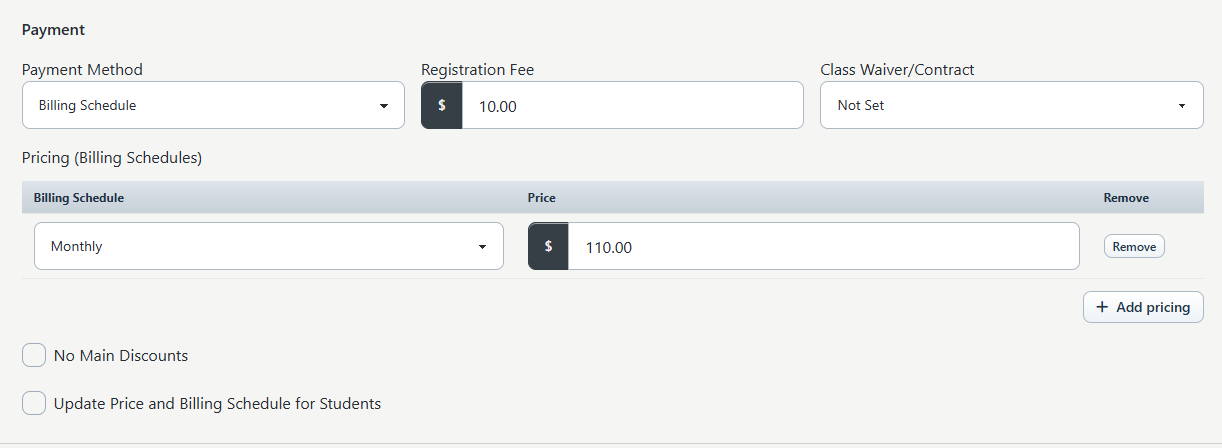
#Review Payment without changing financial history
#Billing Schedule
Choose Billing Schedule when the class itself provides one or more billing-schedule price options.
- Confirm every intended Billing Schedule and Price row.
- Remove only a row that is no longer part of the approved offering.
- Add a complete row when another approved billing schedule is needed.
- Leave Update Price and Billing Schedule for Students off during a normal edit.
- Review No Main Discounts and Set Member Pricing Level on register when those controls appear.
At least one complete pricing row is required for a Billing Schedule class. A price can validate as zero, but zero-price availability also depends on Online Client fee settings. Test the result rather than treating a successful save as proof that the option can be purchased.
Every save rebuilds the class's Billing Schedule pricing rows from the table on the form. This happens even when the main change is a code, description, or instructor. Compare all pricing rows after reloading.
#Sales Items
Choose Sales Items when an item or package owns the price, restrictions, sale period, payment plan, activation, expiration, or contract behavior.
Selecting this payment method does not assign an item. After saving, open Sales Items, confirm the intended assignment, and test the purchase option. The editor displays a warning when the class uses Sales Items but none are assigned, unless the studio is configured to block that save entirely.
Changing from Billing Schedule to Sales Items removes the class's Billing Schedule pricing rows when the edit saves. Changing back to Billing Schedule does not remove old Sales Item assignments. Treat a payment-method change as a migration with an inventory and recovery plan, not a display preference.
#Other payment fields
- Registration Fee is a class-level fee shown only when the studio enables that feature. It can be separate from season or global registration fees.
- Class Waiver/Contract changes the class-level page required by applicable registration paths. It does not invalidate or replace an existing signed record.
- No Main Discounts appears only for supported studio discount modes.
- Set Member Pricing Level on register appears only for the supported hourly-rate and per-student calculation configuration.
Changing a class price does not edit an existing purchase, charge, payment, allocation, credit, scheduled payment, refund, or statement. Correct those through their own reviewed finance workflows.
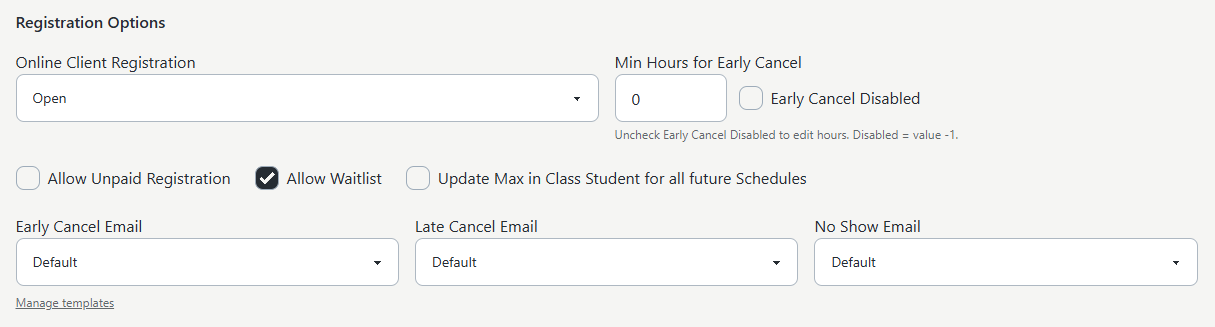
#Review Registration Options
| Control | Current effect to verify |
|---|---|
| Online Client Registration: Open | Allows the normal registration action when the season, schedule, eligibility, capacity, pricing, and Online Client settings also allow it. |
| Invitation | Checkout requires the intended student to have the eligible/invited state. Test an invited and a non-invited fictional student. |
| Member Categories | Limits eligibility to the selected member categories. At least one category must be selected before the class can save in this mode. |
| Closed | Blocks the normal registration action. Studio display settings can still allow the class or schedule to be visible, so test visibility separately. |
| Allow Unpaid Registration | Changes how an unpaid Billing Schedule enrollment can attach to schedules in the current enrollment workflow. It does not make tuition free or remove the need to reconcile the resulting enrollment and balance. |
| Allow Waitlist | Supplies the class-level waitlist permission. The Online Client global waitlist setting and season waitlist setting must also allow it. |
| Min Hours for Early Cancel | Sets the boundary used by supported cancellation behavior. Early Cancel Disabled stores -1; uncheck it to enter an hour value. |
| Early Cancel Email, Late Cancel Email, No Show Email | Selects class-level templates where the related attendance or cancellation workflow uses them. Saving the class does not send a message. |
Age rules also depend on the global age-check setting. Member-category timing can depend on the season. Capacity can come from a schedule value or fall back to the class value. Registration therefore needs an end-to-end test after any related edit.
Under Miscellaneous:
- Color Label accepts six hexadecimal characters without the
#and can change calendar or class visual labeling. - Description can be shown and searched in Online Client class surfaces. Review it as public text and do not include internal notes, private links, medical details, or client information.
#Treat the three bulk-update checkboxes as separate operations
The checkboxes are off by default. Select one only when its complete scope is approved and the before state has been preserved.
#Update Instructors for future Class schedules
When selected, the current save removes the instructor assignments from every schedule for this class whose start is later than the save time, then assigns every currently selected class instructor to every one of those schedules with the standard instructor role.
This is not a season-specific add. It can replace substitutes, co-instructor combinations, and schedule-specific roles across all future dates.
Use it only when every future occurrence should have the same instructor list. Otherwise leave it off and edit the intended schedules through Schedules.
#Update Max in Class Student for all future Schedules
When selected, the current save writes the class Max Students value to every schedule starting at or after the save time.
It does not remove existing enrollments, correct waiting-list rows, or warn when an occurrence becomes over capacity. Compare enrolled counts with each changed schedule immediately after saving.
#Update Price and Billing Schedule for Students
Finance warning: Leave this off unless a finance reviewer has approved a controlled enrollment-price migration.
The current operation updates every class-enrollment row for the class; it does not limit the change to active students or preserve an individual enrollment price. With more than one positive Billing Schedule row, each row is applied to all enrollments in sequence, so the last processed row becomes the price and billing schedule for all of them.
Do not use this checkbox for a class with multiple Billing Schedule options. Even with one option, inventory active, waiting, declined, archived, and specially priced enrollments first. The operation does not modify existing charges or purchases, so the enrollment price and financial ledger can disagree until reviewed.
#Save a routine details edit
- Open Group Classes.
- Search for the exact class code.
- Open the class, then select Details.
- Confirm the Class ID and code in the class header.
- Preserve the before state described above.
- Change only the approved fields.
- Review the entire Instructors, Scheduling Permissions, and Billing Schedule pricing lists, even if they were not part of the request.
- Confirm that all three bulk-update checkboxes are off unless one is the separately approved purpose of this save.
- Review Online Client Registration, age and category rules, capacity, waitlist, unpaid registration, cancellation threshold, fee, waiver, public description, and templates.
- Select Save changes once.
- Wait for the edit page to return and show Class updated.
- Reload the page and complete the verification below.
The Cancel button returns to Group Classes. It does not reverse a save that already completed.
#Understand what Save changes updates
A successful request performs several changes in order:
- updates the class record;
- deletes and recreates the class-instructor assignments;
- deletes and recreates the class Billing Schedule pricing rows;
- optionally rewrites class-enrollment pricing;
- deletes and recreates class-specific scheduling-permission assignments;
- optionally replaces future schedule instructors; and
- optionally rewrites future schedule capacities.
These steps are not currently wrapped in one all-or-nothing transaction. If the request fails after one step, some earlier changes can remain. A missing success message is therefore not proof that nothing changed.
Save changes does not, by itself:
- create, edit, cancel, or delete a schedule;
- change a season or the class's meeting dates and times;
- enroll, withdraw, transfer, or promote a student;
- assign or remove a Sales Item;
- create, reverse, or recalculate a charge, purchase, payment, or scheduled payment;
- archive, restore, or clone the class;
- send a cancellation, no-show, pricing, or registration message; or
- create an audit note describing why the edit was made.
#Confirm it worked
#Confirm the class record
- Reload Details and compare every edited field with the approved value.
- Confirm the Class ID did not change.
- Confirm the code is unique and the type and classifications are correct.
- Confirm every intended instructor, scheduling permission, and Billing Schedule price remains.
- Confirm the success message was for this save and that no validation error remains.
#Confirm related records were not changed unexpectedly
- Open Schedules and compare dates, times, rooms, instructors, and capacities with the before state.
- Open Students and compare enrollment statuses, billing schedules, and prices when pricing was in scope.
- Open Sales Items and confirm the intended assignments.
- Open Charges and confirm existing financial records are unchanged.
- If Type changed, inspect every previously relevant tab and have support verify that no relationship became hidden or orphaned.
#Confirm the downstream result
- In the Online Client, test an eligible fictional student, an intentionally ineligible student, and any invited or category-restricted state that applies.
- Confirm the public label, description, location, age information, capacity or full state, waitlist action, price options, fees, and waiver.
- For a pricing change, run the approved tuition preview before any committed tuition process.
- Run the operational reports that depend on class code, genre, level, program, location, capacity, or instructor and preserve their filters.
- If cancellation templates or thresholds changed, use an approved test occurrence and recipient before relying on them in production.
Reports that join current class fields can show the new code or classifications beside older linked schedules, enrollments, charges, or revenue. The class keeps the same ID, but its current labels can change how historical results are grouped or described.
#Recover from an uncertain or incorrect save
#Validation says Please fix the errors below
Read the field-level messages. Common causes are:
- a missing group-class code, genre, level, program, or location;
- no selected instructor;
- no complete Billing Schedule price row;
- Member Categories mode with no selected category;
- a capacity outside 0 through 255;
- an invalid age, fee, cancellation-hour, or price value; or
- a color that is not exactly six hexadecimal characters.
Correct the fields on the returned page and recheck all lists and bulk-update checkboxes before saving again.
#Save failed or no success message appeared
Do not immediately submit the same form again. Reload the class in a new tab and compare:
- the class fields;
- instructors;
- Billing Schedule pricing;
- enrollment prices when the price checkbox was selected;
- scheduling permissions; and
- future schedule instructors and capacities when either schedule checkbox was selected.
Record the Class ID, time, operator, intended values, exact error, and each observed before/after difference. Contact an administrator or support with that evidence. Repeated saves can make a partial result harder to reconstruct.
#An expected instructor disappeared
The form normally offers active instructors and loads active selected assignments. An inactive or no-longer-qualified instructor can be absent from the visible selection, and saving rebuilds the class assignment list. Stop if the missing assignment was not part of the approved change. Decide whether to reactivate, replace, or preserve the historical relationship through an approved process.
#Future schedule instructors changed unexpectedly
The future-instructor checkbox replaces the complete instructor list on all affected future schedules. Do not try to repair it with another class-level save. Use the protected before state to restore each intended occurrence or series through Schedules, including substitutes and roles, then verify the calendar and instructor reports.
#Future capacities changed unexpectedly
Compare every affected schedule with its before value and current enrolled count. Restore the intended schedule capacities through the schedule workflow. Review full and waiting-list states in the Online Client; do not add or remove students merely to make the count look consistent.
#Student prices or billing schedules changed unexpectedly
Stop tuition and related bulk finance work. Do not choose another class price and run the bulk checkbox again as an undo. Inventory every affected enrollment and compare the original individual price, billing schedule, status, charges, purchases, and payments. Have an authorized finance reviewer approve record-level corrections and a new tuition preview.
#Billing Schedule prices disappeared
Changing the payment method to Sales Items clears the class pricing table on save. Restore the approved method and exact rows from the before record only after confirming whether any client registration occurred in the interim. Also verify that Sales Item assignments were not mistaken for Billing Schedule pricing.
#The class is missing or wrong in the Online Client
Check the class registration mode, season status and enrollment window, active schedules, capacity, age setting, member categories, invitation state, pricing rows or assigned Sales Item, fee settings, and client display settings. Do not open registration broadly just to make the class appear.
#A field is not shown
The form is settings- and schema-dependent. Depending on the studio, Type, Category, Gender, Default Room, Allow Drop In, Registration Fee, No Main Discounts, Set Member Pricing Level on register, Member Categories, waiver pages, and cancellation templates can be absent or have no choices. Ask an administrator to confirm the relevant setting and source records rather than changing unrelated settings during a class edit.
#Privacy and media safety
- Use fictional class codes, instructors, clients, prices, and schedules for training, screenshots, and videos.
- Crop unrelated class rows, student names, browser account details, private URLs, and tenant identifiers.
- Do not show real enrollment prices, balances, payment details, waiver signatures, internal notes, or message recipients.
- For a bulk-update demonstration, use a disposable test class with recorded fixture IDs and a cleanup plan.
- Capture the unchecked bulk-update controls in routine-edit instructions so viewers do not copy a risky state accidentally.
#Related articles
- Group Classes
- Create, use, and retire studio locations safely
- Create a group class
- Clone a group class safely
- Create and maintain class schedules
- Manage class instructors and substitutes
- Manage student enrollment
- Assign Sales Items and pricing options to a class
- Manage class charges and pricing overrides
- Control who can register for a class
- Manage class prerequisites and student completion
- Launch a class for online registration
- Archive and restore group classes
- Run tuition safely
- Roles and permissions