Classes and scheduling
Set up Online Client private-lesson booking
#Understand the parts
Private-lesson booking combines several records and controls:
| Part | Purpose |
|---|---|
| Scheduler enabled setting | Allows the Online Client private-lessons area and staff scheduling tabs to appear. |
| Scheduler class | Identifies the private or coaching class used for schedules created online. |
| Studio default availability | Weekly fallback windows for instructors who do not have their own default template. |
| Instructor default availability | A weekly template that can override the studio default for one instructor. |
| Dated instructor availability | Actual future availability blocks shown on the instructor calendar and used by related scheduling workflows. |
| Default lesson duration | Divides an available window into client-selectable start times and sets the scheduled end time. |
| Purchase-assignment setting | Can assign a compatible existing purchase after the Online Client creates a schedule. |
| Private-lesson list | Lets staff and clients review the resulting lesson and its status. |
These controls are separate. Saving a weekly template does not create a private-lesson purchase, price, charge, payment, or client enrollment.
#Before you begin
- Decide which active private or coaching class should own Online Client schedules.
- Confirm which staff records are marked as active instructors.
- Decide whether one studio-wide weekly template is sufficient or each instructor needs an override.
- Decide the standard lesson duration and whether instructors can use different durations.
- Define how far clients may book ahead and how the studio handles time off and one-time exceptions.
- Decide whether clients must already own eligible hours or units before scheduling.
- Review cancellation timing, late-cancel/no-show fees, purchase usage, messages, and staff follow-up.
- Create a fictional client, student, instructor, and disposable availability window for testing.
Warning: The current direct Online Client scheduler creates a class schedule and attaches the instructor and student. It does not itself run checkout or collect payment. When purchase auto-assignment is enabled, it attempts to assign the first compatible existing purchase after scheduling. Verify the result before advertising booking as prepaid or payment-required.
#1. Enable and connect the scheduler
The dedicated Settings > Private Lessons screen manages time and availability, but not every prerequisite.
- Open Settings > Global Settings and search for the private-lessons settings.
- Turn on Private Lessons Scheduler Enabled only when the class and test plan are ready.
- Select Private Lessons Scheduler Class and choose the intended active private or coaching class.
- Decide whether Auto assign purchased hours if private lesson was scheduled in Online Client should be enabled.
- Review the Online Client menu and private-events scheduler settings before saving.
Important: The current top navigation hides the private-lesson scheduler when the separate Online Client private-events scheduler is enabled. The account menu and controller do not use an identical gate. Test both menus and use one deliberately supported booking path rather than assuming the two schedulers combine.
If no configured scheduler class is available, the page can be reachable but direct scheduling reports Private lesson scheduling is not configured yet. Current controller source can fall back to the first active private or coaching class, while the top-menu gate expects a configured class ID. Explicitly select the intended class to avoid that ambiguity.
#2. Set the studio default lesson length
- Open Settings > Private Lessons.
- Enter Default Lesson Duration in minutes.
- Use a value from 5 through 600; the form supports five-minute steps.
- Confirm that the duration fits inside every weekly availability block.
The duration determines the length of a schedule created by the direct Online Client scheduler and how candidate start times are divided inside an availability window. An instructor-specific duration can override the studio value when that instructor has a saved private-lesson availability record.
Use one standard value when possible. If an instructor offers several lesson lengths, verify the exact supported workflow before publishing those choices; the current direct scheduler exposes one duration for that instructor at a time.
#3. Build the weekly studio template
- Find the card for the intended day.
- Select the green plus button.
- Enter Start and End.
- Select Save Time.
- Repeat for additional windows and days.
- Use the pencil to edit a window or the remove button to delete it from the unsaved form.
- Check for gaps, overlaps, and times that are shorter than the default duration.
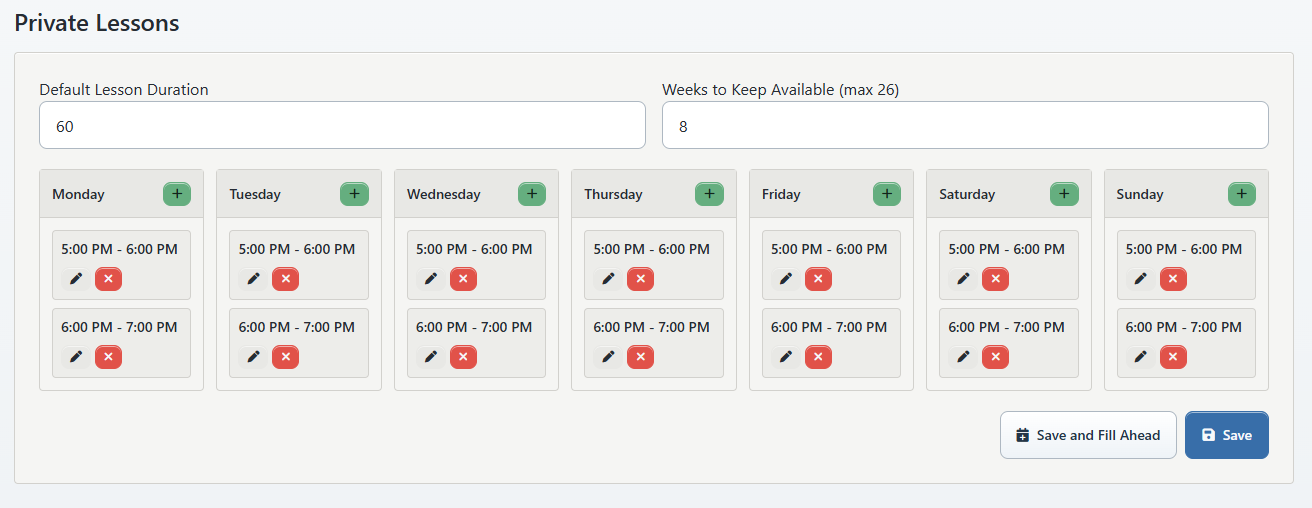
The editor requires both times and rejects an end that is not later than the start. Exact duplicate intervals are removed from the saved template and the list is sorted by start time.
The studio default is a fallback. An instructor's own Default Availability template takes precedence when it contains saved intervals.
#4. Choose the rolling availability window
Enter Weeks to Keep Available. The current setting accepts 1 through 26 weeks.
This value controls how many weeks Save and Fill Ahead materializes. It does not by itself promise that availability will stay filled forever; an ongoing scheduler or staff process must maintain future dated blocks if another workflow depends on them.
Choose a horizon that matches how far clients may plan. A longer horizon creates more dated availability rows and makes time-off review more important.
#5. Choose Save or Save and Fill Ahead
#Save
Select Save to store the studio weekly template, duration, and rolling-week count. Look for Private lesson settings saved.
This does not bulk-create dated instructor availability. The direct Online Client private-lesson scheduler can use the weekly default as a fallback, but instructor calendars and related booking workflows can rely on dated availability rows.
#Save and Fill Ahead
Select Save and Fill Ahead only after reviewing every active instructor. Confirm the prompt that says the software will save the defaults and fill future availability for all active instructors.
The action:
- begins with the current Monday-based week;
- uses the selected number of weeks;
- uses each instructor's own weekly default when one exists, otherwise the studio default;
- skips intervals that ended in the past;
- inserts dated availability blocks for every active instructor; and
- skips an exact existing instructor/start/end match.
The success message reports the number of future blocks inserted and instructors considered.
Warning: This is a studio-wide bulk action. Its normal path does not replace existing dated blocks, but a different-sized or overlapping block is not an exact duplicate and can still be added. Review instructor calendars before and after the action. There is no customer-facing bulk undo on this page.
#6. Review every instructor
For each instructor who should accept bookings:
- Open Staff and select the instructor.
- Confirm the staff record is active and marked as an instructor.
- Open Default Availability.
- Decide whether to keep the inherited studio default or save an instructor-specific weekly template.
- Open the instructor Calendar or availability view.
- Confirm the dated blocks, time zone, exceptions, time off, and existing schedules.
- Remove or adjust only the exact availability rows that should not be bookable.
The scheduler removes occupied times when it builds available starts. Still, verify conflicts using a controlled booking; a weekly template alone is not proof that a room, instructor, student, or connected service is conflict-free.
#7. Review purchasing and finance behavior
The direct scheduler has two important modes:
| Setting | Current behavior to verify |
|---|---|
| Auto-assign purchased hours off | The schedule can be created without attempting to attach a purchase. |
| Auto-assign purchased hours on | After the schedule is created, the software attempts to assign the first compatible existing purchase for the student, class, schedule, and instructor. |
Important: Purchase assignment occurs after schedule creation and is not a checkout gate in the inspected path. No compatible purchase can leave a scheduled lesson without the intended entitlement. Review the resulting schedule, purchase assignment, remaining units, ledger, and any not-paid-lesson report.
If the studio requires clients to buy first, publish that as a clear prerequisite and verify the exact purchase workflow. Do not imply that the scheduler will collect money merely because a Sales Item or package exists elsewhere.
#8. Test the Online Client
Use a direct fictional client login rather than an impersonation session for final acceptance and screenshots.
- Confirm Private Lessons appears in the intended navigation location.
- Open it and verify the studio's configured title.
- Confirm the correct fictional student and instructor choices.
- Select an instructor and review the five-day availability page.
- Move forward and backward through availability pages.
- Confirm that candidate times align with the weekly window and lesson duration.
- Select one disposable future time and the correct student.
- Submit once.
- Look for Private lesson was successfully scheduled.
- Refresh the lesson list and verify the new Upcoming card.
The server rechecks that the student belongs to the client, the instructor exists, the time is future, and the slot remains available. A time can disappear between selection and submission if another schedule takes it.
#9. Verify the complete result
After the controlled booking, confirm:
- the schedule belongs to the intended private/coaching class;
- the start, end, instructor, student, and status are correct;
- the slot no longer appears available for an overlapping booking;
- the lesson appears in the client's Upcoming list;
- the lesson appears in the admin Private Lessons list and calendar;
- the correct purchase is assigned when auto-assignment is enabled;
- purchased, scheduled, and remaining units changed as intended;
- no unintended charge, payment, or notification occurred; and
- the cleanup or cancellation result is understood before removing the fixture.
#Requests, reschedules, and cancellations
The Online Client can also present a Request a private lesson form. That form records a request in the log; it does not directly create a scheduled time.
For an upcoming scheduled lesson, Submit reschedule currently changes the original lesson to an early- or late-cancel status based on the cancellation threshold and logs a new request. It does not directly move the existing schedule to the requested time.
The client Cancel lesson action changes an upcoming scheduled lesson to an early- or late-cancel status and records the reason. Review purchase usage, cancellation fees, notifications, and staff follow-up separately.
Warning: A reschedule request can cancel the original lesson before staff create the replacement. Make this operational consequence clear to staff and clients, and verify it in a disposable scenario before publication.
#Troubleshooting
#Private Lessons is missing from the Online Client
Check Private Lessons Scheduler Enabled, the configured scheduler class, the class record, the separate private-events scheduler, the account menu, and the top navigation. The current menu gates are not identical.
#An instructor is missing
Confirm that the staff record is active and is marked as an instructor or uses an instructor/restricted login group. Then review the instructor's availability.
#No times appear
Check the instructor-specific weekly template before the studio default, the requested date page, duration, time zone, dated availability when applicable, occupied schedules, and whether the window contains a full lesson-length slot.
#Save and Fill Ahead inserted more blocks than expected
Stop before repeating it. Compare the studio template, every instructor override, existing dated blocks, selected week count, and the current week. Different or overlapping windows are not exact duplicates.
#The client sees That time is no longer available
Another schedule or availability change can have occurred after the list loaded. Refresh availability and choose a new time. Do not retry the same stale request repeatedly.
#A lesson was scheduled without a purchase
Check the auto-assignment setting, the student's eligible active purchases, class and instructor compatibility, expiration, and remaining units. The schedule path does not block on successful purchase assignment. Resolve the schedule and finance state before the lesson occurs.
#A reschedule request did not move the lesson
That request does not directly change the schedule time. Review the original lesson's cancellation status and the request log, then have staff create and verify the replacement using the approved process.