Scheduling
Review private lessons and use the calendar
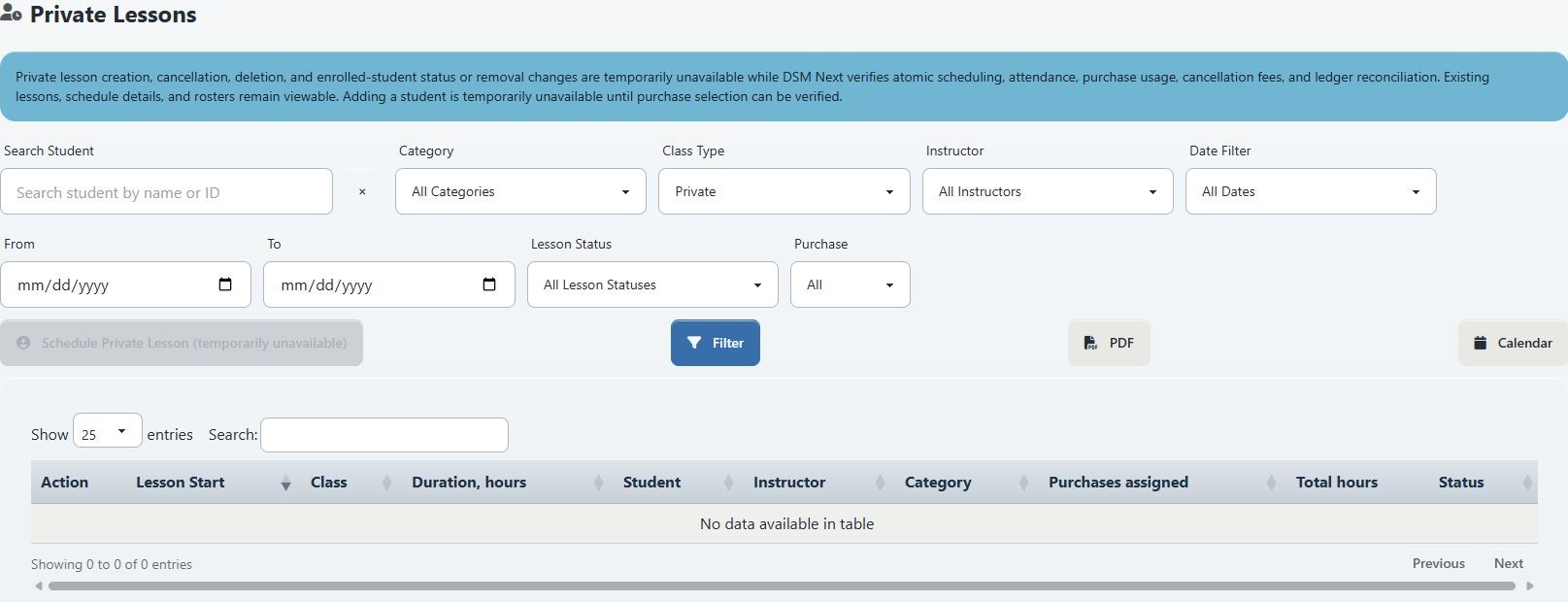
Current availability: Creating, cancelling, deleting, changing enrolled-student status, removing students, and assigning purchases are temporarily unavailable while Dance Studio Manager verifies scheduling, attendance, purchase usage, cancellation fees, and ledger reconciliation. Existing lessons, schedule details, and rosters remain viewable.

#Before you begin
- Confirm you are working in the correct studio and login group.
- Have the student, instructor, date range, or lesson status you need to find.
- Read the blue availability notice before looking for an action button.
- Use a financial record—not the lesson list alone—to confirm a charge, payment, refund, or restored lesson unit.
The current page is intended for safe review and reporting. Do not use old screenshots or instructions that show enabled scheduling, cancellation, deletion, or purchase-assignment controls.
#Choose the list or calendar
| View | Best for |
|---|---|
| Private Lessons | Search by student, instructor, category, class type, date, status, or purchase assignment; inspect lesson rows; export a filtered PDF. |
| Calendar | See lessons in the context of the studio schedule; move among month, week, day, and list views; inspect time and location conflicts. |
The Private Lessons page includes a Calendar link. Calendar visibility and filters depend on group permissions and studio settings.
#Find private lessons
- Select Private Lessons in the left navigation.
- In Search Student, enter a student name or ID and select the correct result when one is available.
- Add any useful filters:
- Category;
- Class Type;
- Instructor;
- Date Filter, including Today, Tomorrow, Yesterday, or Range;
- From and To dates;
- Lesson Status; or
- Purchase, with Assigned or Not Assigned.
- Select Filter.
- Review the matching rows.
The table can show Lesson Start, Class, Duration, Student, Instructor, Category, Purchases assigned, Total hours, and Status. The available statuses include scheduled, complete, early cancel, late cancel, did not show, and complimentary.
If the table is empty, clear the student search and broaden the date and status filters before concluding that no records exist.
#Export the filtered list
- Apply the exact filters you want represented.
- Review the visible result count.
- Select PDF.
- Confirm that the PDF reflects the same student, dates, instructor, status, and purchase filter.
Treat the export as a point-in-time report. It does not change lesson or financial records.
#Review a lesson and roster
When rows are present, open only the view or roster action that is enabled for the record. Confirm:
- lesson date, start, and duration;
- class, category, and instructor;
- assigned student and roster status;
- lesson status; and
- whether a purchase is displayed as assigned.
The interface can display an Edit Schedule dialog and roster details, but write controls are contained in the current release. Adding a student is temporarily unavailable until purchase selection can be verified. Purchase assignment is also read-only.
If a record is incorrect, capture the lesson ID or exact student/date combination and escalate through the studio's approved correction process. Do not work around the containment by changing unrelated finance or enrollment records.
#Work from Calendar
- Select Calendar in the left navigation, or select Calendar on the Private Lessons page.
- Use Today and the previous/next controls to reach the intended date.
- Choose Month, Week, Day, or List.
- Open Filters and narrow the calendar using the controls available to your role and studio.
- Select Apply.
- Compare the event's date, time, instructor, and location with the Private Lessons row.
- Clear filters before deciding an event is missing.
Calendar actions that appear in older documentation can be unavailable or unverified in the current release. See Use calendar views and filters for the verified viewing workflow and known filter gaps.
#Request a scheduling or status change
Until the containment notice is removed and the workflow is reverified, use the studio's controlled scheduling process outside this page. Supply:
- student and current lesson date;
- requested date/time or status;
- instructor and location;
- reason for a cancellation or correction; and
- the purchase that staff believe should be assigned, if relevant.
After an authorized person completes the change through a supported process, verify all affected surfaces separately:
- Private Lessons row and status;
- Calendar event;
- student roster or attendance record;
- purchase usage or remaining units; and
- ledger or payment record when finance should change.
Warning: A schedule update, cancellation status, purchase-usage change, and financial correction are different records. Never infer that all four were reconciled from a single success message.
#Troubleshooting
#Schedule Private Lesson is disabled
This is the current supported state. The button reads Schedule Private Lesson (temporarily unavailable). Use the page for searching and reporting, and follow the studio's controlled scheduling process.
#No lessons appear
Clear Search Student, set Date Filter to All Dates, set Lesson Status to All Lesson Statuses, and set Purchase to All, then select Filter again.
#The purchase assignment is read-only
Purchase changes are intentionally contained. Record the lesson, student, and intended purchase and have the reconciliation owner review both usage and the ledger before any correction.
#The calendar does not show the lesson
Clear calendar filters, switch to the correct date and view, and compare the lesson's location and status. A hidden or filtered event does not prove the lesson record was deleted.
#The PDF and screen differ
Reapply the filters and generate a new PDF. Record the filter values, result count, and generation time if the mismatch remains.