Finance
Run tuition safely
#Before you begin
- Confirm the studio, season, class date range, billing schedule, and charge date.
- Confirm active class schedules and enrollments for the period.
- Review class prices, family or student tuition overrides, pricing levels, and approved discounts.
- Confirm the charge category and the description that clients and staff should see.
- Review tax, convenience-fee, and automatic-credit settings before building the preview.
- Make sure another staff member is not changing tuition inputs or running the same batch.
- Know the expected number of families or students and an approximate expected total.
- Use fictional or disposable accounts for the first controlled verification of a new pricing setup.
Warning: Run Global Tuition can create charges across many accounts. A slow response is not permission to select it again. Check Charge History and sample ledgers before repeating any uncertain attempt.
#Choose the tuition type
The Type changes which pricing source participates:
| Type | Intended basis |
|---|---|
| Normal Tuition | Active billing-schedule classes, enrollments, pricing rules, and allowed discounts. |
| Family Tuition Override | A fixed tuition amount stored for an eligible family account. |
| Student Tuition Override | A fixed tuition amount stored for an eligible student. |
| "No Discounts" Classes Only | Active classes marked as no-discount, calculated separately from normal discounted classes. |
Important: Billing-schedule tuition and Sales Item or package pricing are different models. The tuition page currently evaluates classes using the billing-schedule path. Confirm that the intended classes are configured for that model before running a batch.
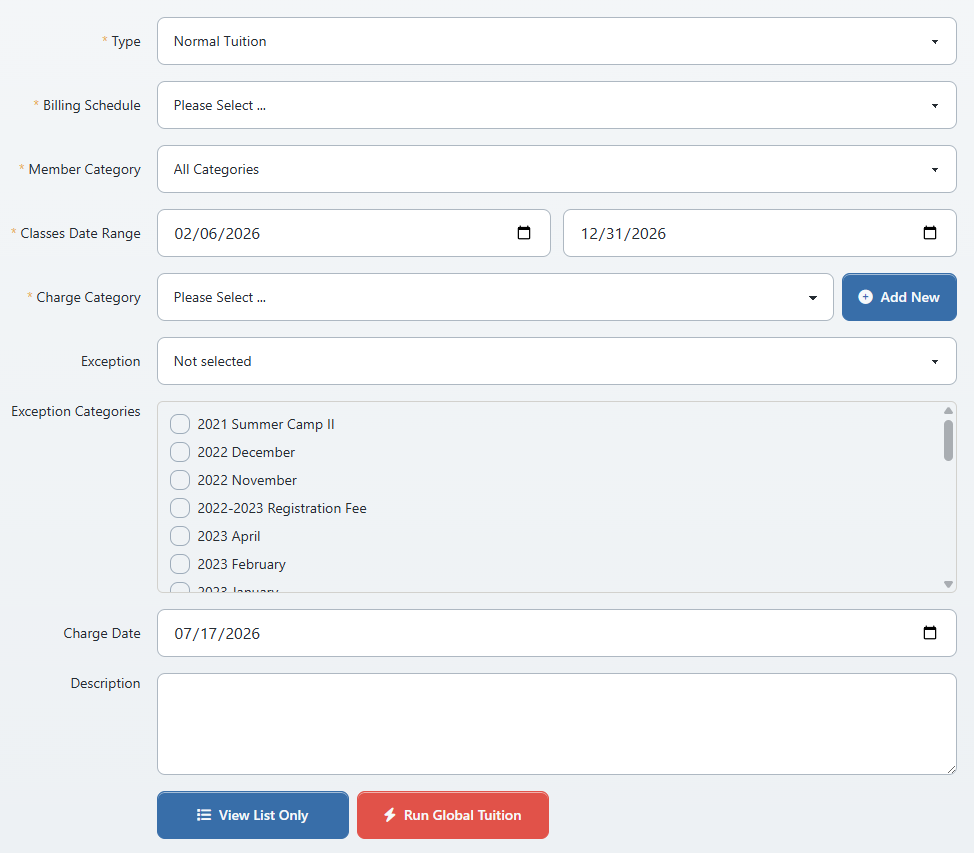
#Build a read-only preview
- Open Finance > Tuition.
- Select Type.
- Select Billing Schedule.
- Select Member Category. Use the broadest option only when the batch is genuinely intended for every eligible account.
- Set Classes Date Range to the class period being billed.
- Select Charge Category.
- Choose an Exception when the batch must skip accounts already charged:
- Ignore students already charged for selected categories and class;
- Ignore students already charged for selected categories; or
- Ignore families already charged for selected categories.
- Under Exception Categories, select the categories that should be checked by the exception rule.
- Set Charge Date.
- Enter a clear Description.
- Decide whether Apply Credit Automatically is intended.
- If available, select Add Convenience Fee only when the studio's approved policy and fee category have been verified.
- Select View List Only.
Note: View List Only uses the preview endpoint and does not create charges in the inspected implementation.
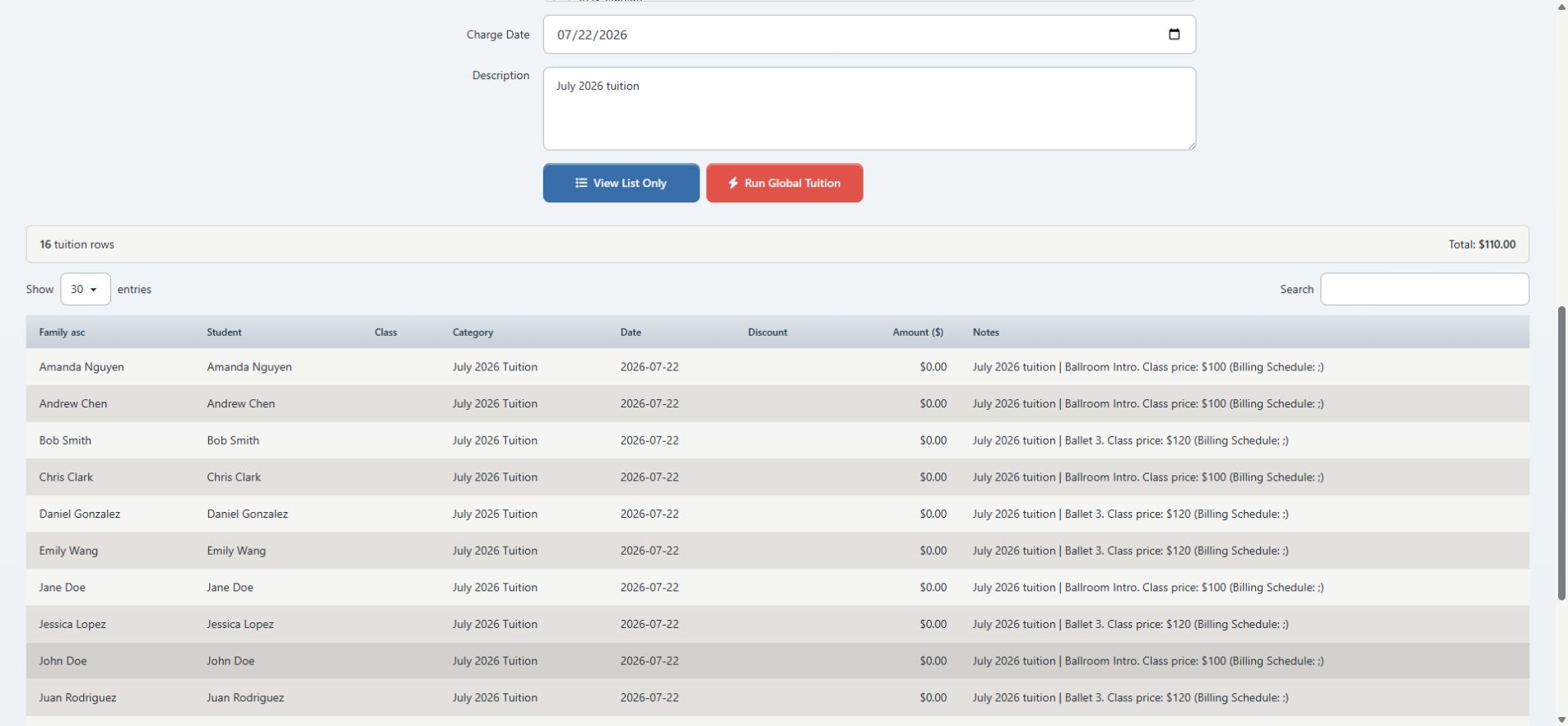
#Review the preview
The preview can show Family, Student, Class, Category, Date, Discount, Amount, and Notes, followed by the row count and total.
Review it as an approval artifact:
- Record the selected tuition type, billing schedule, member category, date range, charge category, exception rule, charge date, description, and fee choices.
- Record the displayed row count and total.
- Check at least one expected included account.
- Check at least one expected excluded account.
- Check a normal-price student, each applicable discount case, and every family or student override represented in the batch.
- Confirm each row belongs to the intended class period and billing schedule.
- Confirm the charge date, category, and description.
- Investigate zero-dollar, duplicate-looking, missing, or unexpectedly high rows before continuing.
Important: A preview is not a frozen batch. Run Global Tuition recalculates eligible rows from current data. Re-preview immediately before the run and avoid changing pricing, enrollment, schedules, settings, or filters between preview and commit.
Important: The inspected run path applies configured tax while creating charges, but the current preview table does not show a separate tax amount. Do not approve the final batch total from the preview alone when tax is enabled. Reconcile a controlled tax-bearing scenario before using this procedure in production.
Important: Treat Apply Credit Automatically as an instruction that still requires ledger verification. Do not assume credit was allocated merely because the option was selected.
#Run the approved batch
Proceed only after the immediate preview matches the approved scope.
- Confirm that the filters and choices still match the recorded preview.
- Confirm no other operator has run the same tuition period.
- Select Run Global Tuition once.
- Review the browser confirmation Run global tuition?
- Accept the confirmation once.
- Wait for the result without refreshing, navigating away, or selecting the button again.
- Record the success message, including the number of charges created and the displayed total.
Warning: The success message is not sufficient reconciliation. The current run can create regular tuition charges, tax-inclusive amounts, and separate convenience-fee charges. Its result must be compared with the preview, Charge History, and account ledgers.
#What happens next
The run recalculates the tuition rows and creates charge records. When the studio schema supports charge sessions, it also creates a session named from Global Tuition, the tuition type, billing schedule, and date range.
The current implementation:
- skips preview rows whose calculated base amount is not positive;
- assigns the selected charge category and charge date;
- links student and class details when available;
- associates the current season when available;
- can add configured tax to a charge during creation;
- can add a convenience fee as a separate charge;
- can store the automatic-credit instruction where the studio schema supports it.
A row-level failure can leave fewer created charges than expected while other rows are committed. That is why the created count, total, charge session, and sample ledgers must all be reconciled before the batch is considered complete.
#Confirm the run
- Compare the created count with the approved preview count.
- Compare the displayed run total with the expected tuition, tax, and separate fee totals.
- Open Finance > Charge History.
- Find the new Global Tuition session and confirm its date, charge count, and total.

- Open ledgers for several representative accounts:
- a normal tuition row;
- each discount or override case;
- an account with existing credit;
- an account that should have been excluded;
- an account with a convenience fee, when enabled.
- Confirm each ledger's category, charge date, notes, tax, charged amount, paid amount, and balance.
- If automatic credit was intended, confirm the payment allocation and remaining unapplied credit.
- Use an appropriate financial report only after confirming that its date and status filters match the batch.
Do not mark the run complete until the batch count and representative ledgers agree with the approved scope.
#If the result is wrong
- Stop. Do not rerun the batch.
- Record the success or error message, time, operator, selected inputs, preview count and total, and resulting session.
- Determine whether the problem affects every row, a subset, tax, fees, discounts, exceptions, or credit application.
- Preserve examples of both correct and incorrect accounts.
- Ask an authorized finance administrator to choose a correction strategy.
Warning: Deleting a session in Charge History is a destructive correction, not a harmless undo. The current implementation deletes the session's charges and their payment-to-charge allocations, then deletes the session. It leaves the payment records in place, which can turn previously applied amounts into unapplied credit. It does not reverse any external processor transaction.
Do not delete a tuition session until you have identified applied payments, statements already sent, exports, reports, and downstream activity. After any approved deletion, reconcile every affected ledger and all newly unapplied payments before rebuilding a batch.
#Troubleshooting
#The preview has no rows
Check the tuition type, billing schedule, member category, class date range, active enrollment, class payment method, class and member status, tuition overrides, schedule links, and exception rules. A blank preview is not a reason to run the batch.
#An expected account is missing
Confirm whether the class uses billing-schedule tuition, the enrollment is active, the schedule falls inside the range, the account matches the member category, a family or student override changes the applicable type, and an exception rule is excluding it.
#A row appears more than once
Do not continue. Compare student, class, schedule, category, and prior charges. Adjust the exception rule only after you understand which record creates each row.
#The preview total differs from the run total
Check the created count, tax settings, and convenience-fee rows first. Then compare the session to the exact preview inputs. Do not rerun the full batch to fill a difference; identify the missing or extra accounts individually.
#The run failed or the page timed out
Do not submit again. Open Charge History, search recent account ledgers, and record any new session or charges. A network error does not prove that the server created nothing.
#Credit did not apply as expected
Review the payment's unapplied amount and the charge's Paid and Balance values. Allocate credit only after the batch itself is reconciled; do not create a new payment to compensate for an allocation problem.