Staff and payroll
Manage Time Clock entries
#Before you begin
- Confirm the studio's approved pay period, time zone, rounding policy, break policy, and correction-approval process.
- Use one staff account per person. Do not share an administrator login to make clock activity easier.
- Confirm that the staff profile is the right person before adding an entry. Similar names can lead to a valid entry being saved to the wrong record.
- Configure the work categories and the staff member's category rates before entering paid time when the studio uses different rates by work type.
- Decide whether you are recording a completed interval or intentionally creating an open entry that will be closed later.
- Keep the source for a correction, such as an approved timesheet or manager note, outside the free-text Time Clock note when the source contains private or sensitive information.
Warning: Editing, reassigning, archiving, or restoring a Time Clock entry can change payroll hours and amounts. Record the original value and approval before changing a pay period that has already been reviewed or exported.
Important: The current DSM Next dashboard does not provide a working Start Clock or Stop Clock timer. It does not automatically capture the current time or stop an open entry. Use the manual procedures in this article.
#Choose the right Time Clock surface
| Surface | Best use | Important scope |
|---|---|---|
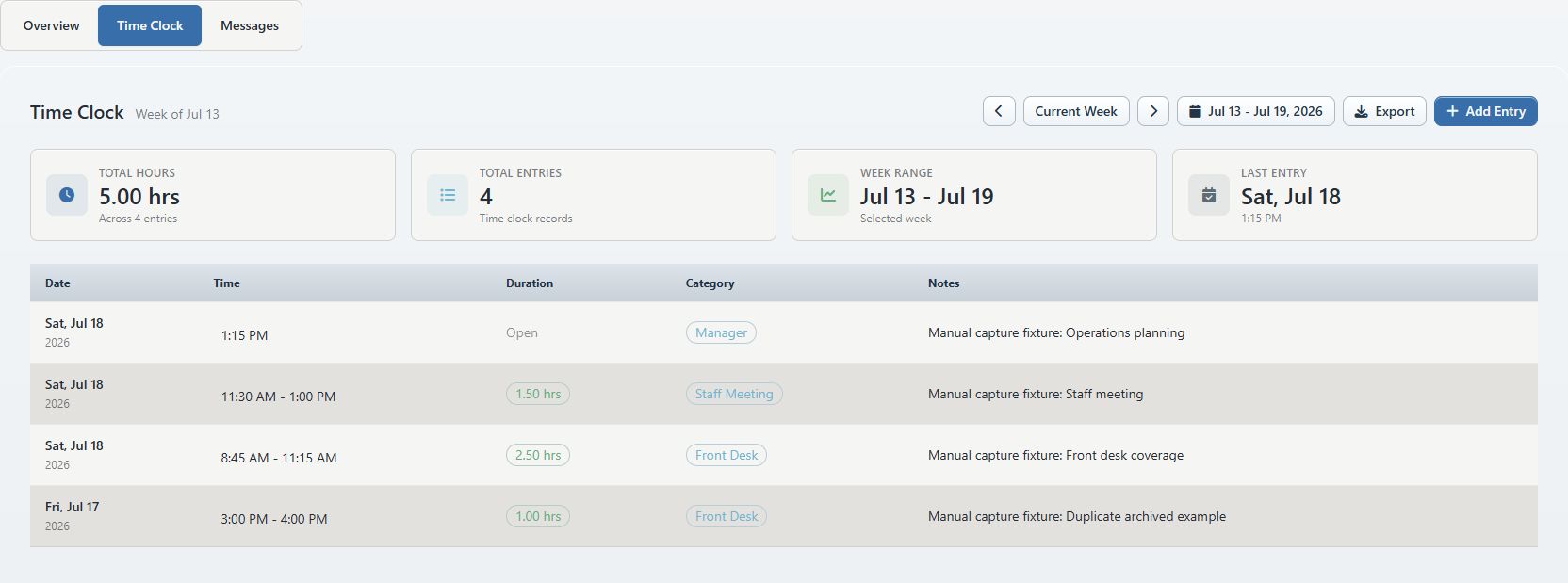
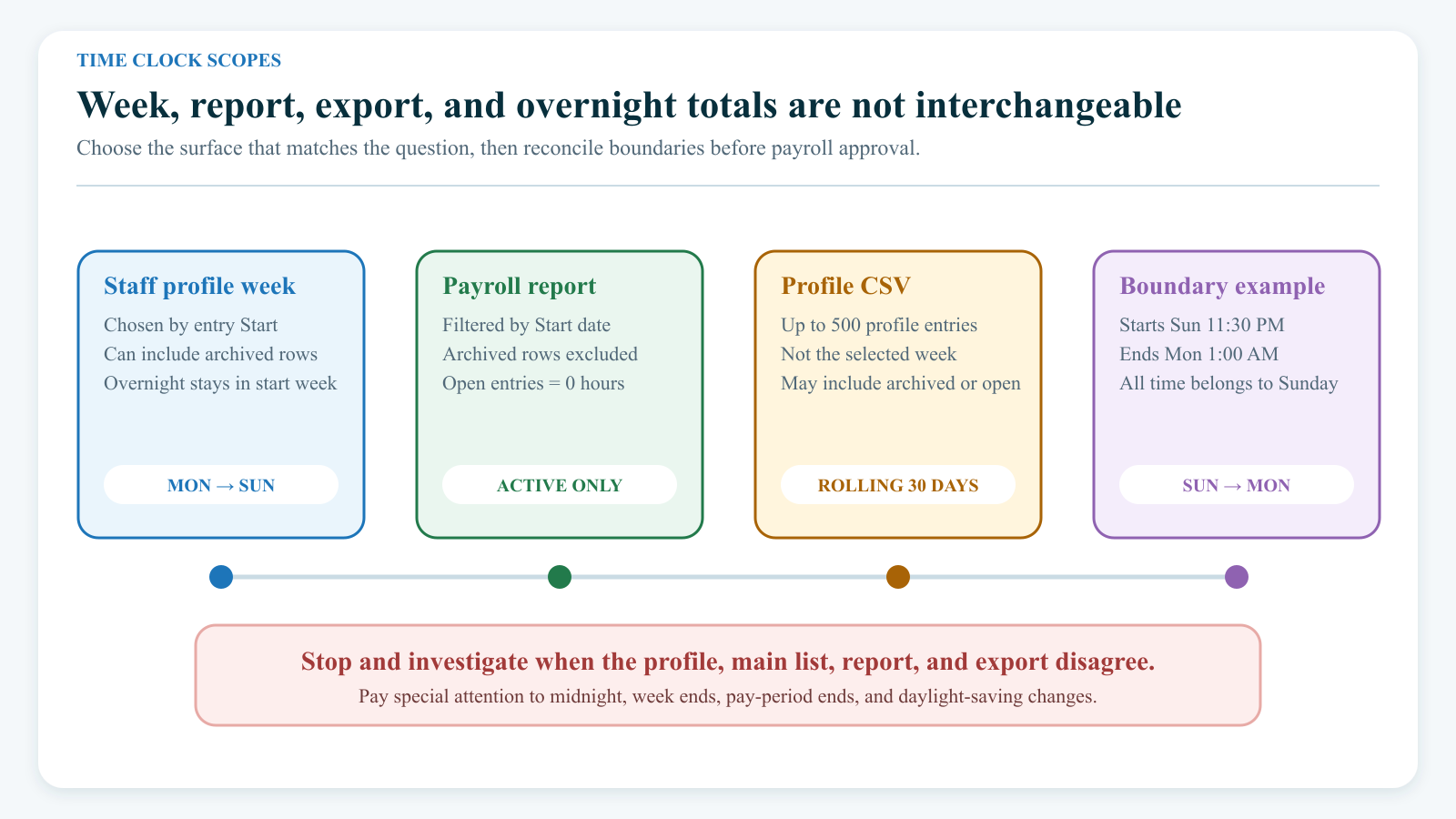
| Staff > staff profile > Time Clock | Add an entry and review one person's Monday-through-Sunday week | The week is chosen by the entry's Start value. The summary can still include archived rows. |
| Main Time Clock page | Review active or archived entries across the studio; edit, reassign, archive, or restore | Active and archived records are shown separately. This is the authoritative current screen for archive state. |
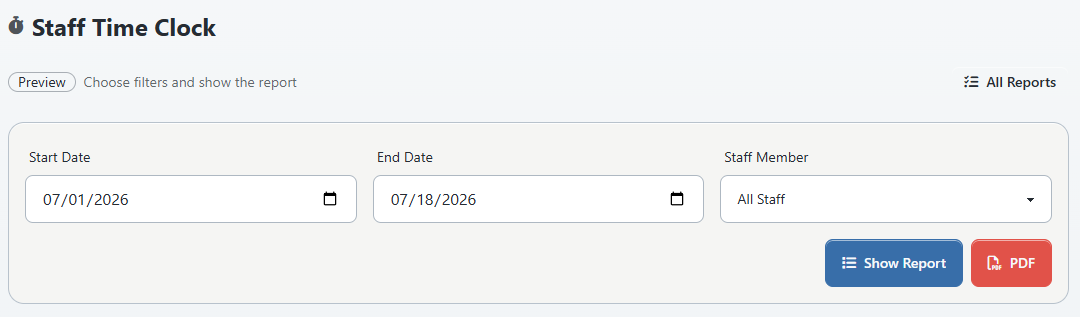
| Reports > Staff Time Clock | Filter active entries by date and staff member; review hours and calculated amounts; produce the report PDF | Open entries calculate as zero hours. Archived entries are excluded. |
| Staff-profile Export | Download a recent CSV for one person | It exports up to 500 entries from the rolling previous 30 days, not the selected profile week, and can include archived or open entries. |
| Dashboard Time Clock card | No current entry function | The old timer workflow is not implemented in DSM Next. |
Use the staff profile to create an entry, the main page to maintain its lifecycle, and the report to approve a pay-period result. Do not treat the staff-profile summary or CSV as a payroll-ready active-only total.
#Understand weeks, dates, and time zones
The staff-profile week runs from Monday through Sunday. Use the left arrow to move to an earlier week and Current Week to return. Future weeks are not available from this control.
An entry belongs to the week containing its Start value. For example, an interval that starts late Sunday and ends Monday remains in the Sunday week, and its entire duration appears with that entry. The Staff Time Clock report also includes an entry according to its start timestamp; an entry that starts before the report range but ends inside it is not included.
The current date-and-time fields do not display a time-zone label or convert a value typed into the form. Enter the studio's intended local wall-clock time, then verify the saved value. Be especially careful when:
- the staff member or manager is in a different time zone;
- the interval crosses midnight, the end of a week, or the end of a pay period;
- daylight-saving time begins or ends; or
- the studio's Time Zone Global Setting recently changed.
Changing the studio time-zone setting should not be treated as a way to repair existing rows. Stop payroll approval and ask an authorized administrator or support contact to investigate when the profile, main list, and report disagree about a boundary.
#Prepare categories and rates
Use a Time Clock category to identify the kind of work, such as instruction, front desk, training, or a staff meeting. Keep names neutral and consistent so the same work is not split across near-duplicate categories.
The Add Time Entry category list on a staff profile is built from that person's configured Time Clock category rates. If the list is empty, do not select an unrelated category merely to save the row. Review the category and staff-rate setup first.
The main edit form can show active Time Clock categories for correction. Changing a category can change the matching rate and therefore the Staff Time Clock report amount.
#Record a completed entry
Recording a completed entry in one save is the safest routine when the studio does not require real-time clock activity.
- Open Staff.
- Find and open the staff member.
- Select Time Clock.
- Confirm the displayed week.
- Select Add Entry.
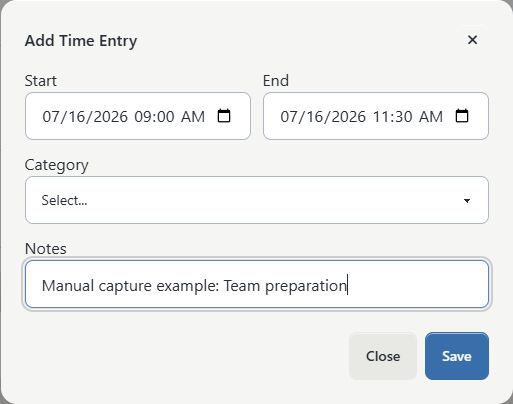
- Enter Start using the studio's intended local date and time.
- Enter an End later than Start.
- Select the approved Category when the studio uses one.
- Enter a short operational Note only when it helps an authorized reviewer understand the work.
- Recheck the person, date, start, end, and category.
- Select Save once.
- Wait for the profile to return before selecting anything else.
The End value is optional in the form, but leaving it blank creates an open entry. Do that only as part of an approved manual clock-in procedure.
#Clock in and clock out manually
DSM Next currently uses an open entry as the closest manual equivalent to clocking in and out.
#Clock in
- Open the correct staff profile and select Time Clock.
- Check the current week for another open entry.
- Select Add Entry.
- Type the approved Start time.
- Leave End empty.
- Select the work Category and enter a minimal note when needed.
- Select Save once.
- Confirm the row displays Open.
#Clock out
- Open the main Time Clock page.
- Find the staff member's open entry.
- Select Edit in the Action column.
- Confirm Start Time, Instructor, and Category.
- Enter the approved End Time.
- Confirm the calculated Duration.
- Select Save changes once.
- Reload or revisit the entry and confirm the end time and duration.
Important: There is no current one-open-entry safeguard, elapsed-time timer, or automatic stop. Before adding another entry, check for an existing open row. At the end of each day, a manager should review open entries rather than waiting for payroll close.
#Review active and archived entries
Open the main Time Clock page for the studio-wide list. The current columns are Action, Instructor, Time Clock Start, Time Clock End, Notes, and Duration, hours. Select an instructor's linked name to hand off to that staff profile.
The current main page provides:
- Show Archived and Show Active to switch record state;
- column sorting for supported stored fields;
- pagination; and
- row actions allowed by the current Time Clock checks.
It does not currently provide a visible date-range or instructor filter. Use a staff profile for one person's week or Reports > Staff Time Clock for a pay-period date and staff filter. The active and archived lists are separate, so check both before concluding that an entry is missing.

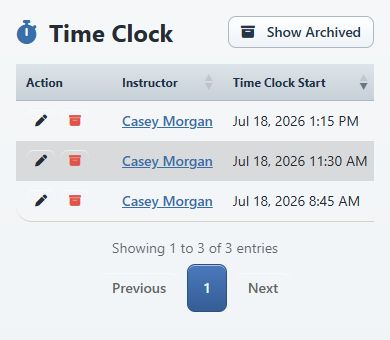
On a phone, the active list remains a horizontally scrollable table rather than changing into stacked cards. The first columns identify the action, instructor, and start time; swipe the table horizontally to review the end time, notes, and duration before taking action.
#Correct an entry
- Record the original instructor, start, end, category, note, duration, and entry ID when your studio keeps a correction log.
- Open the main Time Clock page.
- Confirm that the toggle offers Show Archived, which means the active rows are currently displayed.
- Locate the entry and select Edit.
- Confirm the Instructor before changing any value.
- Correct Start Time and End Time.
- Change Instructor only when the entire entry belongs to another staff member.
- Correct Category and Notes when needed.
- Verify that End Time is later than Start Time and that Duration matches the approved interval.
- Select Save changes once.
- Reopen the entry and confirm the saved values.
- Rerun the applicable Staff Time Clock report before approving payroll.
The current edit saves over the existing values. A complete who-changed-what audit timeline was not identified in the reviewed Time Clock path, so keep the studio's required approval record separately.
#Archive an invalid or duplicate entry
Archive only when the row should no longer count as an active Time Clock record. Correct an otherwise valid row instead of archiving it and creating a replacement.
- Record why the entry is invalid or which approved entry replaces it.
- Open the main Time Clock page and show active entries.
- Recheck the instructor, dates, and duration.
- Select Archive in the Action column.
- Read the confirmation and continue only for the intended row.
- Select Show Archived.
- Confirm the entry is present in the archived list.
- Rerun Reports > Staff Time Clock for the affected period and confirm the row no longer contributes hours or amount.
Important: An archived entry can still appear in the staff profile's weekly table and summary, and it can still be present in the staff-profile CSV export. Archive state is confirmed on the main Time Clock page; the current Staff Time Clock report uses active entries only.

#Restore an entry
Restore an entry only after confirming that a replacement was not already created.
- Open the main Time Clock page.
- Select Show Archived.
- Locate the row and compare it with the correction record and active list.
- Select Restore.
- Read the confirmation and continue.
- Select Show Active.
- Confirm the entry is active once and only once.
- Rerun the Staff Time Clock report for the affected period.
If both the restored row and a replacement are active, stop and resolve the duplicate before payroll approval.
#Reconcile entries before payroll
- Decide the exact pay-period start and end dates.
- Review each staff profile for open or obviously incomplete entries.
- Use the main Time Clock page to resolve active, archived, duplicate, or reassigned rows.
- Open Reports > Staff Time Clock.
- Enter the pay-period dates.
- Select one staff member first and run the report.
- Compare every report entry with the approved source and the main Time Clock record.
- Confirm each category and matching staff-specific category rate.
- Confirm open entries show zero hours and are resolved before approval.
- Repeat for the remaining staff, then review the all-staff totals.
- Generate the PDF only after the detail and totals agree.
- Store the report and any CSV in the studio's restricted payroll location.
The current Staff Time Clock report:
- includes active entries whose Start falls inside the selected date range;
- excludes archived entries;
- treats a missing or non-later end as zero hours;
- rounds entry hours to two decimal places;
- calculates an amount from the matching staff-and-category hourly rate; and
- uses zero when no matching category rate is available in the reviewed report path.
It does not create a payable, lock the period, record approval, calculate overtime policy, or transmit payroll. The studio remains responsible for wage, break, overtime, contractor, correction, and retention requirements.
Important: Scheduled instructor hours and Time Clock hours are separate sources. Do not add them together unless the studio's documented payroll method requires both and prevents double counting.
#What happens next
- A manually added row is saved as active by the normal Time Clock table default.
- A completed entry contributes duration on the staff profile, main page, and active Staff Time Clock report, subject to each surface's date and status scope.
- An open entry is stored but contributes zero calculated hours until it has a valid end.
- Editing changes the existing row and can change its report staff, category, hours, rate match, and amount.
- Archiving changes the row to archived instead of deleting it; restoring makes it active again.
- Deactivating a staff profile does not remove that person's historical Time Clock entries.
#Confirm it worked
For every new or corrected entry, confirm all of the following:
- the staff profile shows the row in the week containing its start;
- the main Time Clock page shows the same instructor, start, end, note, and duration;
- the main page shows the intended active or archived state;
- there is no second open or duplicate active entry;
- the Staff Time Clock report includes or excludes the row as intended;
- the report category, hours, rate, and amount agree with the approved source; and
- the correction or approval record is stored according to studio policy.
Use the main page and report for final status and payroll confirmation. The profile week and recent CSV have different archive and date scopes.
#Troubleshooting and recovery
#I cannot clock in from the dashboard
The DSM Next dashboard timer is not implemented. Add an open entry from Staff > staff profile > Time Clock, then close it from the main Time Clock page. If the studio requires an automatic timer, use its approved external process until the product provides and verifies one.
#Add Entry is missing
The profile can be visible without staff-management authorization. Ask an administrator to review the staff-write allowlist and your login group. Do not borrow another person's account.
#Time Clock is missing from the menu
Menu visibility can vary by login group. Ask an administrator to review the role, but do not assume that hiding the menu is a complete access restriction. At the time of this review, the main Time Clock action checks are broader than the staff-profile add-entry check. Give Time Clock access only to trusted staff until the role matrix has been hardened and tested.
#The category list is empty
The staff member may not have Time Clock category-rate rows. Review active Time Clock categories and the staff-specific work-type rate setup. Do not use a class-specific payroll rate as a substitute; it serves a different report path.
#The entry shows Open or 0.00 hours
Open the main entry and add the approved End Time. Confirm it is later than Start Time. Check for a second row before adding anything new.
#The entry is missing from the profile week
Move to the week containing the entry's Start value. An overnight entry belongs to its start week. Future weeks cannot be selected. If the row is still missing, check that you opened the correct staff profile.
#The entry is missing from the active list
Select Show Archived. If the row is archived by mistake, check for an active replacement before restoring it.
#The profile total and report total disagree
Check archived rows, open rows, date-range boundaries, overnight entries, and the selected person. The profile summary can include archived rows; the report excludes them. The profile week and report range both assign an entry by its start.
#The staff-profile CSV does not match the selected week
That export is a rolling recent-history file: up to 500 rows starting in the previous 30 days. It is not scoped to the displayed Monday-through-Sunday week and can include archived or open rows. Use the Staff Time Clock report for a pay-period active-only review.
#The report amount is zero but hours are present
Confirm the entry category and the staff member's matching category-specific Time Clock rate. The current report path does not use a general staff or class-specific rate as a fallback for a missing category match.
#The times shift or fall in the wrong period
Record the typed value, saved value, studio Time Zone setting, browser location, and affected entry ID. Do not make repeated offset corrections. Escalate the mismatch so the application, database, and report time-zone behavior can be checked together.
#Save fails or returns an expired-page message
Do not immediately submit the same entry again. Reload, sign in if needed, and check the staff profile and main list to see whether the row exists. Then retry once with a fresh page or ask an administrator for help. This prevents duplicate entries after an uncertain response.
#I edited the wrong entry
Stop, record both the original and changed values, and notify the authorized payroll reviewer. Correct the existing row if the approved original is known. Do not create compensating rows merely to make a total look right.
#I archived an entry by mistake
Open Show Archived, verify that no replacement exists, and select Restore. Reconcile the report again.
#Protect staff and payroll information
- Treat staff names, work patterns, notes, rates, totals, and exports as confidential employment information.
- Keep notes brief. Do not enter medical information, disciplinary details, passwords, client contact information, or full explanations that belong in a restricted HR record.
- Export only the needed person and period, then store the file in the approved restricted location.
- Do not email payroll exports through an unapproved channel.
- Use synthetic people, dates, notes, and rates for training, screenshots, and videos.
- If an export or screenshot exposes real data, stop distribution and follow the studio's privacy-response process.
#Related articles
- Add and manage staff
- Staff and Time Clock overview
- Configure instructor and class payroll rates
- Staff hours, schedules, and payroll reports
- Create and manage categories
- Roles and permissions overview
- Find and change Global Settings safely
- Staff sign-in, profile, password, theme, and logout
- DSM feature availability