Access
Roles and permissions overview
#Before you begin
- List the tasks the person must perform, including any finance, communication, reporting, or setup work.
- Start with the least access that supports those tasks.
- Use a fictional or internal test account for each staff role you plan to deploy.
- Keep at least one known owner or administrator account with working access while you test changes.
Warning: Access changes can expose financial, personal, communication, and studio-configuration data or prevent staff from completing daily work. Verify the result with the affected login group before assigning it broadly.
#Understand the layers
Access in Dance Studio Manager can depend on several things at once:
- the staff member's login group;
- the group's saved permissions;
- studio-wide feature settings;
- the type and state of the record;
- connected services, such as payment or messaging providers; and
- safeguards on a specific action.
A missing menu item can mean the role or feature does not make it available. A visible page does not guarantee that every button on it is allowed.
#Common login groups
The current default rules recognize these broad patterns. A studio can customize its saved login groups, so verify the actual result rather than relying only on the group name.
| Group pattern | Typical scope |
|---|---|
| Owner / administrator | Broad studio navigation and setup access. |
| Office administrator | Broad operational access, with sensitive permission administration normally excluded. |
| Instructor / teacher | Classroom-oriented access such as Dashboard, Group Classes, Calendar, Students or Families, and limited Messaging. |
| Client / guest | No admin navigation; these identities use the Online Client experience. |
#Review Group Permissions
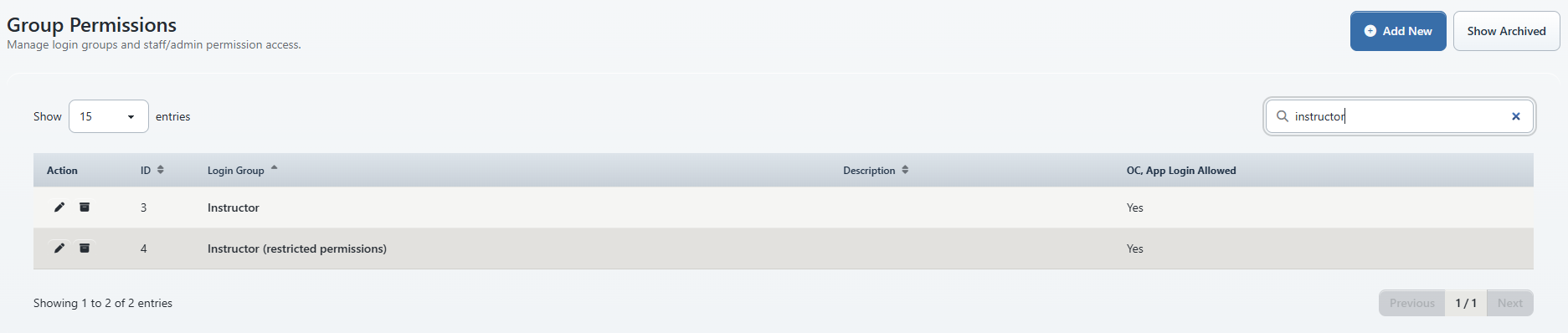
- Open Settings > Group Permissions with an owner or administrator account.
- Open an existing group or create a clearly named test group.
- Review the permissions by area, including setup, finance, communications, reports, people, classroom features, menus, and actions.
- Enable only the access required by the task list.
- Save the group.
- Assign it to a test staff account.
- Sign in as that test account in a separate private browser session.
Do not test only by using the administrator's sidebar. The affected account is the most useful proof of what a role can see and do.
#Verify a role
Build a small role test sheet with three columns:
| Task | Expected | Test result |
|---|---|---|
| Open the daily class schedule | Allowed | Record the visible path and result. |
| Take attendance | Allowed | Open a fictional class and confirm the attendance action. |
| Open Payment History | Denied, for an instructor | Confirm it is not available and cannot be used through a saved link. |
| Change Group Permissions | Denied, for office staff or instructors | Confirm the sensitive setup action is unavailable. |
| Send a message to the intended audience | Depends on role | Confirm recipient and sending controls without delivering a real message. |
For each role, test:
- the normal navigation path;
- a saved direct link to a page the role should not use;
- a read action;
- an allowed update using fictional data; and
- one sensitive action the role should not have.
#Change a staff member's group
Open the staff member's profile and edit the login-group assignment. After saving, have the staff member sign out and sign back in before evaluating the new navigation and actions.
Important: Changing a group can alter access immediately. Coordinate the test so the staff member is not interrupted during attendance, payment, scheduling, or message work.
#Confirm it worked
Use the separate test account to verify:
- the expected top-level and expanded menu items;
- the expected tabs and row actions on representative records;
- that an allowed update can be completed;
- that sensitive out-of-scope pages and actions are unavailable; and
- that the role can sign out and sign back in normally.
Save the test sheet with the group name and review date. Repeat it after a meaningful permissions or navigation change.
#Troubleshooting
#A menu item is missing unexpectedly
Check the staff member's current group, the group's saved permission data, and whether the studio feature is enabled. Sign out and back in after a group change.
#A user can open a page but cannot complete an action
The page and its individual actions can have different requirements. Record the exact path, button, message, role, and record used, then ask an administrator to review that specific permission.
#Two users in the same group see different choices
Compare their staff flags, record assignments, studio location, instructor or payroll status, and connected-service prerequisites. Conditional tabs can reflect more than the login group.
#An administrator lost access
Use another known owner or administrator account. Do not make further permission changes until a working administrative path and the last known configuration are identified.
#Related articles
- Configure and verify Group Permissions
- Use Day Overview and instructor Teaching views
- Configure instructor availability
- Manage class instructors and substitutes
- Create and manage email signatures
- Record calls and manage client follow-up
- Configure, collect, and reconcile Referral Sources
- Configure Size Systems and verify size suggestions
- Edit a group class safely
- Clone a group class safely
- Assign Sales Items and pricing options to a class
- Manage class prerequisites and student completion
- Manage student measurements from a class
- Archive and restore group classes
- Manage class videos and video meetings
- Add and manage staff
- Edit account and family details
- Customize the dashboard, search, and review alerts
- Archive, restore, and merge accounts safely
- Dashboard and navigation
- Settings overview
- Feature availability