Settings
Publish and control access to client videos
#Before you begin
- Confirm that your login can open Settings > Videos. The setting that enables or renames the client section is managed separately under Settings > Online Client or the searchable Global Settings screen.
- Host the video on a service that allows playback inside another website. Settings > Videos stores a link; it does not upload, transcode, caption, or host the video file.
- Confirm that the studio owns the content or has permission to distribute it to the intended audience.
- Prepare a short title, accessible description, captions or a transcript, the display window, and a written audience rule before opening the form.
- Create fictional allowed and not-allowed test accounts. Include a family with multiple active students when family accounts are used.
- Create or review the relevant content category, member categories, classes, and schedules before relying on them for filtering or access.
- Decide who will remove expired links and who will test the external host after privacy, password, or embedding settings change.
Warning: A newly saved video is active immediately. There is no Draft status on the current form. If the Online Client section is enabled and the video has no future Date Show or effective audience restriction, every signed-in client account can be eligible to see it as soon as it is saved.
Warning: The Studio Manager controls whether an eligible client can discover the embedded player; it does not provide digital-rights management. A client can potentially copy or share a playable third-party link. Archiving the record hides it from the Online Client but does not revoke the host URL. Use the host's approved privacy controls and do not publish highly confidential, individually sensitive, or unlicensed material through an ordinary share link.
Important: Video access is evaluated for the signed-in account together with its active dependent students. Eligibility is effectively pooled across that family. One family member can satisfy a member-category rule and another can satisfy a class or schedule rule. Do not use these restrictions when content must be isolated to one specific person within a family account.
#Understand the two settings surfaces
The feature has two separate parts:
- Settings > Videos creates the video record, display dates, description, and audience relationships.
- The Online Client settings control whether the menu and page are available and what the section is called.
On the searchable settings screen, the current client code reads these setting IDs:
| Setting ID | Client effect |
|---|---|
OC_VIDEOS_SECTION |
Shows or hides the video menu, home entry, count, and video page. When disabled, the direct client page is unavailable. |
OC_VIDEOS_SECTION_TITLE |
Replaces the default Videos label with the studio's approved client-facing title. A blank value falls back to Videos. |
To prepare a first launch, keep the section disabled while the content plan is being reviewed. Because clients cannot open the page while it is disabled, use a future Date Show on the test record before temporarily enabling the section for a fictional-client walkthrough.
To find either setting:
- Open Settings > Online Client or Settings > Global Settings.
- Search for the full setting ID.
- Record the current value.
- Make the approved change.
- Use Show changed only to check the complete change set.
- Select Save changes.
- Reload the Online Client in a separate fictional account.
Enabling the section does not make an archived, future-dated, expired, or ineligible video visible. Saving a video does not enable the section.
#Plan the audience before creating the record
Write a small access matrix before selecting any restrictions. For example:
| Test account | Member category | Active class | Selected schedule/status | Expected result |
|---|---|---|---|---|
| Fictional Client A | Matches | Matches | Matches | Visible |
| Fictional Client B | Does not match | Matches | Matches | Hidden |
| Fictional Family C | One dependent matches | Another dependent matches | Family has a matching schedule | Visible under current family-pooled behavior |
| Fictional Client D | Matches | Does not match | No match | Hidden |
Within one selected list, matching any selected value is enough. When more than one restriction family is used, the current client applies them together:
- selected member categories and selected classes must both match;
- selected schedules add another required match; and
- Visible for "attended" only further narrows selected-schedule access.
Test the combinations rather than assuming that selecting more values always makes the audience narrower.
#Review the fields and restrictions
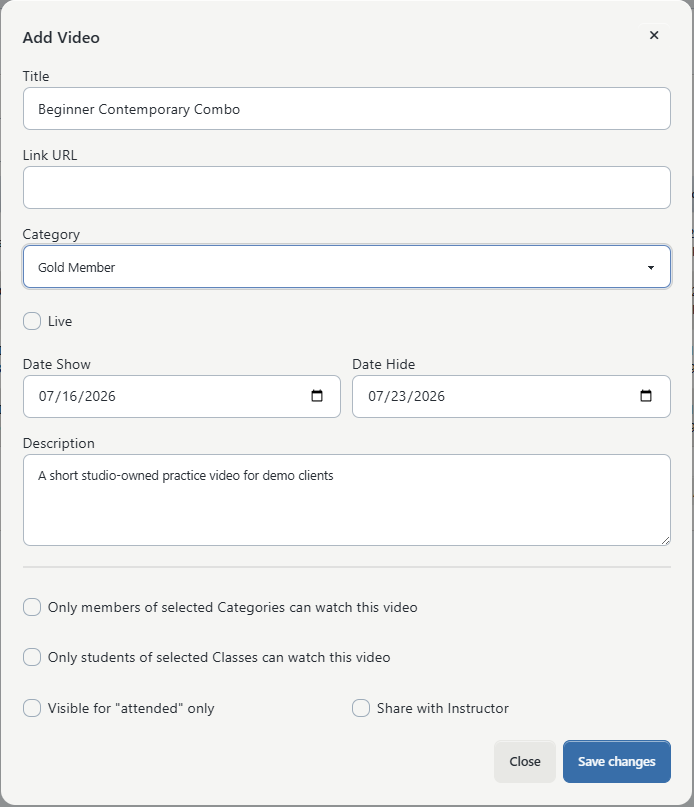
| Field or control | What it does | Important limits |
|---|---|---|
| Title | Names the video in the admin list and on the client card. | Required; up to 255 characters. Keep the useful words first. |
| Link URL | Supplies the source loaded in the embedded player. | Required; stored as text up to 2,048 characters. The form does not validate that it is a working or permitted URL. |
| Category | Organizes content and can provide an All Videos filter on the client page. | This is a library category, not an access rule. Not Selected leaves the video uncategorized. |
| Live | Adds a red live badge to the client card. | It does not publish the record, start a stream, schedule a meeting, or override dates and restrictions. |
| Date Show | Keeps the active record out of the client query until the selected date. | Optional. The field stores a date, not a time. Blank means no lower date boundary. |
| Date Hide | Removes the active record after its configured boundary. | Optional. Do not assume it includes the entire selected day; see the date warning below. Blank means no upper date boundary. |
| Description | Adds formatted context below the player. | Optional. Keep personal data, private host links, scripts, and unsupported embeds out of this field. Test headings, links, and contrast on mobile. |
| Only members of selected Categories can watch this video | Limits access to family accounts with at least one active member-category relationship in the selected list. | These are member categories, not the video's content category. Expired or inactive category relationships do not qualify. |
| Only students of selected Classes can watch this video | Limits access to family accounts with at least one active class relationship in the selected list. | Selecting several classes means any one of them can satisfy this part of the rule. |
| Restrict to specific schedules | Limits the class rule to selected active schedule occurrences. | Available only after class restriction is enabled. Schedule labels currently show date and time without the class name or location, so verify each selection carefully. |
| Visible for "attended" only | When schedules are selected, allows only matching schedule records with the qualifying status used by the current client code. | It has no effect without selected schedules. The current code checks a legacy schedule status value rather than a separate attendance timestamp, so prove the result with attended and not-attended fictional records. |
| Share with Instructor | Allows the video record's stored instructor to see it even when the normal audience relationships do not match. | The creator is recorded as the instructor when the video is first saved. The form does not let you choose a different instructor, and editing does not change that recorded person. |
Important: Category and member Categories solve different problems. The first is a content label used for browsing. The second is an audience entitlement. Assigning a content category does not restrict access.
Important: The current client code treats Share with Instructor as a bypass for member-category, class, and schedule restrictions when the signed-in client's member ID matches the instructor recorded on the video. Active status and show/hide dates still apply. Because the current form silently records the staff creator and does not display an instructor selector, do not rely on this control for another instructor until the result has been verified with that person's client login.
Warning: The form accepts a Date Hide without checking that it follows Date Show. It also stores date-only values while the client compares them with the current date and time. A video can therefore disappear at the beginning of the selected hide date rather than remain visible through that evening. If content should remain available through a particular day, test a hide date on the following day and verify the transition in the studio's configured time zone.
#Prepare and test the video link
The admin form displays a preview after a link is entered. Treat that preview as the first check, not final proof.
- Open the video on its hosting service in a signed-out or private browser window.
- Confirm that the host's privacy setting permits the intended audience and allows embedding on the Online Client domain.
- Confirm that the thumbnail, title, related-content behavior, and host account name are appropriate for clients.
- Confirm that captions are enabled or prepare a nearby transcript.
- Copy the approved HTTPS share or embed URL.
- Paste it into Link URL and wait for the preview.
- Start playback, seek, enable captions, enter full screen, and return to the page.
- Repeat the playback check from the Online Client on desktop and mobile before release.
Current client playback converts these common YouTube forms to an embedded player:
youtu.be/...share links;youtube.com/watch?v=...links; andyoutube.com/shorts/...links.
An existing YouTube /embed/ URL remains usable. Other links are passed to the iframe largely as entered, so services such as Vimeo or a private media host may require their own embed URL rather than a normal viewing-page URL.
Important: A host can allow a video to play in its own tab while refusing iframe playback. A blank player, a connection-refused message, or a host sign-in prompt usually requires a host privacy/embed change or a different URL; repeatedly saving the same link will not fix it.
#Create a video safely
- Open Settings > Videos.
- Select Add New.
- Enter the approved Title.
- Paste the tested Link URL.
- Confirm that the preview loads the intended video and no unrelated private content appears.
- Choose the optional content Category.
- Turn on Live only when clients should see the informational live badge.
- Enter Date Show and Date Hide, or leave the appropriate side open-ended.
- Enter the approved Description and accessibility information.
- Turn on the member-category restriction and select every approved Member Category, when used.
- Turn on the class restriction and select every approved Class, when used.
- If access is tied to particular occurrences, turn on Restrict to specific schedules and select the exact schedules.
- Turn on Visible for "attended" only only when schedule-status testing has confirmed the intended audience.
- Turn on Share with Instructor only when the recorded creator's access has been tested and approved.
- Compare the form with the written audience matrix.
- Select Save changes.
- Confirm Video created and find the record in the active list.
For a record that is not ready to release, use a safely future Date Show and verify that the current date is not inside its display window. Live is not a draft switch.
Important: The current save path can silently skip a member-category, class, or schedule relationship when the studio is missing the corresponding relationship table or expected columns. The presence of selectable categories or classes in the form is not proof that the access relationship was stored. Always test an allowed and a not-allowed fictional account before publishing.
#Understand what clients see
When the section is enabled, a signed-in eligible account sees Videos or the studio's custom label in Online Client navigation. The page:
- lists available videos newest by original Date Added first;
- shows the title, added date, optional live badge, embedded player, and description;
- offers All Videos and category choices when supported categories are available;
- shows No videos available when no record passes the current account's date and audience rules; and
- stores the IDs currently displayed in that browser for the menu's new-video indicator.
The client must be signed in. The feature-disabled route is unavailable, and the list is empty when neither the signed-in member nor an active dependent can be loaded for that family.
The browser indicator is not a server-side view, playback, or completion record. It can reset when browser storage is cleared and can differ on another device. The current feature does not report who pressed Play, how much they watched, or whether they completed the video.
Warning: Access restrictions control the list, not the third-party host. A person who already has the external URL may still be able to play it after losing eligibility, after the hide date, or after the record is archived. Revoke or replace the host link when continued access must end.
#Edit a video
- Open Settings > Videos.
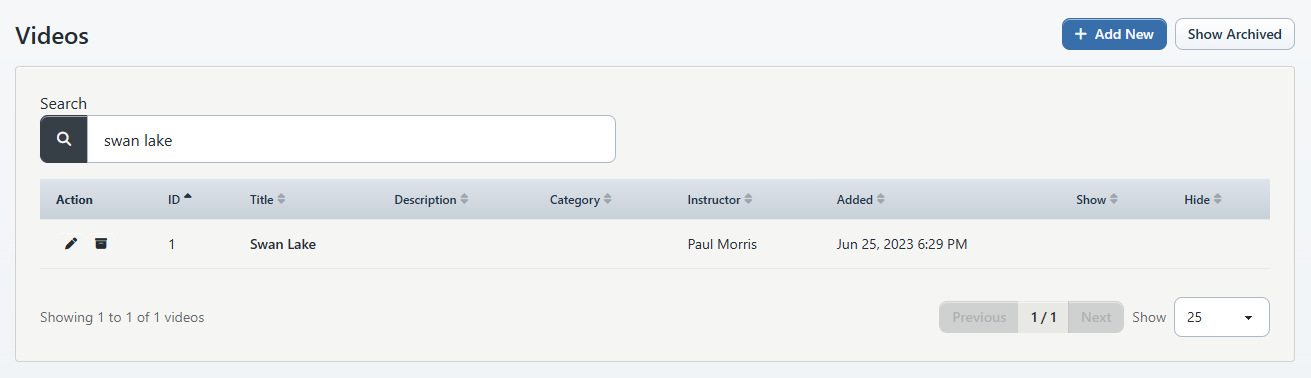
- Search by words in the title or description, then find the correct ID.
- Select the edit action.
- Wait for Loading video details... to disappear.
- Confirm that every expected member category, class, and schedule is still selected before changing anything.
- Update the approved fields.
- Recheck the preview, date window, and audience matrix.
- Select Save changes.
- Confirm Video updated.
- Repeat both allowed and not-allowed Online Client tests.
Warning: If the edit form opens without restrictions you know were previously saved, close it without saving and reload the page. The current form can display the basic row while a detail request fails; saving that state can clear existing audience relationships.
Turning off a member-category or class restriction removes the selected relationships when the form is saved. Turning off class restriction also clears selected schedules. This can broaden the audience immediately.
Editing does not change the original Date Added or the recorded instructor. It does not move the video to the top as a newly created item or reliably create a new-item indicator for clients who have already seen that video ID.
#Archive or restore a video
Archive a record when it should no longer appear in the Online Client library.
- Open the active Videos list.
- Confirm the record ID, title, and display dates.
- Select the archive action.
- Confirm Video archived.
- Verify that an otherwise eligible fictional client can no longer see it.
The current archive action submits directly and does not show a separate confirmation dialog. Check the row before selecting it.
To restore:
- Select Show Archived.
- Find the correct record.
- Select Restore.
- Confirm Video restored.
- Recheck its dates, restrictions, external link, and description immediately.
Warning: Restore makes the record active with its prior dates and audience relationships. If the current date is inside the saved window, it can become client-visible immediately. Archiving or restoring does not change the third-party video, revoke its URL, send a notice, or create a new instructor assignment.
#What happens next
Creating a record:
- stores it as active;
- records the current staff member as its instructor;
- records the current creation date;
- synchronizes the selected member-category, class, and schedule relationships when the studio has the required tables; and
- makes it available to the enabled Online Client section when dates and access rules pass.
Saving does not upload a file, enable the whole client section, notify clients, start a live stream, create a video meeting, enroll a student, or prove playback. The external host continues to control the media itself.
#Confirm it worked
Use a fictional fixture set and record each result.
- Reopen the video in Settings > Videos and verify the title, link, dates, description, and every selected restriction.
- Sign in as an account that should qualify and confirm the correct custom menu label and category filter.
- Confirm the card shows the expected title, added date, live badge state, description, and player.
- Start playback, use captions and full screen, and test at a mobile width.
- Sign in as an account that should fail the member-category rule and confirm the record is absent.
- Sign in as an account that should fail the class or schedule rule and confirm the record is absent.
- Test a family in which different dependents satisfy different parts of the rule and document the current family-pooled result.
- When attendance-only behavior is used, test both the qualifying schedule status and a nonqualifying status.
- When Share with Instructor is used, sign in through the recorded creator's client account and through a different instructor's account.
- Test the future Date Show and the beginning of the Date Hide day in the studio's time zone.
- Archive a disposable fictional record and verify it disappears; restore only after returning it to a safe future date.
- Open the external host URL separately and confirm that its own privacy policy matches the studio's release plan.
Absence from one account is not enough. Confirm at least one allowed and one disallowed state for every type of restriction selected.
#Troubleshooting
#The Videos menu is missing or the page returns unavailable
Confirm the account is signed in, then search settings for OC_VIDEOS_SECTION. The section must be enabled. Reload the client shell after saving. A studio can rename the menu with OC_VIDEOS_SECTION_TITLE, so also look for its custom label.
#The menu appears but says No videos available
Clear the category filter and check the record's active/archived state, show and hide dates, member-category relationships, active class relationships, schedules, and schedule status. Test the full family, not only the primary client. If the form showed restriction choices but the stored relationships do not take effect, the studio may be missing a required relation table or column.
#The video appears for the wrong account
Archive it first when the exposure is not approved. Then check for:
- no saved audience restrictions;
- family-pooled eligibility through another active dependent;
- a match in any one of several selected values;
- Share with Instructor bypassing the normal restrictions;
- the class toggle or schedule toggle being turned off during an edit; or
- selected relationships that were not stored even though the form offered the options.
Do not rely on the external host being unlisted as a replacement for correcting the audience.
#A selected Category does not appear as a client filter
The current admin selector reads video-category values from the studio's general categories data, while the current client filter looks for supported video-category or class-category tables. Those sources are not guaranteed to align for every studio. The video can still appear without the filter. Confirm the category setup and ask product support to reconcile the studio's category source rather than recreating duplicate categories casually.
#The embedded player is blank or refused
Open the URL in a private browser, confirm HTTPS, then check the host's embedding, privacy, domain, age, geographic, and sign-in restrictions. Use the host's embed URL when a normal viewing-page URL is not embeddable. If a YouTube share, watch, Shorts, or embed link still fails, confirm that the video owner permits embedding.
#Live does not make the video available
Live is a label only. Enable the Online Client section, keep the record active, check its dates and audience, and confirm that the linked host is actually broadcasting. Use the separate Video Meeting feature when the intended workflow is an interactive meeting rather than a view-only embedded stream.
#The video vanished on its Date Hide
The current field is date-only, while the client compares it with the current date and time. Treat the hide boundary as the beginning of the selected date unless a controlled test proves otherwise for the studio. For content intended through a particular calendar day, use and verify the following day's hide date.
#Attendance-only access is unexpected
Confirm that specific schedules are selected; the checkbox has no effect without them. The current code checks a legacy schedule status value. Compare one qualifying and one nonqualifying fictional schedule record and do not infer attendance solely from a roster label without checking the result.
#Share with Instructor does not reach the intended instructor
The record is assigned to the staff member who created it, and the form has no instructor selector. Editing the video does not change that assignment. Use the standard audience rules for reliable access, or ask product support to confirm the record's instructor before relying on this shortcut.
#The schedule choices are hard to distinguish
The current selector labels schedules primarily by date and time and does not show the class name or location in the option text. Select one class at a time when practical, compare the schedule with the class calendar, and verify the exact fictional client result before saving.
#An edit opened with all restrictions off
Close the modal without saving, refresh, and try again. If the expected selections still do not load, record the video ID and contact support. Saving while the relation details are missing can remove the existing restrictions.
#An edited video did not move to the top or show as new
Client order and the browser's new-video indicator use the original record date and ID. Editing keeps both. Create a new record only when a genuinely new content item and new access review are intended; do not duplicate a video merely to change its order.
#There is no watched or completed report
The current browser indicator remembers which video IDs were displayed in that browser. It is not watch analytics. Use the external host's approved analytics or a separate completion workflow when the studio must measure viewing, and disclose that tracking according to studio policy.
#Related articles
- Manage class videos and video meetings
- Settings overview
- Change Global and Online Client settings
- Prepare the Online Client for launch
- Create and maintain categories
- Create, assign, and verify Member Categories
- Create a group class
- Use messages, videos, meetings, and files
- Online Client navigation and account menu