Sales
Review purchases
#Before you begin
Know which question you are answering:
- Purchases shows what an account acquired and how much of its tracked use remains.
- The account Ledger shows charges, payments, credits, and balance.
- Payment History and the payment processor provide payment and settlement evidence.
- Scheduled Payments shows future payment instructions, not proof of payment.
- Inventory shows product variants and location stock.
Important: A purchase can be active while unpaid, paid while expired, or connected to a Sales Item that has since been archived. Do not infer financial status from the purchase's active or expiration state.
#Find a purchase
- Open Purchases.
- Start with Status set to Active.
- Narrow the list with Category, Type, Date Filter, Sales Item, Instructor, or Item Status.
- Enter an item name, price, or account name under Search.
- If needed, use the filter row beneath the column headings for an exact ID, account, student, date, item, category, instructor, active date, or expiration date match.
- Confirm the purchase ID, account, student, and item before opening an action.
The main filters currently include:
| Filter | Use it to review |
|---|---|
| Status | Active, Expired, Active and Expired, or Projected purchase records. |
| Category | One purchase category, all categories, or the special Unassigned remaining-unit view. |
| Type | A Sales Item type such as item, product, or package. |
| Date Filter | All dates, today, tomorrow, yesterday, or a Range using From and To. |
| Sales Item | Purchases connected to one item definition. |
| Instructor | Purchases assigned to one instructor. |
| Item Status | Purchases whose current Sales Item is active, archived, or either. |
| Search | Current search scope is the Sales Item name or price and the account holder's name. |
Note: The page can open with a Sales Item filter already applied when you arrive from an Inventory row.
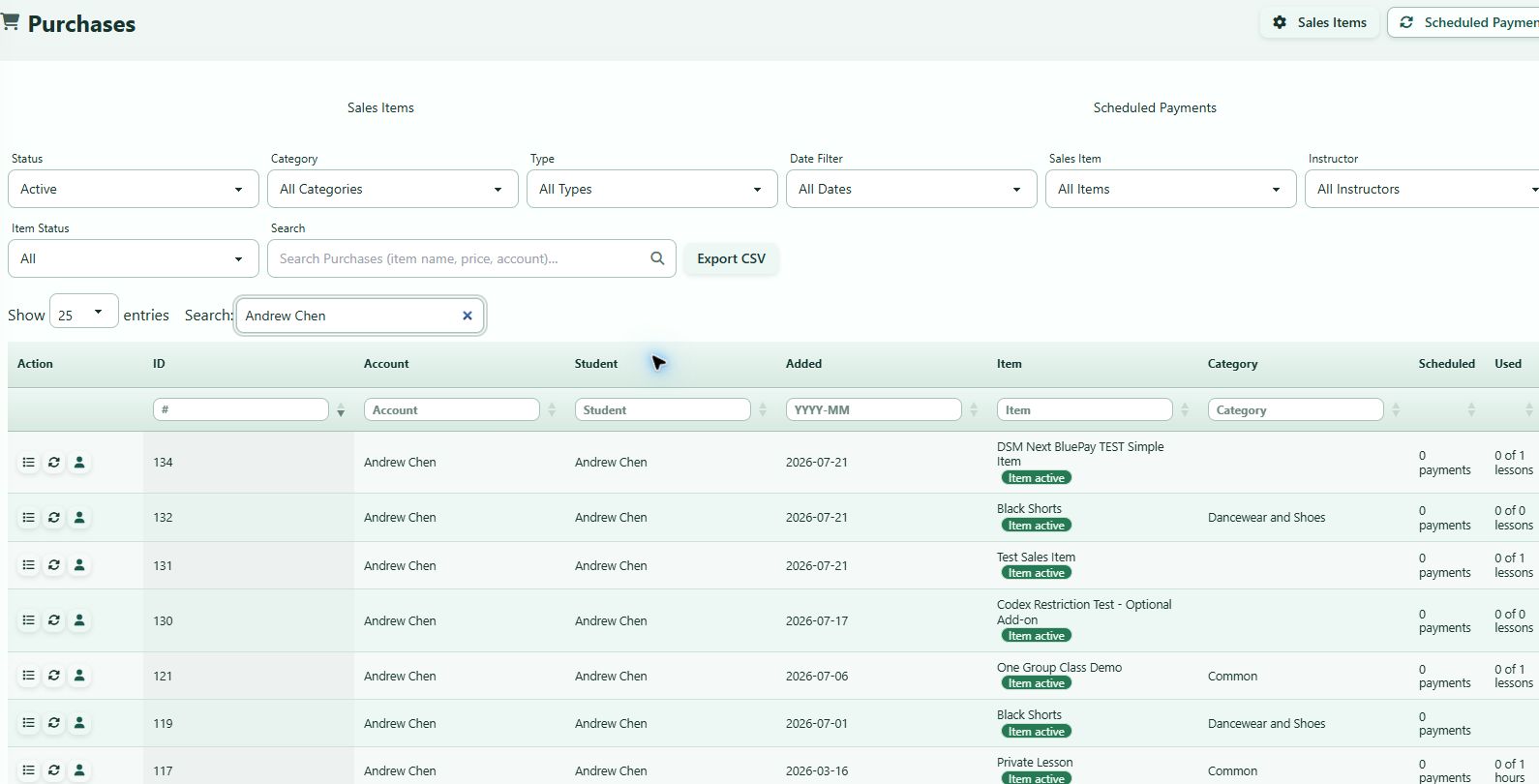
#Understand purchase status
The Status filter describes the purchase record, not payment collection:
| Status | Current list behavior |
|---|---|
| Active | Non-projected purchases that have not expired and, where use is tracked, still meet the remaining-use rules. |
| Expired | Purchases whose expiration date has passed or whose supported item units are fully used. |
| Active and Expired | Non-projected purchases without separating active from expired. |
| Projected | Records marked as future or projected purchases. |
The Item active or Item archived badge beside an item name is different: it describes the current Sales Item definition. It does not archive or reactivate the historical purchase.
#Read the purchase row
| Column | What to verify |
|---|---|
| ID | Unique purchase record used when reporting or requesting support. |
| Account / Student | Account holder and intended recipient. |
| Added | Purchase-record date. |
| Item | Current Sales Item name plus any purchase-specific subtitle and the item's active/archive badge. |
| Category | Purchase category used for filtering and reports. |
| Scheduled | Number of scheduled payment records connected to the purchase when available. |
| Used | Tracked use compared with purchased lessons, hours, credits, minutes, or quantity. |
| Charged, $ | Purchase charge amount exposed by the current record. Reconcile it with the ledger. |
| Complete Payments | Completed scheduled-payment count compared with scheduled count when available. |
| Notes / Instructor | Operational notes and assigned instructor. |
| Active / Expire | Activation and expiration dates. |
On narrower screens, lower-priority columns can be hidden. Scroll horizontally or use a wider desktop view when completing a full reconciliation.
#Use the row actions
The icons in Action can provide:
| Action | Purpose |
|---|---|
| Edit Purchase | Review or change supported units, activation, expiration, category, instructor, and notes. |
| View Assigned Lessons | Review dates, times, classes, instructors, and status for lessons assigned to the purchase. |
| Scheduled Payments | Open the page's scheduled-payment tab filtered to the purchase. |
| Cancel Purchase | Immediately begins the current cancellation action after a confirmation. It appears only when the row has a nonzero charged amount. |
| Open Account | Open the account record for broader purchase, ledger, payment, and student context. |

Warning: Unassign in Assigned Lessons removes that lesson's assignment after a confirmation. Cancel Purchase can change units, expiration, and ledger records. Use the review-only parts of these dialogs unless you are authorized to make the change and understand its downstream effects.
#Review assigned lessons
- Select View Assigned Lessons.
- Confirm the Purchase ID, Student, Item, and Usage summary.
- Review each lesson's Date, Time, Class, Instructor, and Status.
- Select Close without changing anything when the goal is review.
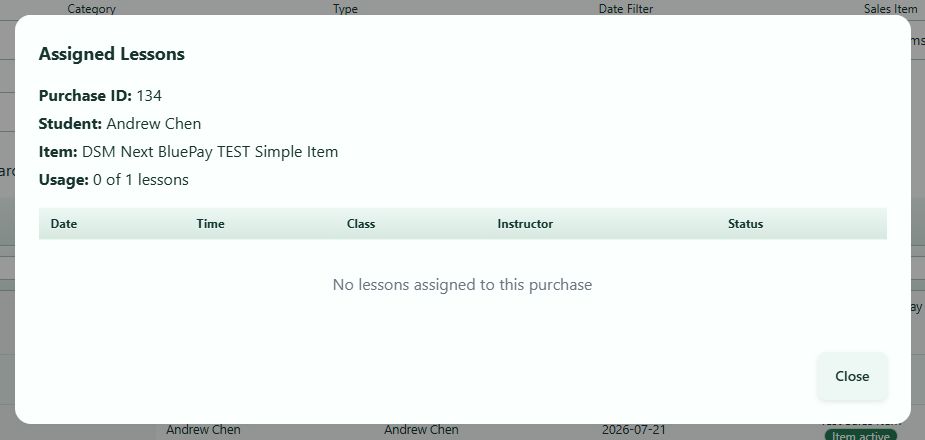
If No lessons assigned to this purchase appears, verify that the purchase is supposed to be assigned and compare it with the student's private-lesson or class schedule.
#Review scheduled payments for one purchase
- Select Scheduled Payments on the purchase row.
- Confirm the visible
Purchase #filter chip. - Review Date, Client, Purchase, Location, Scheduled, Paid, Method, Category, and Status.
- Use the tab's Status, From, and To filters when needed.
- Compare the scheduled total with the purchase and ledger.
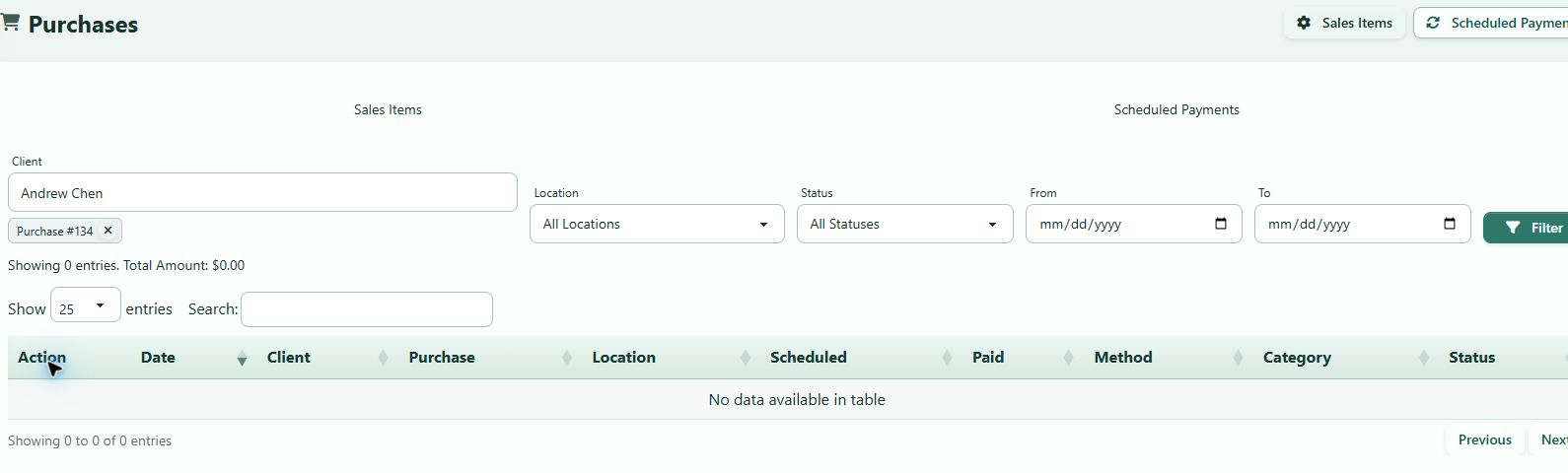
Scheduled-payment statuses can include Scheduled, Complete, Processing Error, On Hold, Terminated, and Processing.
Important: A scheduled amount is a future instruction. Only a completed payment record and processor-aware evidence confirm collection.
#Export the filtered list
- Set the main purchase filters and search.
- Confirm the visible result set represents the records you need.
- Select Export CSV.
- Store and share the file according to the studio's privacy and accounting policy.
The export includes account and student names, financial amounts, and operational notes. Treat it as confidential studio data.
#Confirm the review
For a representative purchase, confirm:
- the account and student are correct;
- item, category, units, activation, and expiration match the offer;
- assigned lessons match the schedule;
- scheduled and completed payment counts match Scheduled Payments;
- Charged, $ reconciles with the account ledger;
- any collected payment reconciles with Payment History and processor evidence; and
- inventory matches the product purchase when applicable.
#Troubleshooting
#A known purchase is missing
Change Status to Active and Expired, clear Category, Type, item, instructor, date, and search filters, and set Item Status to All. Also check Projected when the record represents a future purchase.
#Search finds fewer records than expected
The current search is limited to the item name or price and account-holder name. Use the Student column filter for a student name, or filter by purchase ID, category, item, instructor, or date.
#The item says archived but the purchase is still active
The badge describes the Sales Item definition, while the dates and use describe the purchase. Do not restore an old Sales Item solely to change a historical purchase.
#Scheduled and Complete Payments do not match the ledger
Open the purchase's Scheduled Payments tab and the account ledger. Check for processing errors, on-hold or terminated instructions, payments created outside the schedule, and unallocated payments.
#Charged does not match money collected
Charged is not a receipt. Compare charges, payments, allocations, credits, and processor settlement before correcting anything.
#The account action is disabled
The purchase can remain even when the related account record is missing. Record the purchase ID and ask an administrator to investigate rather than reassigning it casually.