Group Classes, students, and reports
Manage student measurements from a class
Important: Measurements belong to the student, not to the class. A student has one shared current measurement record. Saving the student from one class changes the values shown from every other class, the individual student page, and the Measurements List report.
Privacy warning: Body measurements and fitting notes can be sensitive personal information, especially when the student is a minor. Collect only what the studio has an approved purpose and authority to use. The current record has no measurement date, history, per-field visibility, client approval, or automatic retention rule.
#Understand the record before you edit
The class window is a bulk editor shaped like the current roster. It does not create a separate set of measurements for that class.
- One student can have only one current measurement row.
- Saving replaces the student's current values; it does not add a dated session or history entry.
- Removing a student from a class does not remove the student's measurement row.
- The class window includes only active enrollments and active students. When the student belongs to a parent account, that parent must also be active.
- The individual student page can show the same shared row and adds Notes.
- The reviewed Online Client does not provide a page where clients can view or edit these fields.
If the studio needs measurements by date, production, costume, side of body, method, or measurer, keep that structured history in the studio's approved purpose-built system. Do not encode an entire history into Notes and assume the software will protect or preserve it.
#What is currently supported
| Need | Current support | Boundary |
|---|---|---|
| Review a class roster | Yes, in Class Measurements | Shows current shared values for eligible active students, including blank rows |
| Add first values | Yes | Save creates the student's shared row when none exists |
| Edit values | Yes | Save overwrites the current shared snapshot |
| Edit one student with notes | Yes, from the student's Measurements page | Notes are not shown in the class window |
| Clear individual values | Yes | Blank body and size fields are stored without a value; the student measurement row remains |
| Delete a measurement record | No customer-facing delete action was found | Use the studio's approved retention or support process; do not edit the database directly |
| Keep measurement history | No | Preserve an approved before-state outside this page when correction or audit requirements apply |
| Import measurements | No import action was found | Do not treat an unrelated member or class import as a measurement import |
| Export measurements | PDF only, through Measurements List | No current CSV or spreadsheet export was found |
| Suggest a size | Optional in Measurements List | A stored Size takes priority; a suggestion is not a fitting decision |
#Before you begin
- Confirm that the staff member is authorized to see and change body measurements, not merely to open the class or student record.
- Confirm the class, student names, and student IDs. Similar names are not enough.
- Choose one measurement unit for the studio or program, such as inches or centimeters, and confirm that any configured Size System uses that same unit.
- Enter plain numbers only, using the studio's agreed decimal format. Do not add
in,cm, quotation marks, or explanatory words to a measurement field. - Confirm who supplied the values, when they were taken, and whether they are still current in the studio's approved external process. The software does not store those facts.
- For a correction or broad bulk update, preserve the necessary before-state in an approved protected change record. Do not copy unrelated measurements or notes.
- Ask another authorized person to verify the student-to-row match when the values will be used for ordering, alterations, safety, or another consequential decision.
The fields accept text and do not enforce a unit, numeric range, required measurement set, or biologically plausible value. The report later formats the body fields as numbers, so labels or nonnumeric text can become misleading.
#Understand the fields
| Field | Current meaning | Use carefully |
|---|---|---|
| Chart | Optional category used to look for a configured size-chart match | It is a sizing category, not a statement of identity. Choose it only when it matches the studio's configured chart |
| Chest | Current chest measurement | No unit or date is stored |
| Bust | Current bust measurement | Leave blank when it is not part of the approved fitting method |
| Waist | Current waist measurement | Use the same measuring method and unit as the size chart |
| Hips | Current hip measurement | Use plain numbers only |
| Girth | Current girth measurement | Define the studio's measuring path outside the software |
| Inseam | Current inseam measurement | Use the studio's agreed start and end points |
| Size | Optional manually entered size | A stored value takes priority over report suggestions, even when a Size System is selected |
| Notes | Optional free text on the individual student's page | It appears in the web report and beside the student's name in the PDF; do not place medical, safeguarding, or unrelated personal details here |
The available Chart choices are fixed interface categories. The page does not provide a customer-facing chart-category editor or unit converter.
#Update measurements for a class
- Open Group Classes.
- Find and open the intended class.
- Confirm the class number and code in the header before opening an action. The measurement window's title may emphasize the location instead of the class code.
- Select Action > Class Measurements.
- Wait for the roster to finish loading.
- Confirm every visible student's name against the intended roster before entering values.
- For each student being updated, choose Chart only when the studio uses the matching configured chart.
- Enter the approved plain-number values in Chest, Bust, Waist, Hips, Girth, and Inseam.
- Enter Size only when an authorized person has chosen a size. Leave it blank if the report should make an optional Size System suggestion instead.
- Recheck names, units, decimal placement, and transposed values. Review unchanged rows too, because Save submits the full displayed roster.
- Select Save once.
- Wait for the message that students were updated. Do not treat the number in that message as a count of values that changed; it counts accepted student rows.
- Keep the window open and compare the visible rows with the approved source.
- Close the window, reopen Action > Class Measurements, and confirm the saved values after a fresh load.

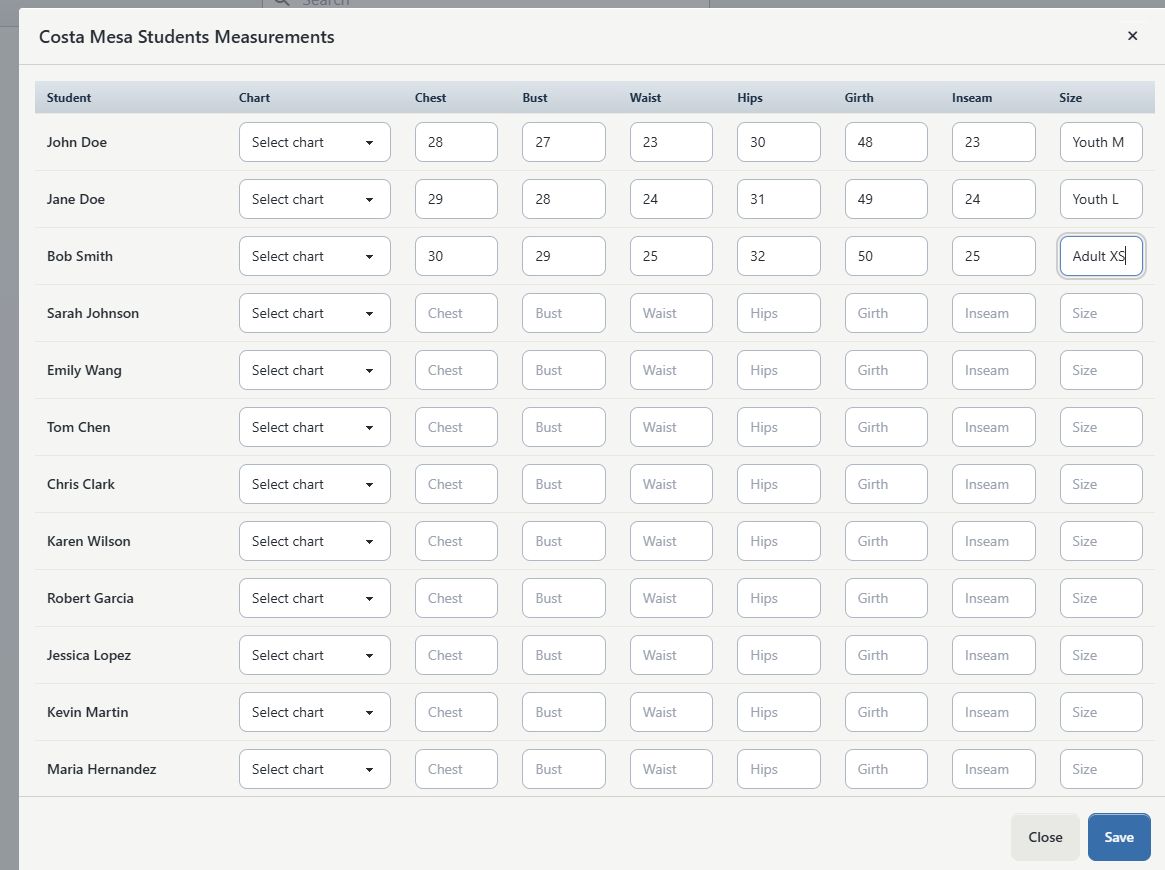
Warning: Close does not save, and the current window does not warn about unsaved edits. If you close it before Save, the pending changes are discarded.
The bulk save does not include Notes. Existing student notes remain unchanged when the class window saves body measurements and size.
#Update one student and review Notes
Use the individual page for a focused correction or when an authorized user must review the student's measurement note.
- Open Families or Students and find the correct account.
- Open the primary account and select Family Members and Classes when the student belongs to a family account.
- Find the intended student by name and ID.
- Select Measurements on that student's row.
- Confirm the disabled Student Name field before editing.
- Review Chart, all body fields, Size, and Notes.
- Enter only the approved changes, using the studio's established unit.
- Remove obsolete or excessive note text. Keep only the minimum fitting information authorized staff need.
- Select Save once.
- Wait to return to the family or student page, then open Measurements again and verify the stored values.
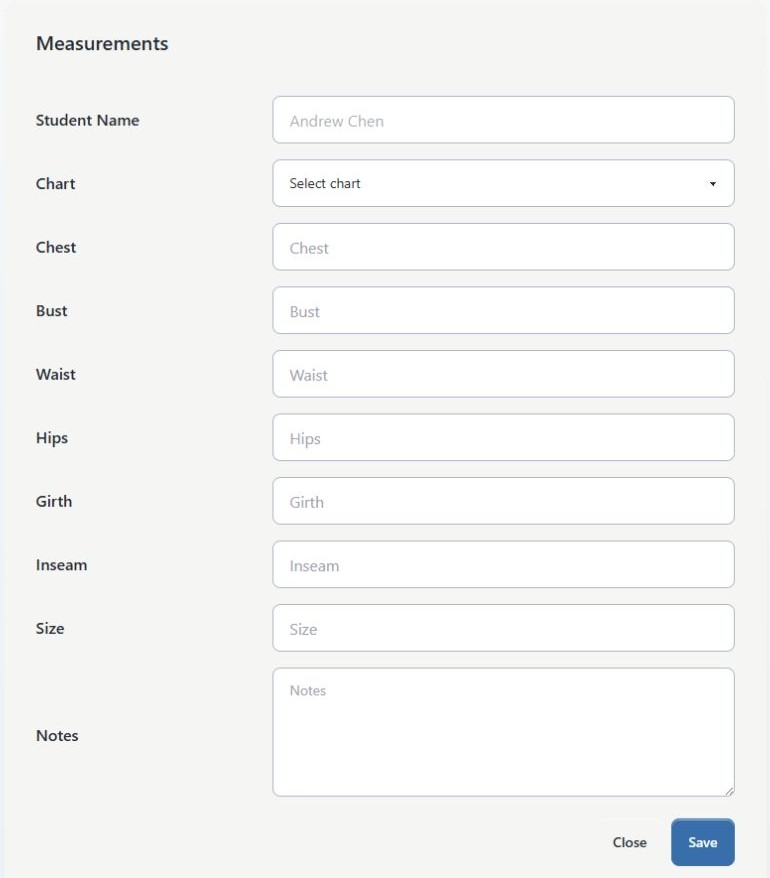
The Measurements action is currently disabled on the family row when the student has no classes. Do not add an enrollment merely to unlock this button. Ask an authorized administrator or support contact to review the record and the intended retention or correction process.
#Clear a value or correct a mistake
Clearing a field removes that displayed value after saving, but it does not delete the student's measurement row.
- Open the individual student's Measurements page when correcting one person.
- Confirm the student name and ID.
- Compare the current row with the approved before-state.
- Clear only the value that should no longer be used, or enter the verified replacement.
- Review Size separately. A manually stored size can remain even after a related body field is cleared.
- Review Notes separately. Clearing measurements from the class window does not clear or change Notes.
- Select Save once.
- Reopen the record and confirm the result.
- Run the narrowest useful Measurements List report and confirm that the correction appears for the intended student.
If an incorrect value was saved and no reliable before-state exists, do not invent a replacement. Follow the studio's approved remeasurement and incident-correction process. The page provides no undo or earlier version.
If a bulk save reports an error, reload before trying again and compare every row. The current bulk write processes students one at a time without a customer-visible all-or-nothing result, so some earlier rows may have saved before a later failure.
#Review the Measurements List report
- Select Reports > Measurements List.
- Under Size System, leave No size suggestion selected unless the studio has verified a chart that uses the same measurement unit and method.
- Choose All Seasons or a specific Season.
- Choose one of the class scopes:
- All Classes (grouped per class) for separate active-class sections;
- All Classes (one combined list) for one deduplicated active-student list; or
- one active class for the narrowest review.
- Select Show Report.
- Confirm the filter summary and the number of students and classes.
- Compare at least one student with the individual Measurements page.
- Review Notes before sharing or exporting. The web preview includes the notes in full.
- Select PDF only after confirming the scope and audience.
- Store, transmit, print, and destroy the PDF according to the studio's sensitive-record policy.
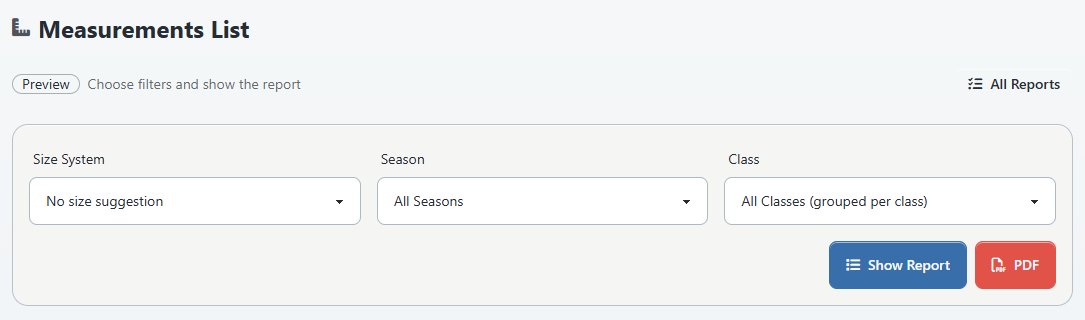
The report includes active classes, active enrollments, active students, and active parent accounts. It can include a student whose measurement cells are blank because roster membership, not the existence of a completed measurement row, determines the list.
The web preview shows Class, Student, all six body fields, Size, and Notes. The PDF shows the student and six body fields. Notes appear beside the student's name, and the PDF adds a Size column only when a Size System is selected. No unit label is added to either output.
#Understand Size System suggestions
A Size System selection does not convert units and does not replace a manually stored Size.
- If Size already contains text, the report uses that stored value.
- If Size is blank, the report needs a Chart and a selected Size System before it can suggest a size.
- The current lookup can return a size when at least one entered body measurement falls within that size's configured range. It does not require every populated measurement to fit the same size.
- If several rows could match, the first size name returned by the configured lookup can be shown.
Treat the result as a starting point for an authorized fitting review, not as an automatic order, guarantee, medical conclusion, or substitute for the supplier's current chart. Confirm the final size independently before spending money or altering an item.
#What happens next
- The student's shared current measurement row is created or overwritten.
- The same values can appear from any class in which that student is eligible for the class measurement window.
- The individual student page shows the shared values and Notes.
- The Measurements List report reads the shared row for active roster records.
- Saving does not notify the student, parent, instructor, administrator, supplier, or wardrobe staff.
- Saving does not change enrollment, attendance, schedule, charges, purchases, inventory, or Online Client content.
- Saving does not record when the measurements were taken, who measured them, who last edited them, the unit, or the reason for the change.
#Confirm it worked
- Reopen Action > Class Measurements and confirm the intended student and values.
- Open the individual student's Measurements page and compare all fields, including Notes.
- Run Reports > Measurements List for the specific class.
- Confirm the same student appears once in that class section with the expected current values.
- If a Size System is selected, compare the displayed result with the approved chart and independently confirm the final size.
- Record the verification date, authorized reviewer, unit, and source in the studio's approved process; these are not stored with the measurement row.
#Protect privacy and retention
- Grant access by job responsibility and review class, student-record, and report access separately.
- Do not assume that a hidden menu item is the only access boundary. Test each intended staff role with fictional data.
- Use neutral, minimal Notes. Do not store diagnoses, safeguarding narratives, identity documents, payment credentials, passwords, or unrelated account history.
- Never use real student measurements in training, screenshots, videos, bug reports, or vendor demonstrations.
- Treat on-screen reports, browser downloads, PDFs, printed pages, backups, and emailed attachments as separate copies that require protection and disposal.
- Confirm the correct recipient and use an approved secure channel before sharing a PDF. Ordinary email may not meet the studio's policy.
- Follow the studio's retention and data-subject-request process. Because the page has no delete action, direct database changes are not a customer recovery method.
- Do not promise clients that the software supplies consent tracking, measurement history, access logging, automatic expiry, or client self-service for these fields.
#Troubleshooting
#Class Measurements is missing from Action
Confirm that the class page loaded completely and that the staff role is intended to use the measurement routes. Ask an owner to review Group Permissions. Do not use a copied direct URL or another person's login as a workaround.
#The window says Students Not Assigned To Class
Confirm that the enrollment is active, the student is active, and the parent account is active when the student belongs to one. Close and reopen the class after a roster change. Do not change enrollment status merely to edit a measurement.
#The window title shows a location instead of the class code
Use the class number and code in the page header behind the window as the source of orientation. Close the window without saving if the class is uncertain.
#A student disappeared while the window was open
The save path checks the eligible roster again. A student whose enrollment, student status, or parent status changed can be skipped. Reload the class, investigate the record change, and use the individual authorized workflow if appropriate.
#Save reports that several students were updated, but nothing looked different
The message counts accepted rows, not changed fields. Reopen the window and compare the actual values.
#Notes are missing from the class window
This is the current bulk-editor design. Open the individual student's Measurements page to review or edit Notes. Remember that those notes appear in the Measurements List web report and PDF.
#Measurements is disabled on the student's family row
The current control is disabled when that student has no classes. Do not create a false enrollment. Ask an administrator or support contact to review the approved correction or retention route.
#Values look like zero or sort incorrectly in the report
Remove unit suffixes and other text, use plain numbers, and verify the decimal format. The form accepts text, but the report treats body fields as numbers.
#The suggested size is blank
Confirm that Size is blank only when a suggestion is intended, a Size System is selected, Chart matches that system, at least one numeric body value is present, and the configured ranges use the same unit. A blank result is not permission to guess a size.
#The suggested size does not fit all measurements
The current lookup can match when any one entered value falls in a configured range. Compare every relevant value with the supplier's approved chart and choose the final size outside the automatic suggestion.
#An active self-account student is missing from the report
The current report query expects an active parent relationship, while the class window can include an active student with no parent. Verify the individual record and class window, then ask support to investigate. Do not add a false parent relationship.
#A PDF contains more information than expected
Stop sharing it, contain every copy, and follow the studio's privacy incident process. Notes are printed beside student names, and class scope can include students with blank measurements. Correct the filters and content before creating another PDF.
#A previous value must be recovered
Use the approved before-state or source measurement. The page has no revision history, archive, or undo. If no reliable source exists, arrange an authorized remeasurement rather than reconstructing a value from memory.
#A record must be deleted for retention or privacy reasons
The reviewed customer interface has no measurement-record delete action. Preserve the request and authorization, restrict access, and use the studio's approved support or data-administration process. Verify the result in the student page, class window, report, downloads, and other retained copies.