Reports
Reports overview
#Before you begin
- Decide the question, date range, and part of the studio you need to measure.
- Confirm that the signed-in login group should have access to the data.
- Expect report availability and export choices to vary by studio and role.
- Treat downloaded files as studio records; store and share them appropriately.
Important: A report is only as complete as the records and filters behind it. Empty results do not necessarily mean the studio has no matching activity.
#Open a report
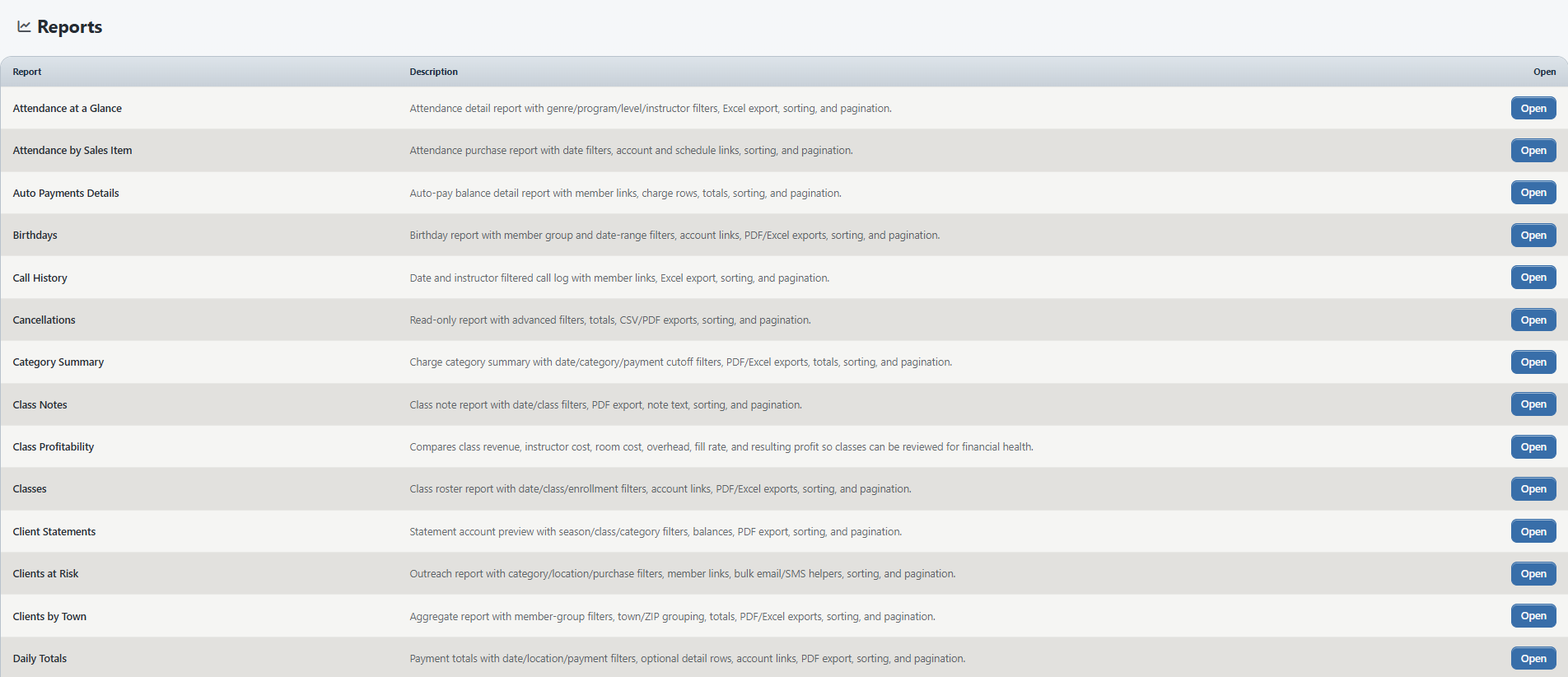
- Select Reports in the left navigation to expand the report list.
- Select the report that best matches your question.
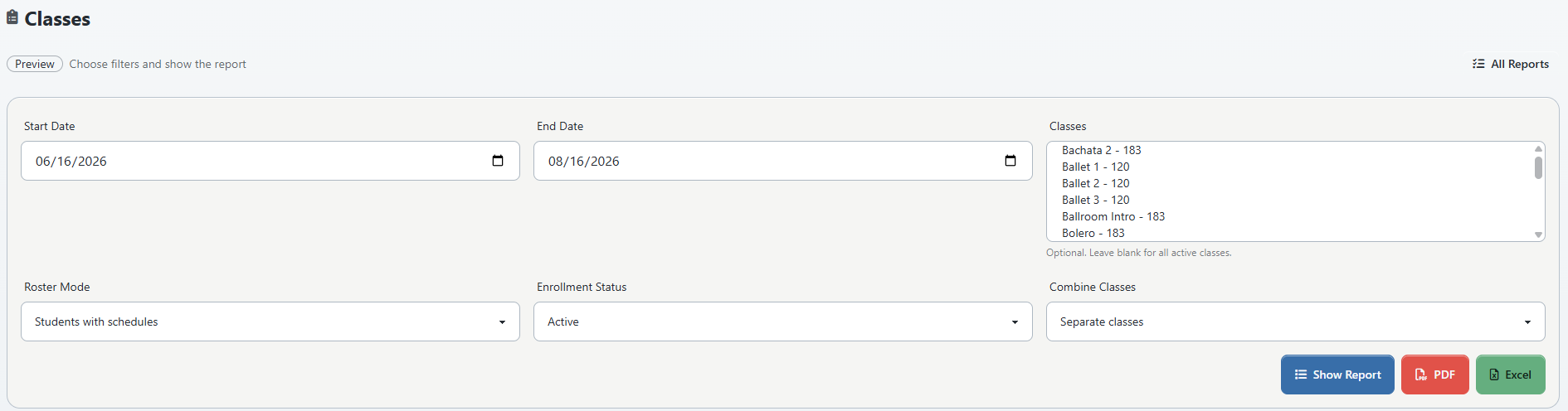
- Review the default dates and filters before relying on the result.
- Apply one filter at a time when you are investigating an unexpected total.
- Use the report's print or export control only after confirming the result set.
The verified a test studio administrator view offered 69 report destinations. Student Eligible Classes was not shown because its feature flag was off. A studio's list can also be reduced by permissions and by the report surfaces enabled in its version.
#Choose a report by question
The examples below are a starting point. Similar reports can group, date, or value the same records differently.
| Question | Reports to consider |
|---|---|
| Who attended, is enrolled, or is waiting? | Attendance at a Glance, Attendance by Sales Item, Students Enrolled, Waiting List, Roll Sheet |
| What is scheduled for a student or instructor? | Student Schedule, Instructor Schedule, Upcoming Classes, Lessons Remaining |
| Which clients may need follow-up? | Clients at Risk, Cancellations, Retention, Duplicate Accounts, Birthdays |
| What does a client owe or what happened on an account? | Outstanding Balances, Client Statements, PDF Ledger, Payment Receipt, Payment Receipts Log, Unapplied Payments |
| What income or sales activity occurred? | Daily Totals, Gross Income Summary, Income By Class, Revenue Explorer, Sales, Sales by Category |
| What should be reviewed before payment processing? | Auto Payments Details, Expiring Credit Cards, Not In Season Payments, Not Paid Lessons |
| How are instructors and staff time represented? | Individual Instructor Hours, Instructor Hours, Staff Time Clock, Staff Totals, Staff Payroll Commissions |
| What inventory or package value remains? | Inventory Remaining, Inventory Sales, Remaining Sales Items, Purchases by Staff |
| Which forms or answers are complete? | Financial Agreement, Signed Waivers, Poll Answers |
| How are classes performing? | Class Profitability, Utilization Tracker, Number of Classes, Recently Added Classes, Category Summary |
#Work with filters
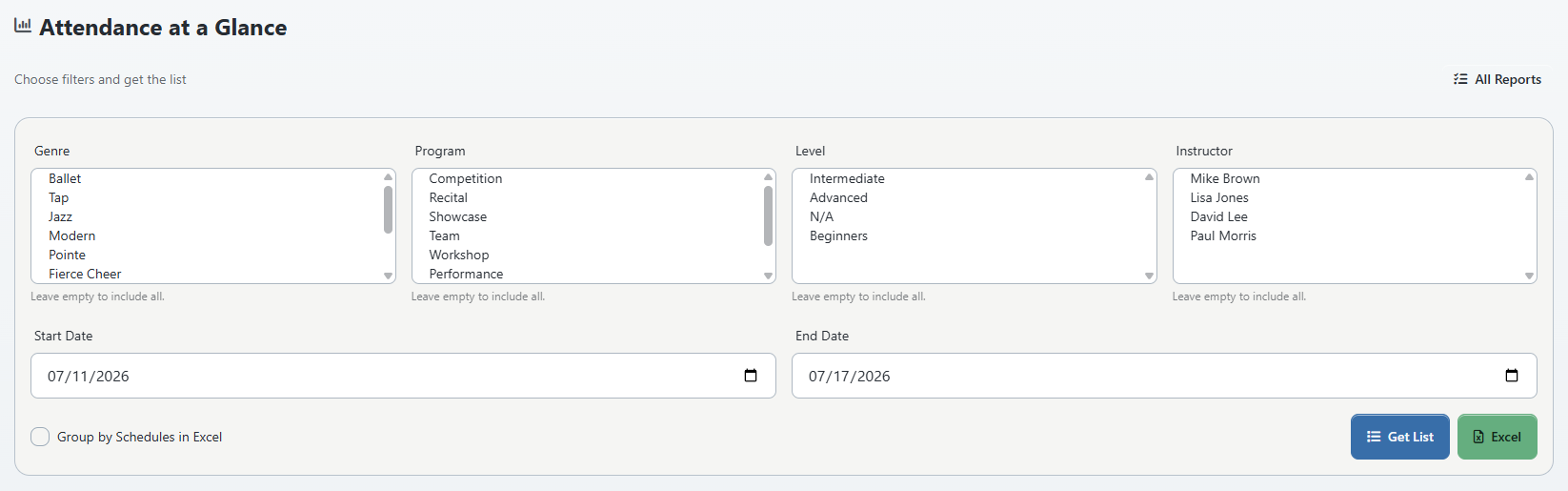
Reports can use different combinations of:
- start and end dates;
- season, class, category, program, location, or instructor;
- client or student status;
- payment, purchase, inventory, or enrollment state;
- sorting, search, and page size.
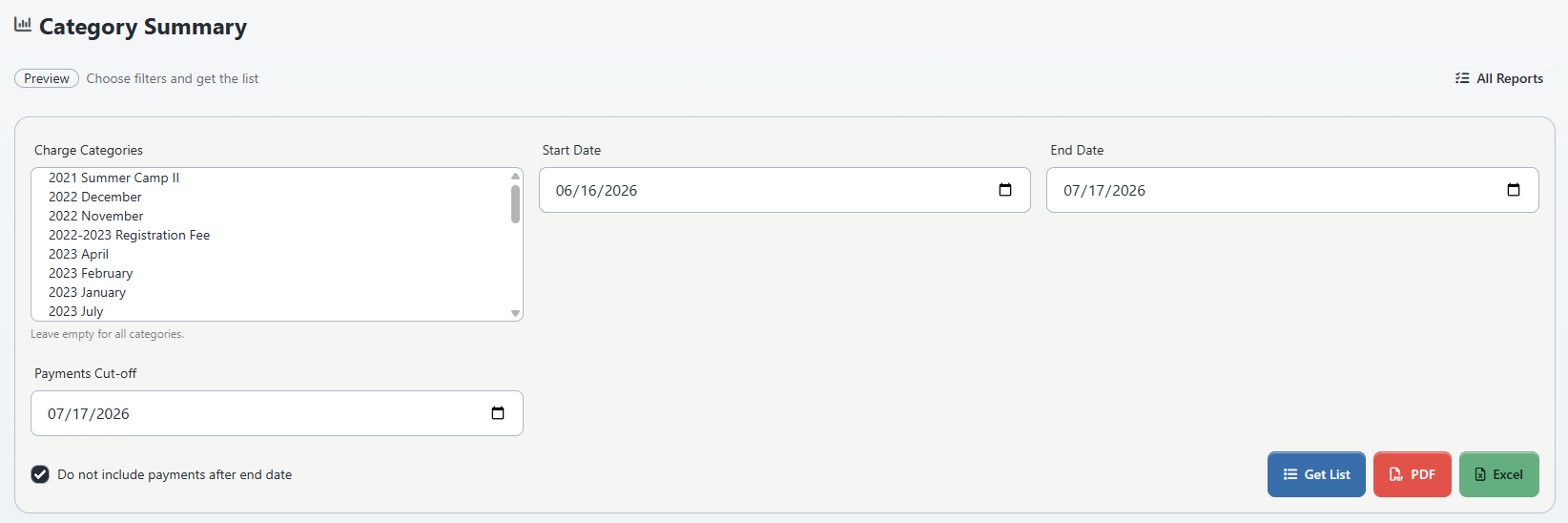
Read the labels on the selected report rather than assuming that two similarly named reports use the same date field. For example, a payment date, charge date, class date, purchase date, and enrollment date can produce different results for the same calendar range.
#Confirm the result
Before sharing a report:
- Record the report name and filter values.
- Open at least one linked source record when the report provides a link.
- Compare a small known sample with its client, student, class, purchase, or ledger page.
- Check whether totals cover the visible page or the complete filtered result.
- Export only after the on-screen sample makes sense.
For an important financial decision, compare the result with the relevant ledger or payment history rather than treating one report as the only source of evidence.
#Use the report-family guides
The complete Reports menu is intentionally not compressed into one long list of button-by-button instructions. Use the family guide that matches the underlying records:
- Enrollment, attendance, roster, and waiting-list reports
- Manage class notes and understand the Class Notes report
- Balance, statement, and payment reports
- Income, sales, and daily-total reports
- Staff hours, schedules, and payroll reports
- Client follow-up, retention, and contact reports
Each guide explains how to choose a report, reconcile a small sample with its source records, protect exports, and recognize totals that answer different questions. Individual high-use reports will receive their own procedures after their calculations and outputs have been tested with controlled data.
#Specialized and internal reports
Some destinations are designed for a particular output, such as PDF List, PDF Outstanding Balance, PDF Ledger, Payment Receipt, or Mailing Labels. Others may be migration or support tools rather than ordinary studio workflows. Document those separately from customer-facing operational reports.
#Troubleshooting
#A report is missing
The report may be disabled, unsupported in the current interface, hidden by a feature flag, or unavailable to the signed-in login group. Ask an owner or administrator to compare permissions and studio settings.
#The report is empty
Clear optional filters, widen the date range, and confirm that the source records use the expected dates and statuses. Then test one known record.
#A total does not match another report
Compare the exact date field, included statuses, grouping, and treatment of voided, archived, unpaid, unapplied, or out-of-season records. Similar report names do not guarantee identical rules.
#The download looks different from the page
Confirm whether the export includes all filtered rows or only a specialized print layout. Record the report and filters before escalating the discrepancy.
#Related articles
- Dashboard and navigation
- Edit a group class safely
- Account ledger
- Archive and restore group classes
- Manage student measurements from a class
- Manage class prerequisites and student completion
- Manage poll questions and review answers
- Create, assign, and verify Member Categories
- Record calls and manage client follow-up
- Configure, collect, and reconcile Referral Sources
- Configure Size Systems and verify size suggestions
- Configure and verify Group Permissions
- Create, use, and retire studio locations safely
- Enrollment, attendance, roster, and waiting-list reports
- Balance, statement, and payment reports
- Income, sales, and daily-total reports
- Feature availability