Settings > Poll Questions
Manage poll questions and review answers
Important: Always open Poll Questions from the current sidebar. The supported page has the heading Questions and locks Answer Type to Yes / No. If a bookmarked or alternate page offers Short Text, Paragraph, Dropdown, Multi-Select, Date, Number, Registration, or Enrollment choices, return to the sidebar page. Those choices are not supported consistently by the current Online Client answer forms.

#Before you begin
- Confirm that you are in the correct studio and are authorized to change settings. Access to Poll Questions, Poll Answers, and a student's Polls tab can follow separate permission paths.
- Confirm that a named season is available. The current Add Question form includes Not Selected, but a new question will not save with that value.
- Decide who should see the question. A blank member-category selection means every Online Client family can qualify.
- Prepare a matching fictional family and a nonmatching fictional family for an audience test. Do not test targeting with real clients.
- Confirm that the Online Client Polls section and member polls are enabled if clients need to find Polls in navigation.
- Preserve the current question ID, wording, season, relation, required state, explanation state, categories, status, and any existing answer report before editing a used question.
- Plan client communication separately. Creating, editing, archiving, or restoring a question does not send an email, text message, push notification, or staff alert.
Poll answers belong to the signed-in account member. Category eligibility is evaluated across the active family: if any active related family member has any selected category, the question can be visible, but the response is still stored under the signed-in account. Write household-level questions unless the responsible person is unmistakable from the wording.
#Use the supported fields
| Field | Current effect | Safe guidance |
|---|---|---|
| Title | Appears in the Online Client list, reports, and the administrative account's Polls history | Make it short, unique, and meaningful outside the question body. Do not reuse a title for a question with a different meaning. |
| Relation | Labels the intended context | Choose General (Profile) for production questions. Do not rely on Checkout until the current checkout display and submission filters are reconciled. |
| Season | Adds the season association and label; current pending-question paths use it as part of their filtering | Select the intended named season. A season does not reliably hide a question from the linked Polls & Questions page, which can list active questions from more than one season. Use Archive to retire a question. |
| Question | Supplies the full client-facing question body | Use concise, trusted text and simple formatting. The editor supports links, tables, and source code, and the client renders the stored HTML. Do not paste scripts, embedded forms, tracking code, untrusted HTML, or private internal notes. |
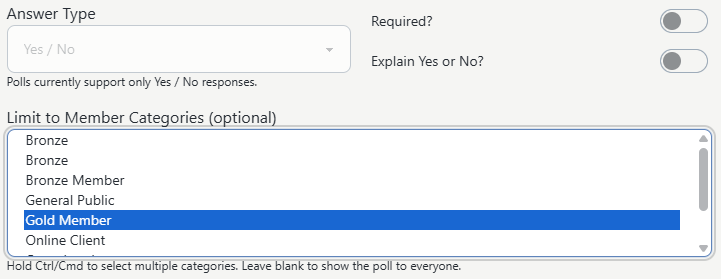
| Answer Type | Defines the response control | The supported page is fixed at Yes / No. Use another feature when the response must be free text, a date, a choice list, a signature, or a document. |
| Required? | Marks the question required in supported pending-question behavior and its display | Do not treat an unchecked toggle as a dependable Skip option. The linked individual form still requires Yes or No whenever it is submitted, and current pending forms can preselect Yes. Write every published question so an explicit Yes or No is appropriate. |
| Explain Yes or No? | Shows an additional comments box | The explanation remains optional and accepts up to 5,000 characters. Enabling this does not force a client to explain the answer. |
| Limit to Member Categories (optional) | Makes the question visible when the active family has at least one selected category | Multiple selections work as any selected category, not all of them. Leaving the list blank makes the question eligible for everyone. |
Warning: Polls are identifiable feedback records, not anonymous surveys, electronic signatures, waivers, immutable consent records, or medical forms. Use the purpose-built agreement or waiver process when identity, exact wording, signature evidence, version history, or legal retention matters.
#Create a General/Profile question
- Select Settings > Poll Questions.
- Confirm the page heading is Questions and the subtitle refers to Yes/No questions and season/category visibility.
- Select Add New.
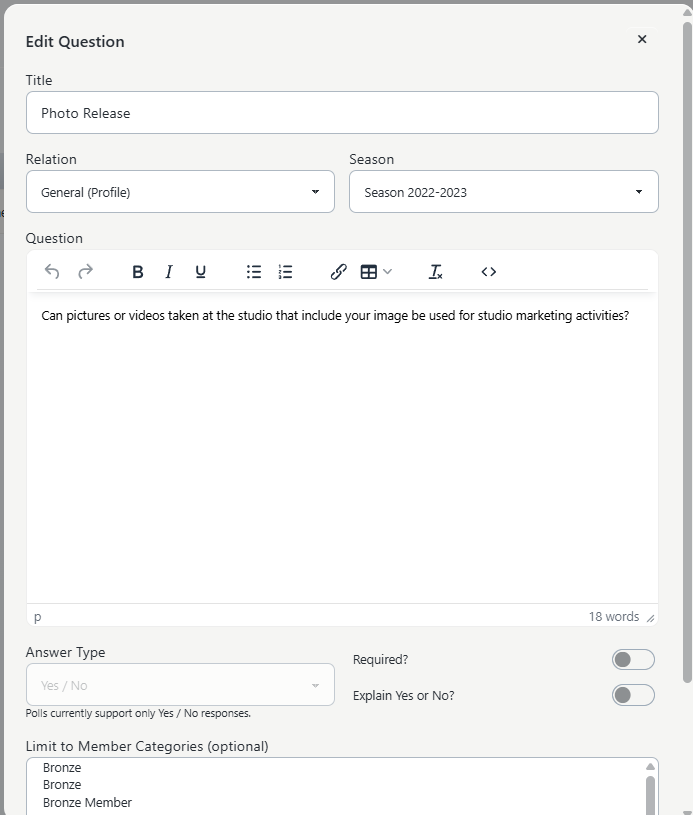
- Enter a unique Title.
- Leave Relation set to General (Profile).
- Select a named Season. Do not leave Not Selected.
- Enter the complete public wording under Question.
- Confirm Answer Type says Yes / No.
- Turn on Required? only when the intended workflow treats the response as required.
- Turn on Explain Yes or No? when optional context would be useful.
- Under Limit to Member Categories, select every intended category while holding Ctrl on Windows or Cmd on macOS. Leave it blank only when every family should qualify.
- Review the title, wording, relation, season, toggles, and complete category selection.
- Select Save changes once.
- Wait for Question created, then search for the exact title and record its ID.
The new question is active immediately. There is no separate draft, preview, schedule-for-later, approval, or notification step.
If Save reports an error or no confirmation appears, do not submit the same form again yet. Search the active and archived lists for the exact title. The question record and its category links are saved in consecutive operations, so a question can exist even when a later category update fails.
#Confirm the audience and client experience
- Reload Settings > Poll Questions and search for the exact title or ID.
- Reopen Edit and confirm the season, General (Profile) relation, required state, explanation state, and complete category list.
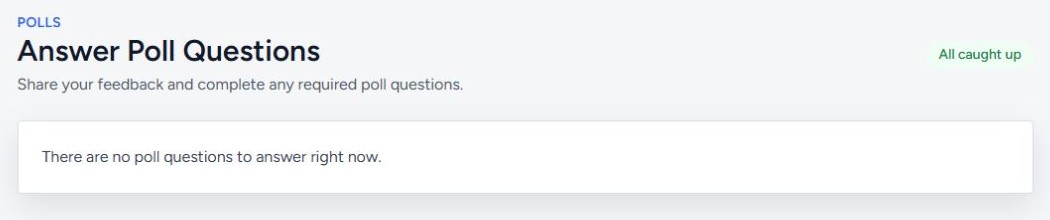
- Sign in to the Online Client as the matching fictional account.
- Open Polls and confirm the title and season on Polls & Questions.
- Open Answer, read the rendered question, and confirm that only Yes and No appear.
- Confirm that Additional Comments (Optional) appears only when explanation was enabled.
- Save a fictional answer and harmless comment, then confirm Your Answer and Date Answered on the list.
- Open Update and confirm the saved answer and explanation.
- Sign in as the nonmatching fictional account and confirm the category-restricted question is absent.
- Repeat on a mobile viewport when clients commonly use phones.
For a family account, test the complete active family, not only the person whose name appears at sign-in. One related family member with a matching category is enough to make the question visible.
The Polls menu itself requires both the Online Client Polls section and member polls to be enabled. A successful question save does not turn those settings on.
#Do not depend on question order
The current authoring page has no drag handle, position field, or reordering action. The administrative list uses any position already stored in the database and otherwise falls back to ID order. The Online Client can place recently answered questions ahead of unanswered ones.
Do not build a multi-step survey whose meaning depends on a fixed sequence. Put all context needed for a response in that question, and use a purpose-built form or agreement for ordered steps.
#Edit a question safely
Editing changes the same question record. Existing answers remain attached to its ID, and administrative history and reports can display the new title beside older responses.
- Before editing, preserve the question ID, current text, settings, category list, and a protected answer report when answers already exist.
- Search for the question under Settings > Poll Questions.
- Select the pencil Edit action.
- Confirm the ID and title before making changes.
- Correct only the approved fields.
- Recheck every selected member category. Saving replaces the complete category selection; a blank list expands eligibility to everyone.
- Select Save changes once.
- Wait for Question updated.
- Reload, reopen Edit, and compare every field with the approved result.
- Repeat the matching and nonmatching fictional Online Client checks.
- Reopen Reports > Poll Answers and the affected account's Polls tab when the question already had responses.
Use an edit for a typo or clarification that does not change the decision being recorded. If the meaning, audience, time period, or interpretation changes materially, archive the old question and create a new question with a new ID. That preserves a clearer boundary between the old responses and the new request.
Changing the title, wording, season, relation, required toggle, explanation toggle, or categories does not clear existing answers and does not notify earlier respondents.
#Archive a question
Warning: The Archive action submits immediately and has no confirmation dialog. Export or preserve any required answer evidence before selecting it.
- Search for the exact active question and confirm its ID.
- If answers need to be retained outside the software, run Reports > Poll Answers and protect the resulting PDF before archiving.
- Select the box-shaped Archive action once.
- Wait for Question archived.
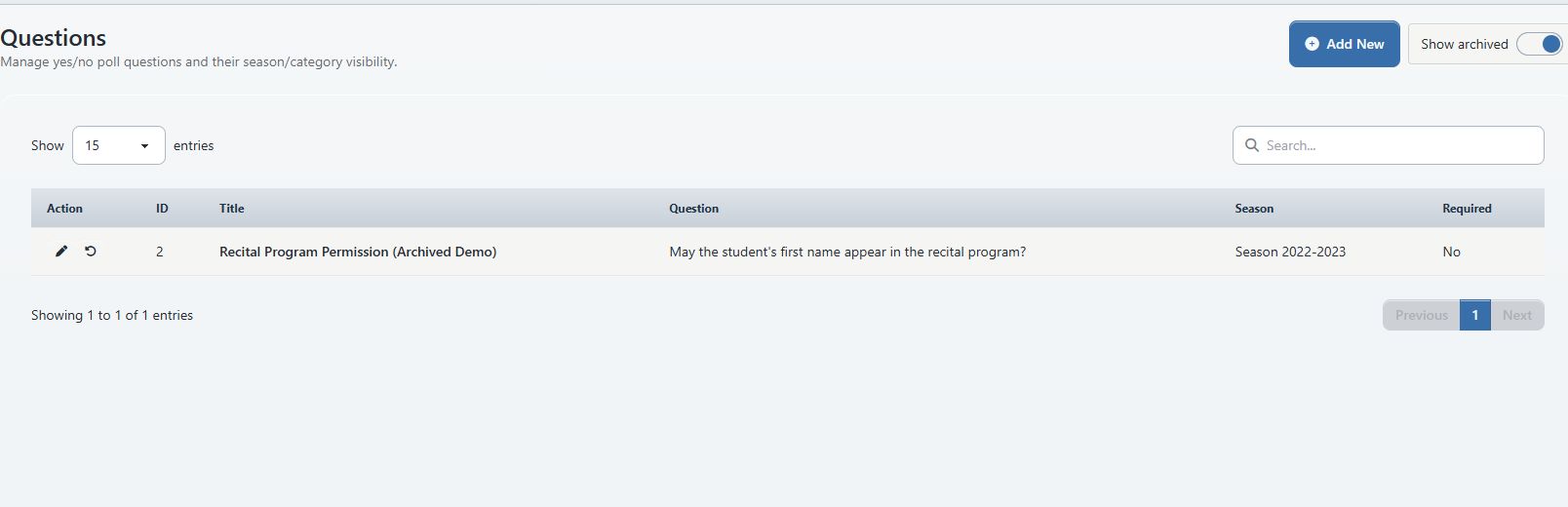
- Turn on Show archived and confirm the same ID appears in the archived list.
- Sign in as a matching fictional client and confirm the question is no longer available as an active question.
Show archived switches the table to archived questions; it does not add archived rows to the active list.
Archiving changes the question's status. It does not delete the question, its category links, or its answers. Existing responses can remain on an administrative account's Polls tab, while the normal Poll Answers question selector lists only active questions. Archiving does not send a notice or retract information already communicated elsewhere.
#Restore a question
Restoring makes the same question active again. Prior answers remain attached, so an account that answered before archive can see Update rather than being asked for a new first response.
- Turn on Show archived.
- Search for the exact title and verify the ID.
- Select Edit while the question is archived.
- Confirm the wording, General (Profile) relation, current season choice, required and explanation states, and intended categories.
- Save any approved corrections and confirm the question remains in the archived list.
- Select the curved-arrow Restore action once.
- Turn off Show archived and confirm the same ID appears in the active list.
- Repeat the matching and nonmatching Online Client checks.
- Confirm earlier answers are still present in Reports > Poll Answers and the affected account's Polls tab.
The current success banner can incorrectly say Video restored after this action. Verify the question's presence in the active list and Online Client rather than relying on that banner text.
#Review answers in Poll Answers
- Select Reports > Poll Answers.
- Choose the active Question.
- Leave Class at All classes, or choose one class when you deliberately need to narrow the accounts.
- Review Member, Answer, Detail, and Date.
- Follow the Member link when you need the full administrative account.
- Select PDF only when an approved business purpose requires a downloaded copy.
- Store the PDF in an approved location, share it only with authorized staff, and dispose of it according to studio policy.
The report is identifiable. It shows active account members with their answers and explanation text. A Class filter narrows results through active class enrollment and the related account; it does not prove that the question was assigned to that class, because the supported question form has no class target.
The question and class selectors each load a limited active list. An archived question is omitted from the normal question selector, and a later item can be absent when a studio has more than 300 active choices. Use the exact account's Polls tab or contact support rather than restoring a question casually just to locate old answers.

#Review one account and correct an answer
#Let the client update an answer
The preferred correction is for the signed-in client to open Polls, select Update, change Yes or No or the optional explanation, and submit once. The current answer and answered date are replaced; no client-visible revision history is created.
#Remove an answer administratively
Use deletion only when the saved response itself must be removed, not when the question wording needs correction.
Warning: Deleting an answer is immediate after confirmation, has no undo, and does not preserve a visible answer revision. It does not notify the client.
- Open Students and select the exact account member who submitted the answer.
- Select the Polls tab.
- Verify the date, season, question title, answer, and detail.
- Select the Delete Answer X action for the exact question.
- Confirm Delete this poll answer?
- Wait for the table to reload and confirm the row is gone.
- If the question remains active and visible to that account, sign in as the fictional client and confirm it now appears unanswered.
The administrative account tab does not provide an Edit Answer action or a bulk reset. Delete only the one approved account/question pair. An active General/Profile question can reappear as unanswered after deletion.
#Plan communication separately
Question actions and answer actions do not automatically send messages:
- Create and Restore do not tell the target audience that a question is available.
- Edit does not tell earlier respondents that the wording or audience changed.
- Archive does not tell clients that a question was retired.
- A client answer does not create a staff email or push alert.
- Administrative answer deletion does not ask the client to answer again.
Use the approved messaging workflow when clients need instructions or a deadline. Name the question and the Online Client Polls destination, but do not include private answers in a broad message.
#Protect privacy and meaning
- Treat every answer and explanation as identifiable account data.
- Ask for the minimum information needed. The optional explanation appears in the account tab, Poll Answers report, and PDF.
- Do not request card or bank details, passwords, identity documents, medical history, or other high-risk information in a poll explanation.
- Do not use a poll as proof of signature, contractual acceptance, waiver execution, or an unchangeable consent version.
- Avoid wording that assumes the signed-in account holder is the targeted child or participant.
- Use neutral category targeting and test family-wide eligibility. Do not infer that a category restriction makes the answer anonymous or private from authorized staff.
- Archive is not erasure. Answers remain stored unless an authorized staff member deletes an individual answer through the account tab or a separate approved privacy process is completed.
- Protect Poll Answers PDFs like any other export containing names and client responses.
#Confirm the complete lifecycle
Before relying on a question in studio operations, preserve evidence that:
- the intended question ID is active;
- the title, wording, relation, season, required state, explanation state, and categories survived reload;
- a matching fictional family sees it and a nonmatching fictional family does not;
- Yes, No, explanation, answer date, and Update work on the Online Client;
- the answer appears under the signed-in account member in Poll Answers and the account's Polls tab;
- the optional Class filter behaves as expected for the approved account;
- archiving hides the active question without deleting answer history;
- restoring keeps the same ID and prior answers; and
- any required client communication was sent separately through an approved test or production process.
#Troubleshooting
#Save rejects Not Selected for Season
Choose a named season. The current form displays Not Selected, but new-question validation requires a positive season ID.
#Save failed or the confirmation never appeared
Search active and archived questions by the exact title before trying again. If a matching ID exists, open it and reconcile every field and category. Archive an unintended duplicate only after confirming which ID has answers. Do not repeatedly submit the same title.
#A category-restricted question is visible to the wrong account
Reopen Edit and check the complete category selection. A blank selection means everyone. Then inspect every active person related to the account: any one matching family category can make the question visible.
#A client cannot find Polls
Confirm both the Online Client Polls section and member polls are enabled. Then confirm the question is active, the correct account is signed in, and at least one active family category matches when targeting is used.
#A client can open the question but cannot save
Answer storage can be temporarily unavailable even when questions remain viewable. Do not keep resubmitting. Record the account and question ID, preserve the intended response securely, and contact support.
#The client is asked for Yes or No even though Required is off
The individual linked answer form requires an answer whenever it is submitted. Do not use an unchecked Required toggle to promise that a client can skip the question.
#Explain Yes or No is on, but the client can leave comments blank
That control shows an optional explanation box; it does not require an explanation. Put essential meaning in the Yes/No wording or use a purpose-built form.
#The question appears in an unexpected order
There is no supported ordering control, and answered questions can move ahead of unanswered ones in the Online Client. Do not encode sequence-dependent meaning in titles or IDs.
#Poll Answers does not list the question
The normal selector includes active questions only and loads at most 300 choices. Check whether the question was archived. Use the exact account's Polls tab or contact support; restoring an old question can expose it to clients again.
#Poll Answers and the category audience do not match
The report starts from saved answers and active account members. Its optional Class filter uses active enrollment relationships; it is not a member-category audience report. Review the targeting settings and exact account separately.
#Restore says Video restored
This is a current label defect. Turn off Show archived, search for the question ID in the active list, and perform the Online Client check.
#A Checkout question appeared or did not save as expected
Stop using Checkout relation for production questions. The checkout widget and its submission endpoint currently select different relation groups, and the linked Polls page does not provide a reliable context boundary. Use General (Profile) and test through Polls, or contact support for the intended release behavior.
#Another Poll Questions page offers more contexts or answer types
Return to Settings > Poll Questions through the sidebar. The supported client experience is Yes/No, and the broader compatibility page does not provide an end-to-end supported workflow for its extra choices.