Memberships
Understand membership concepts and lifecycle
#Before you begin
- Name the membership and write its terms in plain language.
- Decide who receives the benefits: the family account, one student, or each participating person separately.
- Define the activation date, expiration rule, renewal method, price, payment schedule, cancellation policy, hold policy, and failed-payment policy.
- List every class, video, discount, sales restriction, message, and report that should use the membership.
- Decide which staff roles may configure, sell, assign, hold, renew, or end it.
- Prepare one eligible and one ineligible fictional account for testing.
Warning: A purchase, membership category, scheduled payment, processor transaction, account charge, enrollment, and content-access decision are separate records. Changing one does not reliably change the others.
Important: This article explains the current model and a safe operating sequence. It does not define contract, refund, consumer-protection, tax, or payment-authorization policy for the studio.
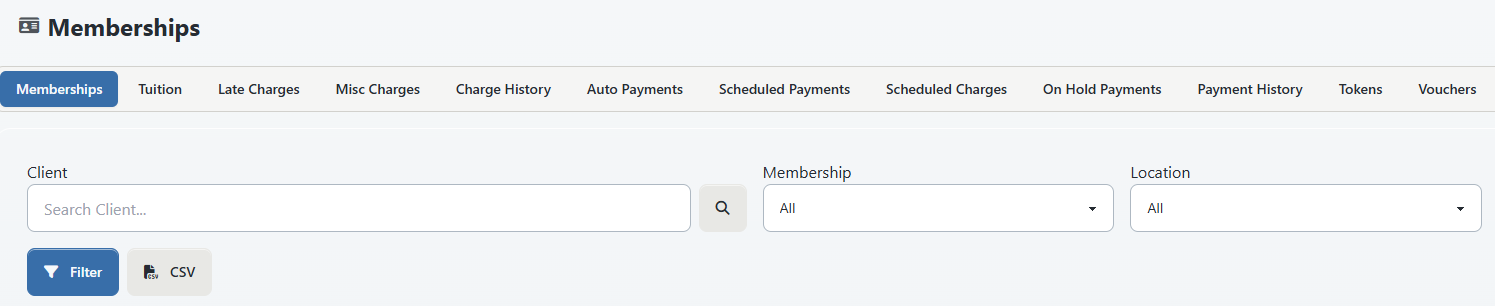
#Start with the membership state model
The word membership can describe several different things in the interface. Use the record that answers the question you are asking.
| Layer | What it answers | Primary place to review | What it does not prove |
|---|---|---|---|
| Member Category definition | What reusable membership label exists? | Settings > Categories | That anyone currently has the category |
| Member Category assignment | Who is associated with the category, and for what dates? | Person's Main > Additional > Member Categories area | That a purchase, charge, or payment exists |
| Sales Item | What can be sold, what entitlement it creates, and which dates, restrictions, or renewal choices are configured? | Settings > Sales Items | That a client bought it or received access |
| Purchase | What the client acquired, its units, usage, activation, and expiration | Account Purchases | That the charge was paid or the category was assigned |
| Enrollment or lesson assignment | Which class or schedule uses the purchase | Class roster, schedule, and purchase-assignment records | That future billing will continue |
| Scheduled or recurring instruction | What the software expects to collect or renew later | Finance > Scheduled Payments and supported recurring-payment views | That a processor approved or settled the payment |
| Charge, payment, and processor result | What became owed, what was received, and what the gateway reported | Account Ledger, Payment History, and processor | That access is active |
| Hold | Which purchase-linked scheduled payments should be skipped during a date range | Finance > On Hold Payments | That access, purchase dates, or membership dates changed |
| Access and benefits | Whether a client may register, see content, receive a discount, or buy an offer | The applicable class, video, cart, and Online Client result | That billing is current |
| Communication and reporting | Who is selected for a message or appears in a report | Messaging recipient preview and membership reports | That every downstream feature uses identical date rules |
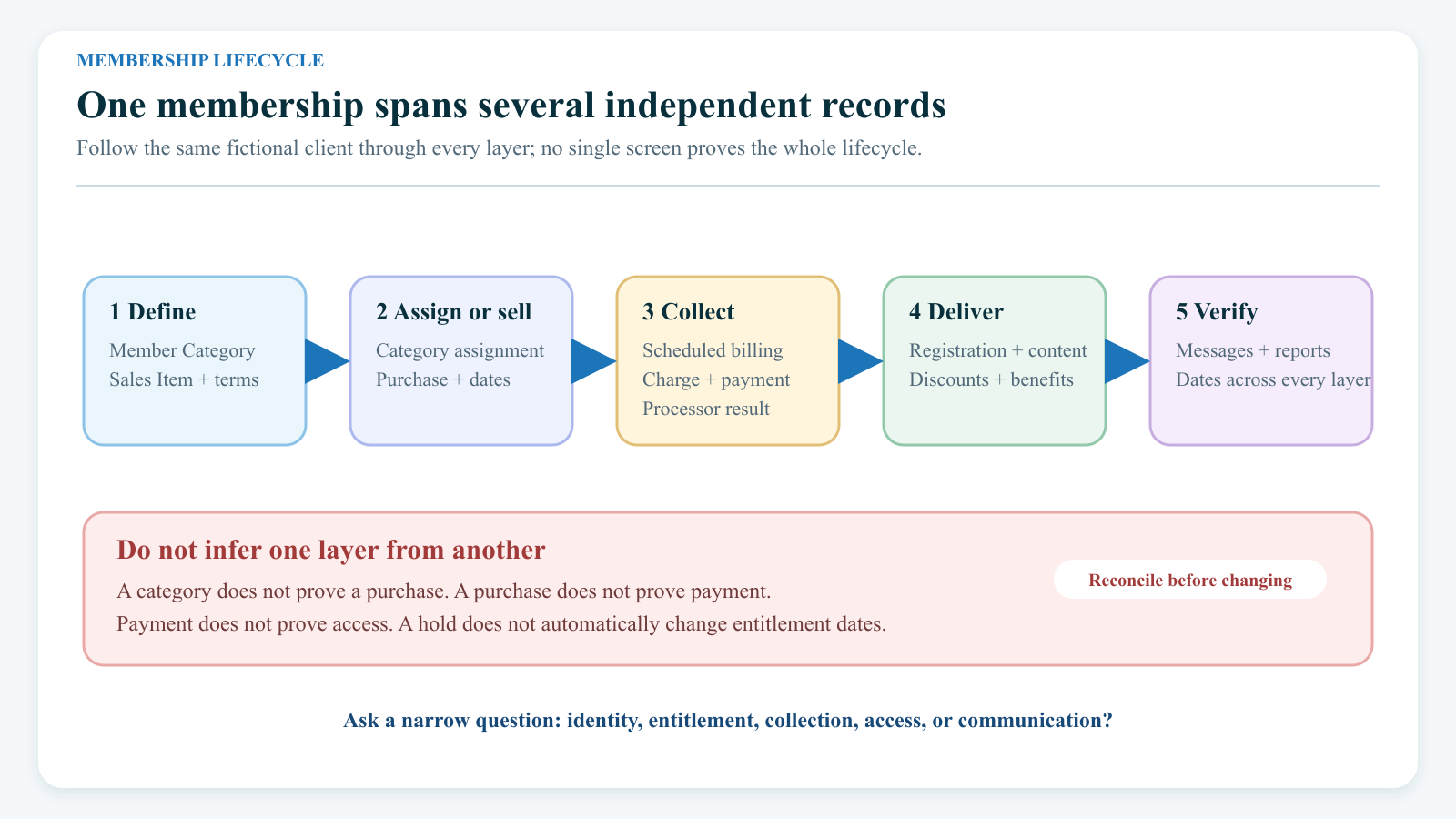
The safest question is not “Is this person a member?” Ask a narrower question such as:
- Does this student have an active Member Category today?
- Does the purchase still have usable units?
- Is the next scheduled payment active or failed?
- Was the latest processor attempt successful?
- Is the account on hold?
- Can this student register for the restricted class?
- Does the person appear in the intended message preview and membership report?
#Choose the operating model
Do not select a billing control until the service model is clear.
| Model | Appropriate when | Records to expect | Main risk to test |
|---|---|---|---|
| Manual category only | The studio grants status or access without selling an entitlement | Member Category assignment, and possibly no purchase or charge | Staff may assume a payment exists when it does not |
| One-time purchase | One payment buys a defined term or number of uses | Purchase, charge, payment when collected, and possibly a category assignment | Purchase and category dates can drift apart |
| Payment plan | One purchase obligation is paid in installments | One purchase or order plus several scheduled payments | A payment plan is mistaken for repeated renewal of the entitlement |
| Recurring subscription | The offer displays a recurring schedule and may continue for a finite count or until ended | Purchase plus recurring or scheduled billing instructions, depending on the configured path | The client-visible schedule and the records created after checkout are not tested together |
| Auto renewal after expiration | An expiring purchase should create another purchase when the renewal payment completes | Expiring purchase, scheduled renewal, payment, renewal charge, new purchase, and later schedule | Staff assume the Member Category dates renew automatically |
| Temporary hold | Billing should be suppressed for a defined interval | Hold record plus the existing purchase and scheduled payments | Staff assume a hold pauses access, extends dates, or prorates the next amount |
The current Sales Item editor keeps payment plans and Auto Renew mutually exclusive. Auto renewal also requires a finite Auto Renew Times value greater than zero in the reviewed implementation. A separately displayed Until cancel subscription is therefore not the same configuration as an expiring Sales Item with finite auto renewals.
#Design the membership on paper
Before opening Settings, complete this decision table.
| Decision | Example question | Record or setting that must be verified |
|---|---|---|
| Assignment target | Does the benefit belong to the account or to one student? | Member Category assignment and cart or eligibility identity |
| Benefit | Is it identity only, a fixed number of lessons, unlimited access, early registration, a discount, or content access? | Category, Sales Item units, class rules, video rules, and pricing settings |
| Start | Does it begin at sale, on a fixed date, or at first use? | Sales Item activation and purchase Date Active |
| End | Does it expire on a fixed date, after a period, or never? | Sales Item expiration and purchase Date Expire |
| Category dates | Should the category begin and end with the purchase? | Category Activation, Expiration, and Termination |
| Billing | Is payment one-time, installment, recurring, or renewal after expiration? | Payment plan, scheduled-payment, recurring, or auto-renew fields |
| Renewal price | Is the next amount the item price, the first purchase price, or dynamic pricing? | Sales Item Auto Renew Price and controlled price test |
| Exhausted units | Should renewal become due when all units are used? | Auto Renew when zero units and resulting scheduled-payment date |
| Hold | Which dates are held, and what happens to access and expiration? | Hold record plus an explicit studio policy for every other layer |
| Failed payment | Does access continue, enter a grace period, or end? | Studio policy plus an intentional category or purchase action |
| Safe ending | Which date ends billing, entitlement, access, and communication? | Separate actions and confirmations for each layer |
If any row is undecided, keep the Sales Item unavailable online and do not assign the category to real accounts.
#Set up a membership safely
#1. Create the category definition
- Open Settings > Categories.
- Choose the Member Categories top category.
- Add a short, durable name.
- Configure its optional icon only when it will help staff recognize status.
- Confirm the category appears in a fictional account's Member Categories choices.
The category is the reusable identity and eligibility label. It does not set the price, collect money, or create a term by itself.
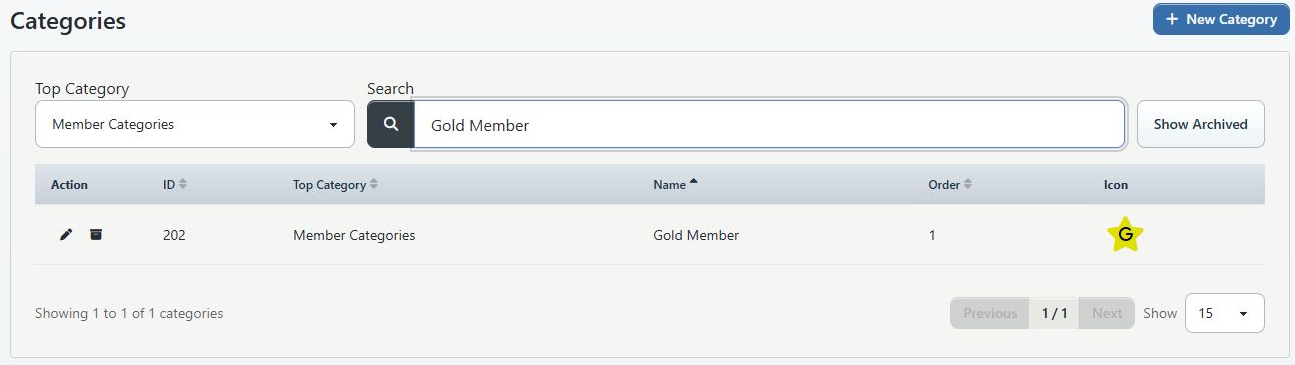
See Create and maintain categories for the current category procedure.
#2. Create the offer and entitlement
Use Settings > Sales Items when clients or staff should sell a membership offer.
- Define the item name, description, price, units, and class assignments.
- Configure activation and expiration.
- Keep Sell Online set to No during setup and testing.
- Review sale dates, client eligibility, quantity limits, agreements, signatures, categories, and charge categories.
- Choose one supported billing model.
- Save the item, then configure any tabs that require an existing Sales Item.
Warning: The Sales Item editor exposes controls to set or unset Member Categories, but the current checkout and renewal code reviewed for this article does not apply those controls to the person's category assignment. Treat automated category assignment as unconfirmed. After every test purchase, check Main > Additional > Member Categories directly.
See Create a Sales Item for the field-level setup procedure.
#3. Connect access and benefits deliberately
A Member Category has no benefit until another feature consumes it.
| Desired result | Where to configure or test it | Current date behavior to know |
|---|---|---|
| Restrict Online Client class registration | Class Registration Rules, with Online Client Registration set to Member Categories | Current eligibility checks category status, activation, and expiration |
| Open a season earlier for selected categories | Season member-category enrollment dates | Current registration eligibility compares the person's active categories with the category start dates |
| Restrict on-demand videos | Video member-category assignments | Current video access checks status, activation, and expiration for family members |
| Apply a member-category cart discount | Supported member-category discount configuration and cart settings | Current cart discount selection checks category status, but not category activation, expiration, or termination |
| Restrict Sales Item availability | Sales Item client and member-category restrictions | Test with eligible and ineligible accounts; labels and rules depend on the item and studio setup |
| Send an automated trigger | Scheduled Trigger member-category filters | Current trigger audiences check status, activation, and expiration when those columns exist |
| Send a one-time message | Messaging Member Categories segment | The current recipient-loading path does not filter category status or dates; always inspect the recipient list |
| Filter tuition or reports | Relevant Finance or Reports member-category filter | The report's date and status rules can differ from access rules |
Important: The current access paths reviewed for class registration, videos, and scheduled triggers do not use Termination as an access cutoff. Use Expiration for a dated access end, and verify removal or inactive status when access must end consistently.
#4. Test both sides of every rule
Use two fictional accounts:
- an eligible student with the category and dates active today; and
- an otherwise similar student without the category.
Test class registration, content access, cart price, Sales Item visibility, scheduled-trigger preview, one-time message recipients, and reports. A successful positive test without a negative test can hide an unrestricted configuration.
#5. Publish only after the records agree
When the controlled test is correct:
- Confirm the client-facing description and payment schedule.
- Confirm the agreement and signature flow.
- Confirm the category assignment after checkout.
- Confirm the purchase dates and units.
- Confirm the charge, payment result, and future payment instructions.
- Confirm the client can use the intended benefit and cannot use excluded benefits.
- Change Sell Online only after every result is understood.
#Assign or update a Member Category manually
Manual assignment is useful for an approved complimentary status, migration, correction, or test. It does not create a purchase or collect payment.
- Open the exact family or student record.
- Open Main > Additional.
- Find Member Categories.
- Under Add Category, select the intended category.
- Enter Activation.
- Enter Expiration.
- Enter Termination only when it is part of the approved renewal-ending process; do not rely on it as the only access cutoff.
- Select Add Category.
- Reopen the account and confirm the category and all three dates.
- Test the intended client-visible benefit.
When the category is already assigned, edit its dates and select Save Category.
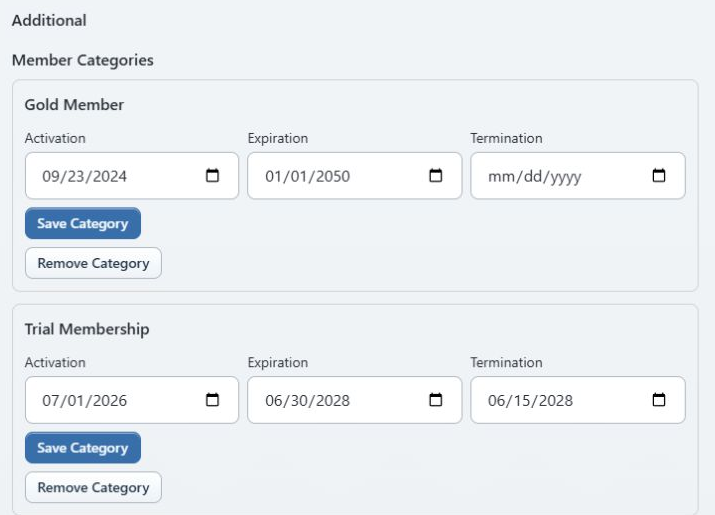
If activation is left blank, the current manual-assignment service uses today's date. If expiration is left blank, it uses January 1, 2050 as its never-expire value. Enter deliberate dates rather than relying on these defaults for a time-limited membership.
#Assign it to the correct person
Different features resolve family relationships differently.
| Intended consumer | Safer assignment and test |
|---|---|
| Student class eligibility | Assign and verify the category on the student who registers |
| Family-access video | Test the signed-in family because the video path evaluates the account and active children together |
| Member-category cart discount | Test the actual student and parent combination; the current cart can consider both and can prioritize the student by setting |
| One-time category message | Preview the exact recipient records and addresses before sending |
| Scheduled trigger | Test the event and intended category holder with a non-deliverable address |
Do not duplicate a category across a parent and student merely to make one test pass. First identify which person the feature is designed to evaluate.
#Understand activation, expiration, and termination
| Field | Confirmed current use | Important limitation |
|---|---|---|
| Activation | Class eligibility, video access, scheduled triggers, and membership reports can compare it with the current or selected date | Some status-only consumers do not check it |
| Expiration | Class eligibility, video access, scheduled triggers, and membership reports can compare it with the current or selected date | Some discounts, reports, and one-time messaging paths can still include the assignment while its status remains active |
| Termination | Displayed in membership lists and used by the auto-renew materializer to skip a renewal when the configured category termination is on or before the purchase expiration | It is not a universal access, discount, messaging, or reporting cutoff |
| Category Status | Removing a category makes the assignment inactive where the schema supports status | It does not stop a scheduled payment, cancel a purchase, refund money, or remove an enrollment |
The current date-aware paths treat the expiration date as inclusive: the category can remain active through that date and stop matching on the following date.
Important: An expired category row is not automatically removed. It can remain status-active in the account. This is why status-only consumers can produce a different result from date-aware consumers.
#Understand purchase activation and expiration
The purchase has its own Date Active and Date Expire. The Sales Item can calculate these dates from:
- sale date;
- a selected activation date;
- first visit;
- a number of days, months, or years;
- the end of the current month; or
- a never-expire rule.
When activation or expiration is based on first use, the dates can remain unset until the purchase is assigned to a schedule. Do not describe the term to a client as active until the resulting purchase dates are visible.
Purchase units can be lessons, hours, or credits. An active category does not add units, and a purchase with remaining units does not necessarily grant the category. Verify both.
#Understand auto renewal
The current auto-renew path is tied to an expiring Sales Item purchase.
#What is confirmed
When the item is configured with After Expiration: Auto Renew, a positive number of renewal times, an expiration date, and a usable payment source:
- Purchase synchronization can create one active scheduled payment dated for the purchase expiration.
- A daily materialization process can create a missing due renewal schedule when one does not already exist.
- The renewal amount can use the current item price, the first purchase price, or configured dynamic pricing.
- When the scheduled payment succeeds, the current processor path can create a payment, a renewal charge, and a new purchase with fresh entitlement dates.
- It can assign the new purchase to eligible unpaid lessons for the Sales Item's assigned classes.
- It can create the next renewal schedule until the configured renewal count is reached.
- When Auto Renew when zero units is enabled, exhausting all supported units can move a future active renewal schedule to today.
Warning: Moving a renewal to today can initiate financial processing sooner than the original expiration date. Test exhausted-unit behavior with isolated fictional data before enabling it.
#What auto renewal does not currently coordinate
The reviewed renewal path does not update, extend, add, or remove the person's Member Category assignment. It also does not use the category's Activation or Expiration to calculate the renewed purchase.
Therefore, after every renewal test, verify:
- the completed scheduled payment;
- processor success;
- the new charge and payment allocation;
- the new purchase and dates;
- its units and lesson assignments;
- the Member Category and dates; and
- the client-visible access result.
The auto-renew materializer does use a matching active category's Termination date as a reason to skip renewal when termination is on or before the expiring purchase date. Because the category is not otherwise synchronized, test this branch before relying on it.
#Understand holds
A current hold record belongs to the account and has a start date, optional resume date, and notes.
For current automated scheduled-payment processing, the hold can suppress purchase-linked scheduled payments whose payment dates fall within the hold interval. The interval starts on Start Date and ends before Resume Date; a blank resume date is open-ended.
A hold does not currently:
- change Member Category activation, expiration, termination, or status;
- change purchase activation, expiration, or remaining units;
- remove an enrollment or video permission;
- calculate a prorated return amount;
- extend the membership term;
- shift every later payment date; or
- notify the client by itself.
When the current Remove hold action resumes an account, it removes the hold record. Purchase-linked scheduled payments from the past that fell inside the hold can be marked with the hold status rather than moved forward. Do not promise that removing a hold preserves cadence or calculates a catch-up amount.
Important: The reviewed Finance > On Hold Payments page can edit or remove existing hold rows, but it does not provide an Add Hold control. Do not import an older hold-creation procedure into the current manual until a supported current entry point is verified.
The current Finance Memberships list omits accounts with a hold active today. A missing row can therefore mean “currently held,” not “membership deleted.”
#Recover from a failed renewal payment
The current scheduled-payment processor marks a failed attempt as an error state and stores a non-sensitive result message. It can notify a configured payment-decline trigger. When the relevant setting is enabled, it can try a second eligible saved token after the first fails.
It does not automatically remove the Member Category, expire the purchase, or cancel enrollment when payment fails.
- Open Finance > Scheduled Payments.
- Select Failed and extend the date range to include the attempt.
- Record the scheduled-payment ID, account, purchase, amount, date, masked method, and error text.
- Check the processor before making another attempt.
- Check Payment History and the account ledger for a successful, duplicated, or uncertain result.
- Check the purchase, Member Category, access, and any later schedule separately.
- Confirm whether a payment-decline message was expected and whether it was delivered.
- Follow the processor-specific recovery procedure and the studio's approved grace-period policy.
- Verify the processor, payment, charge allocation, schedule, purchase, and category after recovery.
Warning: The current global Scheduled Payments page does not expose a rerun action. Do not recreate a schedule or repeat checkout merely because the row failed. A second instruction can create a duplicate charge or entitlement.
See Scheduled payments and scheduled charges and Review and manage cards and ACH.
#End a membership safely
First identify what the request actually means.
| Client request | Layers that may need action | What is not automatically included |
|---|---|---|
| “Stop charging me” | Recurring or scheduled billing instructions | Purchase cancellation, access removal, refund, or enrollment change |
| “End my membership” | Billing, purchase entitlement, Member Category, access, and communication | Refund or balance forgiveness unless separately approved |
| “Pause my membership” | Hold record plus an explicit decision for access and dates | Proration, extension, or cadence shift |
| “Refund the last payment” | Processor, local payment, allocation, charge, and possibly purchase | Ending future billing or access |
| “Do not renew after this term” | Termination date, future renewal instruction, and effective-date review | Immediate access removal |
#Safe ending sequence
- Record the request, authorization, effective date, reason, and applicable policy.
- Capture the before state: category and dates, purchase and units, enrollments, future payments, hold, ledger balance, latest payment, and processor result.
- Stop new sales when the offer itself is being retired. Set Sell Online to No; do not archive a shared Sales Item until existing obligations have been reviewed.
- Stop or terminate the correct future billing instruction. Confirm every later scheduled or recurring row and any processor-side agreement.
- Decide what happens to the purchase. Use the approved edit or cancellation procedure; do not zero units or move expiration merely to make the screen look ended.
- Decide what happens to future enrollments or assigned lessons.
- Set the category's Expiration for the final eligible date and Termination for the no-renewal decision when both are used.
- On the effective date, use Remove Category when access, discounts, status-only messages, and status-only reports must stop consistently. Verify the inactive result.
- Make any approved refund, credit, fee, or balance correction through the proper finance and processor workflows.
- Preview membership reports and message recipients again.
- Test the Online Client with the ended fictional account: restricted registration, content, discount, and purchases should have the intended result.
- Send the approved confirmation to the client without exposing payment credentials.
Warning: Cancel Purchase does not currently remove scheduled payments, issue a processor refund, restore inventory, or reliably remove future lesson assignments. Review every related layer after purchase cancellation.
Warning: Removing a Member Category does not stop billing. Deleting a scheduled payment does not end the category or purchase. A local negative charge is not a processor refund.
See Edit or cancel a purchase and Payment history and corrections.
#What the client can see
Depending on studio settings, a client can see some combination of:
- a package or membership offer under Packages or Buy Items;
- a Subscribe review with the item, description, payment count or Until cancel, amount, and schedule;
- required agreements and signatures at checkout;
- the completed purchase and its expiration or usage;
- ledger charges, payments, and balances;
- scheduled or recurring instructions and their status; and
- classes, registration windows, videos, prices, or offers made available by category.
Selecting Subscribe adds the item to checkout. It does not prove that a payment, purchase, category assignment, or recurring instruction exists. Likewise, allowing a client to disable a recurring-payment instruction does not cancel the purchase, remove enrollment, refund money, or end the Member Category.
See Buy packages, memberships, and subscriptions for the client procedure.
#Verification matrix
Run this matrix before launch and after any material change.
| Scenario | Account and purchase | Client-visible result | Finance result | Messaging and reporting |
|---|---|---|---|---|
| Active eligible member | Category status active; dates include today; purchase dates and units correct | Intended class, content, price, and offer available | Expected current and future records only | Included in intended active audience |
| Ineligible nonmember | No category and no qualifying purchase | Restricted benefits unavailable; ordinary public features still work | No membership charge or schedule | Excluded from member audience |
| Before activation | Future category and purchase dates | Access remains unavailable until the planned date | No premature collection unless terms explicitly require it | Scheduled triggers exclude; one-time recipient preview checked manually |
| On expiration date | Category and purchase at final date | Inclusive final-day behavior matches policy | Last expected obligation is understood | Report and audience interpretation recorded |
| Day after expiration | Category date passed; status may still be active | Date-aware access is unavailable | No unapproved new schedule | Status-only discount and one-time message paths tested for leakage |
| Successful renewal | New payment, charge, purchase, dates, and units confirmed | Access continues without an unintended gap | Processor and ledger reconcile; next schedule correct | Category dates manually verified because renewal does not synchronize them |
| Failed renewal | Original purchase and category inspected separately | Grace-period or access result follows policy, not assumption | Failed row has no duplicate payment; processor checked | Decline message and staff follow-up confirmed |
| Active hold | Hold dates cover the scheduled-payment date | Access outcome follows the separately documented policy | Purchase-linked schedule is not processed during the interval | Membership list omission and other reports understood |
| Ended membership | Future billing stopped; purchase and category ended as approved | Restricted benefits unavailable | Balance, refunds, and processor state reconcile | Excluded from recipient preview and current reports as intended |
Record the tenant, account IDs, item ID, category ID, purchase ID, scheduled-payment IDs, dates, and results. Never put full card, bank, or processor credentials in the test record.
#Known current boundaries
These boundaries are confirmed in the reviewed current source and require product or operational follow-up:
- Sales Item Member Category set/unset fields are saved, but current checkout and renewal services reviewed here do not apply them to account category assignments.
- Successful auto renewal creates financial and purchase records but does not extend or recreate the Member Category assignment.
- Termination is not a universal access cutoff. Class registration, video access, and scheduled triggers use status, activation, and expiration; the reviewed cart discount and one-time category-message paths use looser rules.
- Member-category cart discounts can continue to match a status-active assignment after its dates pass.
- One-time Messaging Member Categories recipient loading does not filter assignment status, activation, expiration, or termination.
- The Finance Memberships list is read-only and hides accounts currently on hold. Its renewed count is derived from matching purchases, not from confirmed processor settlements.
- The separate Membership Report labels every nonactive dated assignment Upcoming; this can include an expired assignment, and termination does not change that label.
- A hold suppresses qualifying purchase-linked scheduled payments, but does not adjust access, expiration, proration, or later cadence. The current On Hold page has no verified create control.
- A failed scheduled payment does not automatically change membership access or Member Category status.
- Client control over recurring-payment status changes the billing instruction only.
Until these boundaries are resolved, use the verification matrix and reconcile the state layers rather than relying on a single icon or list.
#Troubleshooting
#The purchase exists, but the person is not treated as a member
Open Main > Additional > Member Categories. The current purchase paths do not reliably assign the Sales Item's configured category. Confirm the intended person, category, status, activation, and expiration before making a correction.
#The Memberships list does not show an expected person
Clear client, membership, and location filters. Check Finance > On Hold Payments, the person's account status, and the Member Category relationship. Then compare the Finance list with the separate Membership Report and the account itself.
#A category expired, but a discount or one-time message still includes the person
Some current consumers check only category status or do not apply assignment filters. Do not extend or backdate the membership to hide the problem. Review the effective date, remove the category when appropriate, preview the cart or recipients again, and record the product gap.
#Renewal payment succeeded, but the category dates are old
That matches the current separation between renewal purchases and Member Categories. Confirm the new purchase and financial records, then update the category only according to the approved membership process. Do not assume the payment amount alone determines the category term.
#Renewal failed, but the client still has access
Failure changes the scheduled-payment state, not the category or purchase. Follow the studio's grace-period policy, verify processor and ledger state, then make an intentional access decision.
#Removing the category did not stop billing
Review future scheduled and recurring instructions, the saved payment source, and any processor-side agreement. Category removal does not terminate billing.
#A hold did not extend expiration or change access
That is expected from the current hold implementation. A hold controls qualifying scheduled-payment processing only. Apply any approved date or access change separately and verify every layer.
#The client disabled recurring payments but still has a purchase or balance
Disabling the billing instruction does not cancel the purchase, remove the category, erase a charge, or refund a payment. Review the account and use the approved ending sequence.
#The Membership Report calls an expired row Upcoming
The current report uses Active when the selected date falls between activation and expiration; every other dated assignment is labeled Upcoming. Use the dates and account record as the evidence, and do not interpret that label as proof that an expired membership will reactivate.
#Related articles
- Set up and manage auto-renewing memberships
- Place membership payments on hold and resume safely
- Respond to a failed scheduled payment
- Create and maintain categories
- Create, assign, and verify Member Categories
- Create a Sales Item
- Sell an item with the staff Shopping Cart
- Review purchases
- Edit or cancel a purchase
- Memberships, vouchers, and gift cards
- Scheduled payments and scheduled charges
- Account ledger
- Payment history and corrections
- Configure scheduled triggers
- Publish videos and control client access
- Messaging overview
- Reports overview
- Buy packages, memberships, and subscriptions