Classes
Review My Classes and cancel a group-class schedule
#Before you begin
- Sign in to the correct studio and Online Client account.
- Confirm you are acting for the correct student when the account contains several family members.
- Review the schedule date, start time, class, attendance status, and assigned purchase before cancelling.
- Read the studio's cancellation policy. The applicable early-cancellation window can come from the class or an assigned Sales Item.
Your studio can hide attendance, hide client cancellation controls, group classes differently, or customize the Action heading. A missing Cancel button does not mean the class record is missing.
Warning: Cancelling can mark the schedule Early Cancel or Late Cancel, change an assigned-purchase link, invoke configured cancellation-fee processing, send configured status-change notifications, and move an eligible waitlisted student into the opening. It does not promise a refund, account credit, restored lesson, or waived balance. Contact the studio before cancelling when the financial result is unclear.
Private and coaching lessons use a separate cancellation workflow under Private Lessons.
#Open My Classes
- Select your name to open the account menu.
- Select Classes.
- Confirm the page heading is My Classes.
This signed-in page is for the account's scheduled and past classes. It is different from the public class catalog used to find a new class.
Depending on studio settings, My Classes uses one of two layouts.
#Grouped by class
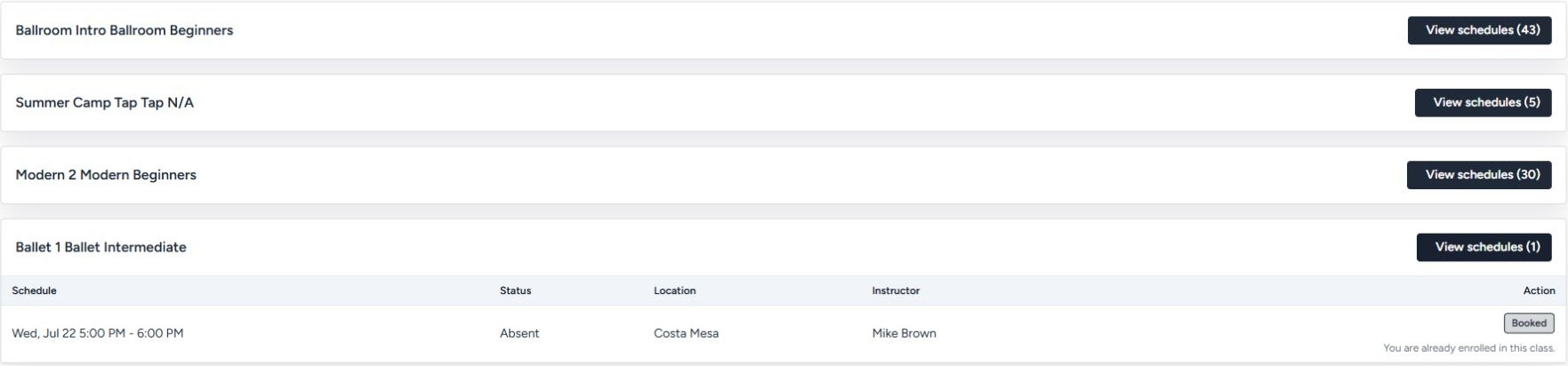
Each student has a card containing that student's classes. A class row can show:
- the class name and a Private, In Wait List, or Eligible badge when applicable;
- an assigned purchase name;
- View schedules with a count;
- schedule date/time, attendance or status, location, instructor, purchase, and action; and
- student-level or family-level tuition and discount information when available.
Select View schedules to open the occurrences for a class.
In the verified a test studio view, an expanded class showed Schedule, Status, Location, Instructor, Purchase, and Action. A past row showed Absent and an assigned purchase, while its action reported Booked with an already-enrolled message rather than offering cancellation.
#Upcoming and History
Use Upcoming for future schedules and History for schedules whose start time has passed. Rows can show student, date/time, class, location, instructor, purchase, attendance/status, and action.
Important: A future schedule that was cancelled can remain under Upcoming because this layout separates upcoming from history by schedule date, not solely by cancellation status. Read the status displayed on the row.
Note: Tuition shown on My Classes is an informational class/family calculation. Use Finance for ledger charges, payments, scheduled payments, and the account balance.
#Understand the available actions
| Schedule state | Current Online Client action |
|---|---|
| Future scheduled group class | Cancel, when the studio allows client cancellation controls. |
| Future waitlisted group class | Leave Waitlist. |
| Early Cancel or Late Cancel | Status-only disabled action; it cannot be cancelled again. |
| Past, attended, or no-show schedule | No client cancellation action. |
| Private or coaching lesson | Manage it under Private Lessons. |
The current page can hide all cancellation/delete controls through a studio setting. The server also rejects cancellations for a schedule that is past, is not scheduled or waitlisted, belongs to another account, or is private/coaching.
#Cancel an upcoming group-class schedule
- Open Classes from the account menu.
- Find the correct student and class.
- In grouped view, select View schedules.
- Find the exact upcoming date and time.
- Review the status and assigned purchase.
- Select Cancel.
- Read the confirmation prompt.
- Continue only if you intend to cancel that student's occurrence.
- Wait for My Classes to reload before selecting anything again.
The success banner reports either Class early cancelled or Class late cancelled. The schedule row should show the corresponding status and should no longer offer an active Cancel action.
Warning: Do not select Cancel repeatedly while the request is processing. If the result is uncertain, reload My Classes and inspect the status before trying again.
#How early and late cancellation are determined
DSM Next compares the time remaining before the schedule with the applicable minimum-hours rule:
- when the requirement is met, the result is Early Cancel;
- when it is not met, the result is Late Cancel; and
- an assigned Sales Item's cancellation window can override the class's window.
Important - current source gap: The Online Client cancellation service reads an assigned Sales Item's minimum-hours value directly when one is available. This review did not find it checking the Sales Item's separate Use class cancellation rule control. Studios that use that control must test the resulting status before publishing a cutoff promise.
The page does not show a complete fee/refund calculation before submission in the current implementation. Ask the studio about the cutoff and fee policy before confirming.
Screenshot placeholder - CL-15: The upcoming/history layout with one fictional future group-class row offering Cancel, one future row already marked Early Cancel, and one past row. Capture before submitting a cancellation.
#Leave a waitlist
- Open Classes and find the correct student, class, and schedule.
- Confirm the row is waitlisted.
- Select Leave Waitlist.
- Read the confirmation prompt and continue.
- Confirm the page reports Removed from the waitlist.
Leaving a waitlist removes that student's waitlist row. It does not cancel an enrolled student, apply a cancellation fee, or promote another waitlisted student.
#What happens next
For a scheduled group class, the current cancellation service:
- confirms that the schedule belongs to the signed-in account or a related student;
- confirms that it is an upcoming group schedule with a scheduled status;
- chooses Early Cancel or Late Cancel;
- records the status change;
- invokes configured schedule-status triggers and cancellation-fee processing; and
- attempts to promote an eligible person from the waitlist.
On an early cancellation, current source removes the cancelled student's schedule-to-purchase assignment when that link exists. On a late cancellation, it does not perform that same removal. The resulting remaining-lesson count, tuition treatment, ledger charge, scheduled charge, or payment depends on studio data and settings and must be checked separately.
Cancellation-fee processing is configuration-dependent. The current fee service considers Late Cancel and No Show for a fee, but not Early Cancel. A late-cancel fee can depend on whether fees are enabled, the student's categories, the class category, free-cancellation allowances, the configured amount/category, charge timing, and scheduled-payment settings. A success banner confirms the status change; it does not prove that no later charge will appear.
If an eligible waitlisted student is promoted, the success message can also say that a waitlisted student was moved into the open spot. That promotion concerns another account and is not a reason to repeat or reverse your request.
#Confirm it worked
- Read the success banner after My Classes reloads.
- Find the same student, class, date, and time.
- Confirm the new Early Cancel or Late Cancel status, or confirm the waitlist row is gone.
- Confirm that an active Cancel or Leave Waitlist action is no longer available for that row.
- Open Purchases if the class used a package and check the displayed remaining units.
- Open Finance and review the ledger and scheduled items when the studio uses cancellation fees.
- Contact the studio if the status, purchase, or balance differs from the policy you expected.
#Troubleshooting
#Classes is missing from the account menu
Confirm that you are signed in to the correct studio and account. Studios control Online Client navigation and can customize some labels. Contact the studio if you expected My Classes access.
#The class is not in My Classes
Check every related student, then check both Upcoming and History or expand each grouped class. Public catalog visibility does not prove that this account has a schedule assignment.
#Cancel or Leave Waitlist is missing
The studio may hide client cancellation controls. The schedule can also be past, already cancelled, attended, no-show, private/coaching, or in another ineligible state. Contact the studio instead of trying to remove the class through the cart or purchase page.
#The cancellation says the schedule is not connected to the account
Confirm the student and account. DSM Next limits the request to the signed-in account and related students. The studio must correct an account relationship or schedule assignment.
#The class was late-cancelled unexpectedly
Record the displayed class, date, time, and submission time. The assigned Sales Item can override the class's minimum-hours rule. Ask the studio to review both settings and the studio time zone.
#A fee or remaining lesson is unexpected
Do not submit another cancellation to try to change the total. Review Finance and Purchases, then contact the studio with the class, student, schedule date, cancellation status, and visible amount.
#Known parity limits
The current My Classes route has been restored to the legacy-style account view, with grouped and upcoming/history layouts plus waitlist/eligible badges. The remaining documented parity risks are:
- exact family and student tuition narrative for every discount combination;
- attendance wording for some class types and tenant data shapes; and
- exact action text and icon combinations under different Online Client settings.
These differences are why this article remains needs-verification even though the underlying cancellation service has focused automated coverage.