Finance
Add a charge or record a payment
#Start with the right action
These actions are related, but they do different things:
| Action | What it changes | What it does not do |
|---|---|---|
| New Charge | Adds an amount the account owes. | It does not collect money. |
| New Payment | Creates a payment record and can apply that amount to selected charges. | The current account-ledger action does not submit a card or ACH transaction to a payment processor. |
| Apply Credit to Charge | Links value from an existing unapplied payment to a charge. | It does not collect new money or create a second payment. |
| Processor payment | Requests collection through the studio's configured card or ACH processor. | It is not completed merely by choosing a payment type in New Payment. |
Warning: Do not select New Payment to charge a client's card or bank account. It records payment activity locally. If money still needs to be collected electronically, use the approved processor-enabled payment workflow.
#Before you begin
- Confirm that the correct family or student account is open.
- Review the current Ledger, including older or filtered activity, before creating another record.
- For a charge, know the approved amount, category, season, date, tax treatment, student, and reason.
- For a payment, have independent evidence that the money was received, such as a check, cash receipt, bank record, or confirmed processor result.
- Know whether the payment should be applied to particular charges or remain as account credit.
- If the account already has unapplied credit, decide whether it should be used for the new charge.
Warning: Save changes and Save create financial records. These forms do not provide a separate preview step. Review every field before selecting the final button, then select it once.
#Add a charge
- Open Families or Students.
- Select the intended account.
- Select Ledger.
- Review the account totals and search for an existing charge with the same date, category, amount, class, or description.
- Select New Charge.
- Enter the approved Amount.
- If tax controls are shown, review Tax, no tax, and Total Amount carefully.
- Select the required Category.
- Select the Student, Class Name, and Season when they identify the reason for the charge. A season is required by the current account-ledger save path.
- Confirm the Charge Date.
- Enter concise Notes that let another staff member understand the reason without exposing card, bank, or other sensitive details.
- Select Apply Credit Automatically only when existing account credit should be considered for this charge.
- Review the account, amount, tax, category, season, date, and credit choice again.
- Select Save changes once.
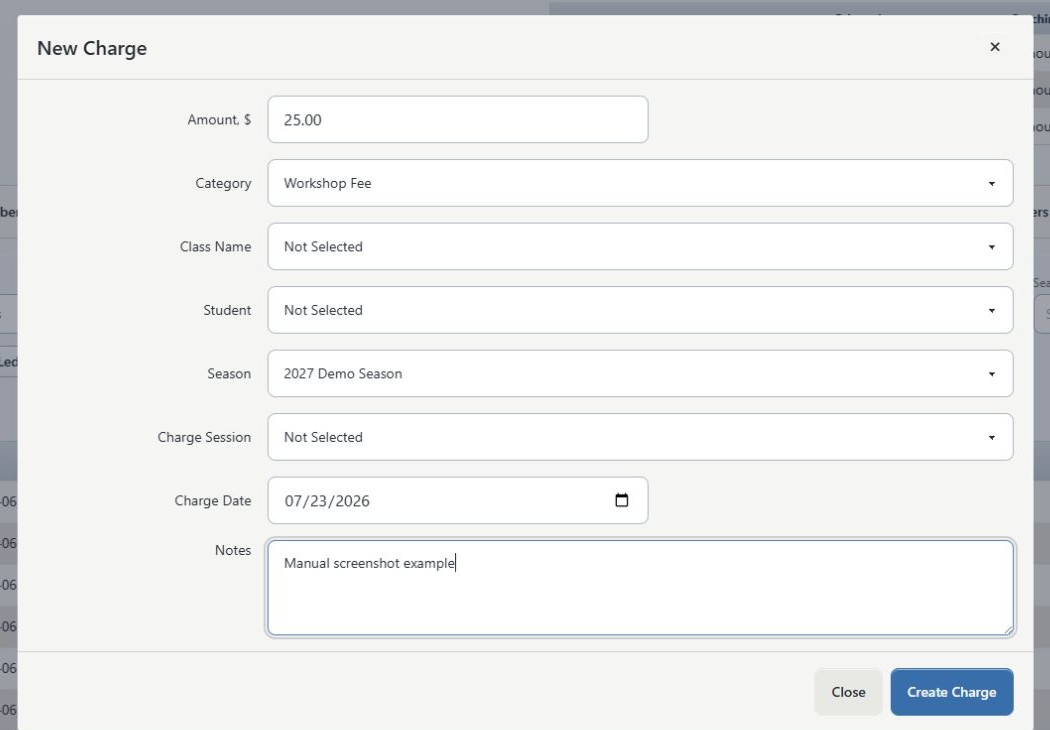
Important: The current interface can display a Charge Session field, but the inspected account-ledger save path does not preserve that selection. Leave it unselected until its behavior is verified in a controlled demo.
Important: Tax-enabled charge creation has not yet passed a controlled runtime reconciliation for this manual. If the displayed subtotal, tax, and total do not match the approved amount, close the form without saving. After any tax-bearing test charge is approved, compare the saved ledger amount with the intended subtotal plus tax immediately.
#What happens next
The charge appears in the account's charge table. It increases the amount owed unless an existing payment or credit is applied.
When Apply Credit Automatically is selected and the studio supports that behavior, an available unapplied payment can be linked to the new charge. That changes the charge's Paid and Balance values; it does not create another payment or collect more money.
#Confirm the charge
- Reload or return to Ledger.
- Find the new row by date, category, notes, student, or class.
- Confirm Tax, Charged, Paid, and Balance.
- Confirm Account Totals changed by the expected amount.
- If credit was meant to apply, confirm the charge's Paid amount and the payment's Applied Amount changed as expected.
- If the charge belongs to a larger tuition, checkout, purchase, or scheduled-charge workflow, confirm that a separate charge was not already created there.
#Record a payment already received
- Open the correct account's Ledger.
- Review the payment table for the same date, amount, receipt or transaction number, and source.
- Select New Payment.
- Enter Amount.
- Review the calculated Unapplied amount.
- Select Payment Type.
- Enter Check Number or another approved receipt reference when applicable.
- Confirm Payment Date and Location.
- Under Apply to Charges, select each charge this payment should cover.
- Confirm that the selected charge balances and payment amount match. If the payment is greater than the selected balances, the difference remains unapplied account credit.
- Enter useful Notes, including the source of your confirmation when studio policy requires it.
- Select Save once.
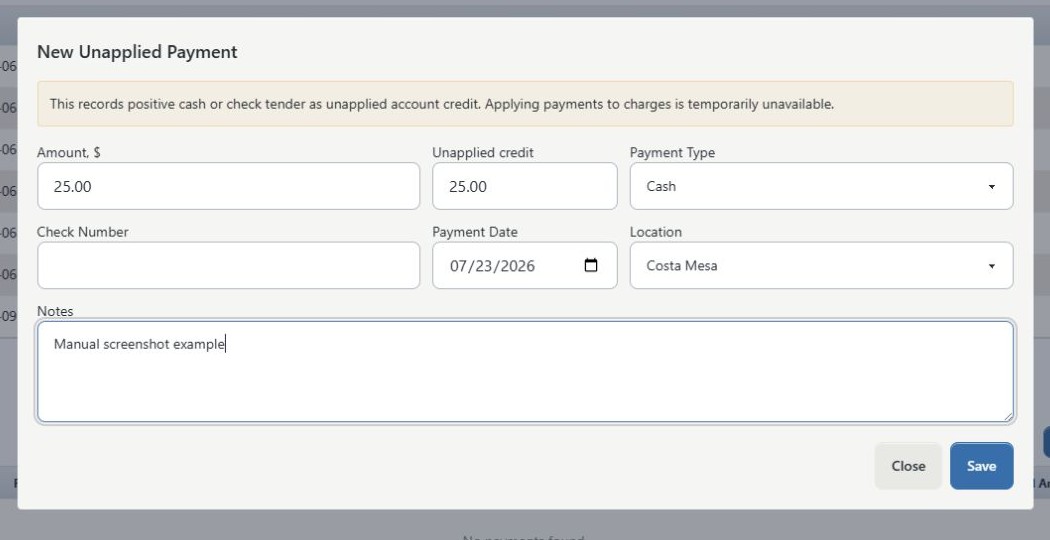
Warning: Selecting a card-related Payment Type describes the local record; it does not prove that a card was charged. Never create a manual card payment until the processor result is known, and never repeat a processor attempt merely because the local record is missing.
#What happens next
The payment appears in the payment table. Amounts assigned under Apply to Charges are linked to those charge balances. Any payment amount not assigned remains unapplied and can be used as account credit later.
A payment record is not the same as processor settlement. A processor can authorize, decline, void, refund, or settle independently of the local record. Keep the processor reference and local payment record reconciled.
#Confirm the payment
- Locate the payment row and confirm Date, Paid, Type, Check/Transaction #, Notes, Source, and Applied Amount.
- Confirm each selected charge now shows the expected Paid and Balance amounts.
- Confirm any intended remainder is visible as unapplied credit rather than silently assigned elsewhere.
- Compare the local amount and reference with the cash, check, bank, or processor evidence.
- For an electronic payment, confirm the processor's final status independently. A local row alone is not proof that funds were collected.
#Apply existing credit instead of recording another payment
When an existing payment has an unapplied amount, use the charge row's credit action rather than creating a duplicate payment.
- Find the charge in Ledger.
- Select Apply Credit to Charge.
- Review the available payments, suggested allocations, dates, payment types, receipt references, and any season warning.
- Confirm the total to apply does not exceed either the charge balance or the available credit.
- Apply the credit once.
- Confirm the charge balance and the source payment's unapplied amount both decreased by the same value.
Important: Applying credit changes how an existing payment is allocated. It does not alter the original amount received.
#Troubleshooting
#The charge category, season, class, or student is missing
Close the form without saving. Check the account, active records, charge-category configuration, season setup, enrollment, and your permissions. Do not substitute an unrelated category merely to complete the form.
#The tax or total is unexpected
Do not save the charge. Record the intended subtotal, tax rate, displayed tax, and displayed total, then ask an authorized finance administrator to verify the studio's tax settings and the current charge path.
#Credit did not apply
Confirm that the account has a positive unapplied payment amount and that Apply Credit Automatically was selected. Then inspect the charge's Paid value and the payment's Applied Amount. Use the explicit credit-allocation action if studio policy permits it; do not create another payment.
#The payment amount is correct but the balance is not
Compare the payment's Applied Amount with the selected charges. An unassigned remainder is credit, while a payment applied to the wrong charge needs an allocation correction rather than a second payment.
#Saving appeared to fail
Do not select Save again immediately. Reload the ledger and search by amount, date, receipt, transaction number, and notes. Check Finance > Payment History or Finance > Charge History before trying again.
#The wrong record was saved
Do not conceal the mistake by editing unrelated charges or adding an unexplained opposite entry. Preserve the original details and follow the studio's correction procedure in Payment history and corrections.