Group Classes and reports
Manage class notes
Class notes are not client messages. Saving one does not change the class schedule, enrollment, attendance, pricing, charges, purchases, or Online Client content. The current Notes tab also does not confirm or send an automatic email or alert.
Privacy warning: A class note has no category, per-note audience, or visibility control. Anyone whose role can manage notes for the class may be able to read, edit, or delete it, and authorized report users can place its full text in a PDF. Do not use this feature as the sole record for medical instructions, safeguarding concerns, legal incidents, disciplinary cases, payment-card information, passwords, or other material that requires stricter access, audit, or retention controls.
#Before you begin
- Confirm that the page header identifies the intended studio and class.
- Decide whether a class note is the correct record. Use the schedule, roster, account, purchase, charge, or approved incident system when the information belongs there.
- Follow the studio's rules for who may read, create, edit, delete, report, and retain class notes.
- Write only the minimum operational detail that authorized staff need.
- Preserve the original text, date, ID, and author in an approved protected record before an important edit or deletion. The Notes page has no revision history, archive, or undo.
- Use a fictional class and fictional staff accounts for training. Do not experiment on a live class note.
A visible pencil or delete control is not proof of business authorization. Ask an administrator to review the staff member's Group Permissions when the intended responsibility is unclear.
#Understand the fields
| Field | Current meaning | Important boundary |
|---|---|---|
| ID | The note's stored identifier | Use it to distinguish similar notes; recreating a deleted note produces a different ID |
| Title | A required summary, up to 255 characters | It is not a category, status, or privacy label |
| Text | The required note body | The list shortens long text; the complete text remains available in the edit window and report |
| Date | A staff-selected date that defaults to today | It can be backdated or changed later; it is not an immutable creation timestamp |
| Sticky | Keeps the note above non-sticky notes in the class list | It does not notify anyone, increase privacy, change report order, or make the note visible to clients |
| Author | The staff member recorded when the note was created, when a compatible member record is available | Editing does not change Author or identify the last editor; a blank Author is not proof that no staff member created the note |
The current form has no category, status, expiration date, attachment, schedule selector, student selector, client-visibility setting, or recipient list. Put that information in the correct purpose-built record rather than encoding it in a title and assuming the software will enforce it.
#Find and review notes for a class
- Open Group Classes.
- Locate the intended class and open it.
- Select the Notes tab.
- Confirm the class code and name in the page header.
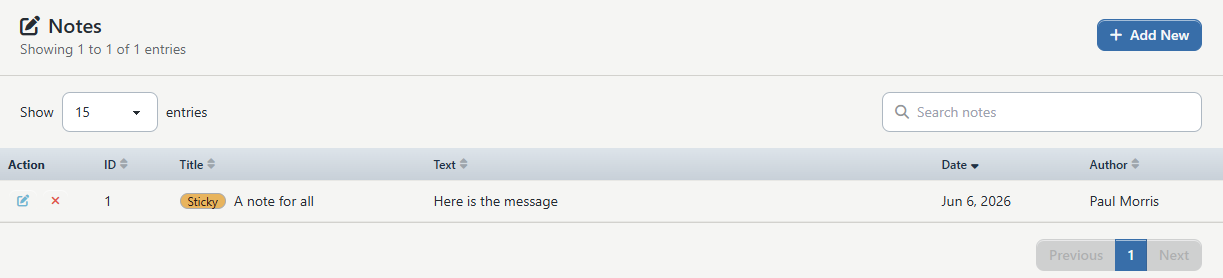
- Review ID, Title, Text, Date, and Author.
- Use Search notes to search the loaded IDs, titles, note text, dates, and authors.
- Select a column heading to sort it. Select the same heading again to reverse the direction.
- Change Show entries to 15, 25, 50, or 100 when you need a larger page.
- Use Previous and Next to move through the result.
Sticky notes remain above non-sticky notes even when another column is sorted. The default sort is Date with newer dates first inside the sticky and non-sticky groups.
The Text column shows only a short preview. Hovering can reveal the full text in browsers that support the tooltip, or an authorized user can open Edit Note, read the complete text, and select Cancel without saving.
Search, sorting, and paging work on the rows already loaded by the page. The current list retrieves at most 1,000 notes for the class, so a very large history can leave older records outside this table. Do not treat an empty search as proof that no older record exists; use the report or ask support to investigate the tenant data.
#Create a class note
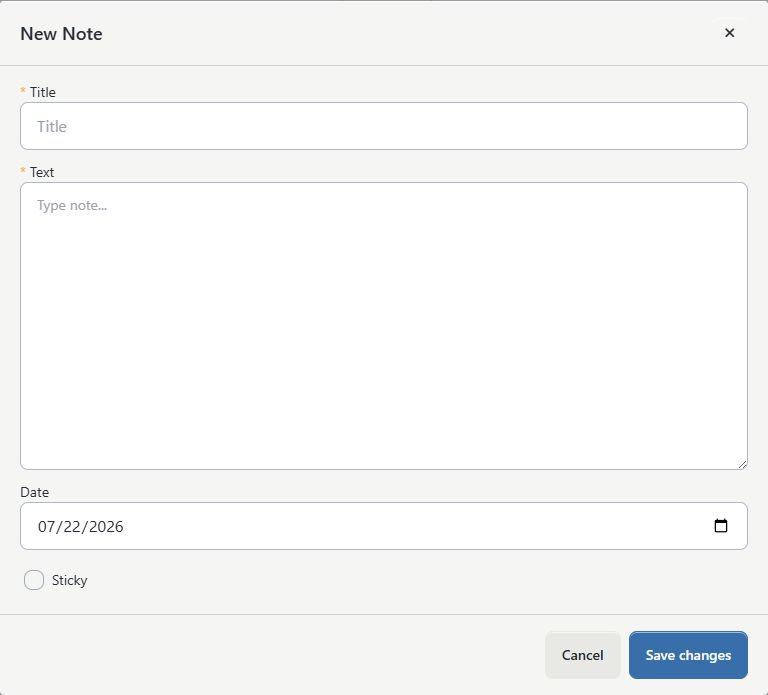
- On the class Notes tab, select Add New.
- Enter a concise, recognizable Title.
- Enter the minimum necessary Text.
- Review Date. Leave today's date only when it accurately represents the note.
- Select Sticky only when the note should remain above ordinary notes in this class list.
- Re-read the title and text for private or misplaced information.
- Select Save changes once.
- Wait for the window to close and the list to reload.
- Confirm the new ID, title, date, sticky state, text, and Author.
- Search for a distinctive phrase to confirm that the complete note was saved to the intended class.
Title and Text are required. Saving a note does not send it to clients or instructors, alter another class record, or prove that an administrator received an email or alert. Use the approved messaging workflow when someone must be notified and record that communication separately.
#Edit an existing note
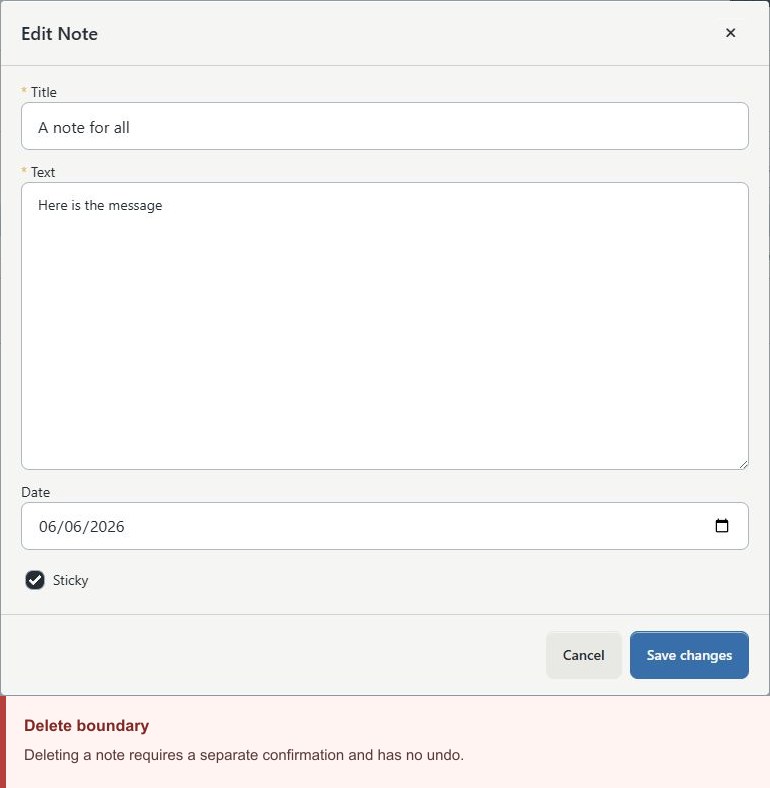
Editing overwrites the stored title, text, date, and sticky state. The page does not keep a customer-visible previous version or identify the last editor.
- Find the note by ID and title.
- Preserve the original ID, title, text, date, Author, and sticky state when policy requires a change record.
- Select the pencil Edit action for that row.
- Confirm that Edit Note contains the intended full text.
- Make the smallest approved change.
- Review the Date deliberately. Changing it changes the date shown in the list and report.
- Select Save changes once.
- Wait for the list to reload, then confirm every edited field.
- Reopen the note and verify the complete text, then select Cancel.
Author continues to identify the original recorded creator; it does not change to the editor. If a note must have a durable review trail, keep that trail in the studio's approved protected system.
If you open a note but make no change, select Cancel. On some database configurations, saving exactly the same values can be reported as Note not found because no row value changed. Reload and verify the existing note before trying again.
#Use sticky notes carefully
Sticky is a list-position aid only.
- Sticky notes always appear above ordinary notes on the class Notes tab.
- Sticky does not create an alert, deadline, task, acknowledgment, or notification.
- Sticky is not a visibility or confidentiality setting.
- The Class Notes report does not show the Sticky field.
- Too many sticky notes remove the distinction. Review them on a defined schedule and clear Sticky when the operational need ends.
For a task that must be assigned, acknowledged, or completed by a deadline, use the studio's approved task or communication process and link back to the class only when appropriate.
#Delete a note and plan recovery
Warning: Delete is a hard deletion in the current interface. There is one browser confirmation, no archive, no recycle bin, and no Undo button.
- Confirm the class, note ID, title, and complete text.
- Record the reason, approver, original content, date, Author, and sticky state in the studio's protected change record when retention allows it.
- Confirm that the information is not required for an active incident, legal hold, audit, or other retention obligation.
- Select the red delete action for the exact row.
- Read Delete this note? and confirm only when the permanent removal is approved.
- Wait for the list to reload.
- Clear Search and confirm that the ID is absent.
- Review the Class Notes report if the note had previously appeared there.
- Remove or retain previously generated PDFs and screenshots according to the same approved policy; deleting the database row does not recall those copies.
Recreating the text is not an undo. The replacement receives a new ID, date, and recorded Author and does not restore the deleted record's history. If an approved note was deleted by mistake, stop further changes, preserve what is known, and contact support about backup-level recovery. Do not promise that one record can be restored without affecting other tenant data.
#Review notes in the Class Notes report
Authorized report users can review class-note content across classes and open a PDF.
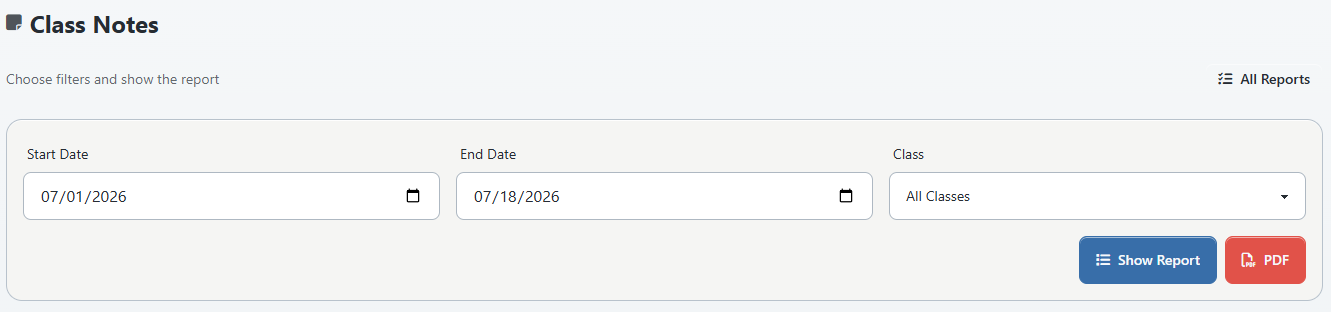
- Open Reports > Class Notes.
- Select a Start Date and End Date.
- Select one active class, or leave the class selector at All Classes.
- Select Show Report.
- Review Class, Scheduled, Title, Note, and Created.
- Sort and page through the web result as needed.
- Select PDF only when an approved protected copy is required.
- Review the PDF before sharing it and store or remove it according to the studio's retention policy.
Current date-filter limitation: Notes created from the class Notes tab are class-level notes and do not receive a schedule occurrence. The report applies Start and End dates to linked schedule dates and deliberately keeps notes with no linked schedule. As a result, a class-level note can appear even when its displayed Created date is outside the selected range. Do not use the report's date subtitle or total as proof that every returned note falls inside the range.
The web report shows a blank Scheduled value and a separate Created date for an unlinked class note. In the current PDF, the Scheduled column falls back to the note's Created date when there is no schedule. Label that value correctly when the PDF is used outside the studio; it is not evidence that a class meeting occurred on that date.
The current report offers PDF but not CSV or Excel. It does not include Author or Sticky. Its class selector is built from active classes, and inactive classes or schedules can be omitted from the report. Use the class Notes tab and the protected change record when those details matter.
#Know what notes affect
| Action or destination | Effect of saving a class note |
|---|---|
| Class Notes tab | Adds or changes the internal row for this class |
| Class Notes report and PDF | Can make the title and full text available to authorized report users |
| Online Client | No current class-note display or delivery was found |
| Class schedule and Calendar | No schedule is created or changed; the Day View Note control is a separate, currently unavailable workflow |
| Enrollment, attendance, and roster | No student status, attendance, or roster value changes |
| Tuition, charges, purchases, and payment plans | No financial record changes |
| Messaging | No message recipient, queue, or delivery record is created by the current Notes tab |
| Author and audit history | The creator can be displayed, but no last-editor or revision history is created |
Older help content can refer to group-class-note administrator notifications. The current Notes tab does not invoke that older notification path. If a studio believes a legacy integration still sends class-note email, test it separately with fictional data and an approved internal mailbox; do not infer delivery from a successful save.
#Protect privacy and retention
- Limit Group Classes and Class Notes report access to staff who need the information.
- Use objective operational wording. Avoid diagnoses, speculation, private family details, or unnecessary student identifiers.
- Do not use Title as a substitute for a privacy classification. The software does not enforce it.
- Remember that report users can see full text and create a portable PDF.
- Store PDFs only in approved protected locations. Do not leave them in a shared Downloads folder, personal cloud drive, or chat.
- Define an owner and review date for sticky notes and other temporary information.
- Follow legal holds and the studio's deletion schedule. The software does not automatically expire class notes.
- Treat deletion as removal from the active note table, not proof that every backup, PDF, screenshot, email, or exported copy has disappeared.
- Use an approved incident, health, safeguarding, HR, or legal system when access restrictions, acknowledgment, immutability, retention, or audit are required.
#Troubleshooting
#The Notes tab or Add New action is missing
Confirm that you opened a group class and that your staff login has the intended Group Classes permission. The Class Notes report has a separate Reports permission. Do not use another person's login or a copied direct URL to work around a missing control.
#The page says it failed to load notes
Reload once and confirm that other class tabs work. A notes table can exist while required class, sticky, author, or member fields are incompatible, which can make this page fail rather than show a partial list. Stop note changes and give support the studio, class ID, time, and exact message. Do not create substitute notes in unrelated fields.
#No notes match the current filters
Clear Search notes, return to page 1, and verify the class in the header. Increase the page size if needed. Remember that the list retrieves at most 1,000 rows.
#The full text is not visible in the table
The list intentionally shortens long text. Hover over it or open Edit Note, read the complete value, and select Cancel. Do not save merely to inspect it.
#Author is blank or seems wrong
Author depends on a compatible staff-member link at creation. A blank value is not an audit conclusion. Check the note ID and the studio's external change record. Editing the note will not replace Author with the current editor.
#Save says the title or text is required
Enter non-blank Title and Text values. Whitespace alone is not accepted. Keep the title concise and the necessary detail in Text.
#Save reports Note not found
Cancel and reload. The note may have been deleted in another session, may belong to another class, or the attempted edit may have contained exactly the existing values. Find the ID again before making any further change.
#Sticky did not remain selected
Reload and inspect the note. Sticky storage depends on the studio's note schema. If the value repeatedly disappears or the list fails, stop and contact support rather than creating duplicates.
#The report includes notes outside the selected date range
This is expected for class-level notes with no linked schedule. The current date filters apply to scheduled occurrence dates, not the Date value on every class-level note. Filter by class and review Created, or use the class Notes tab.
#A class is missing from the report selector
The selector uses active classes and is limited to the first 500 available choices. An archived or inactive class can be absent, and its notes can be omitted from report results. Open the class through the appropriate class-list filter or ask support to investigate.
#The PDF shows a date under Scheduled for a class-level note
For a note without a linked schedule, the current PDF falls back to the note's Created date in that column. Do not describe it as a meeting date.
#A deleted note must be recovered
There is no self-service restore. Stop editing the class, record the note ID and deletion time if known, preserve any approved prior copy, and contact support. A newly typed copy is a new note, not restoration of the deleted row.