Settings, accounts, Online Client, sales, finance, communications, content, and reports
Create, assign, and verify Member Categories
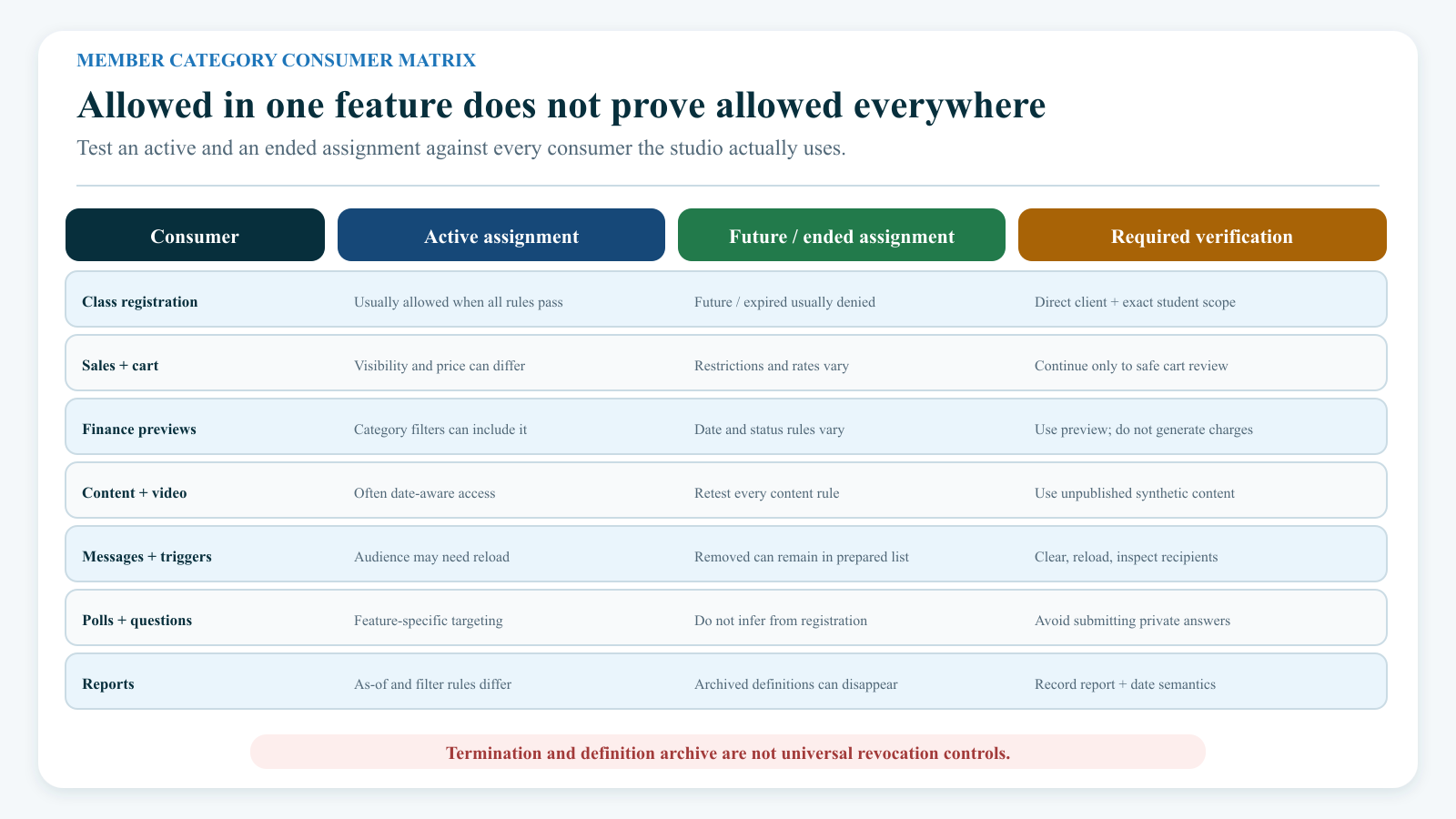
Current release boundary: A Member Category is not one universal access switch. Each feature reads category assignments in its own way. Most reviewed Online Client features use Activation and Expiration, but many ignore Termination. Some finance, cart, message, and report paths use different date or status rules. Always test the exact downstream feature.
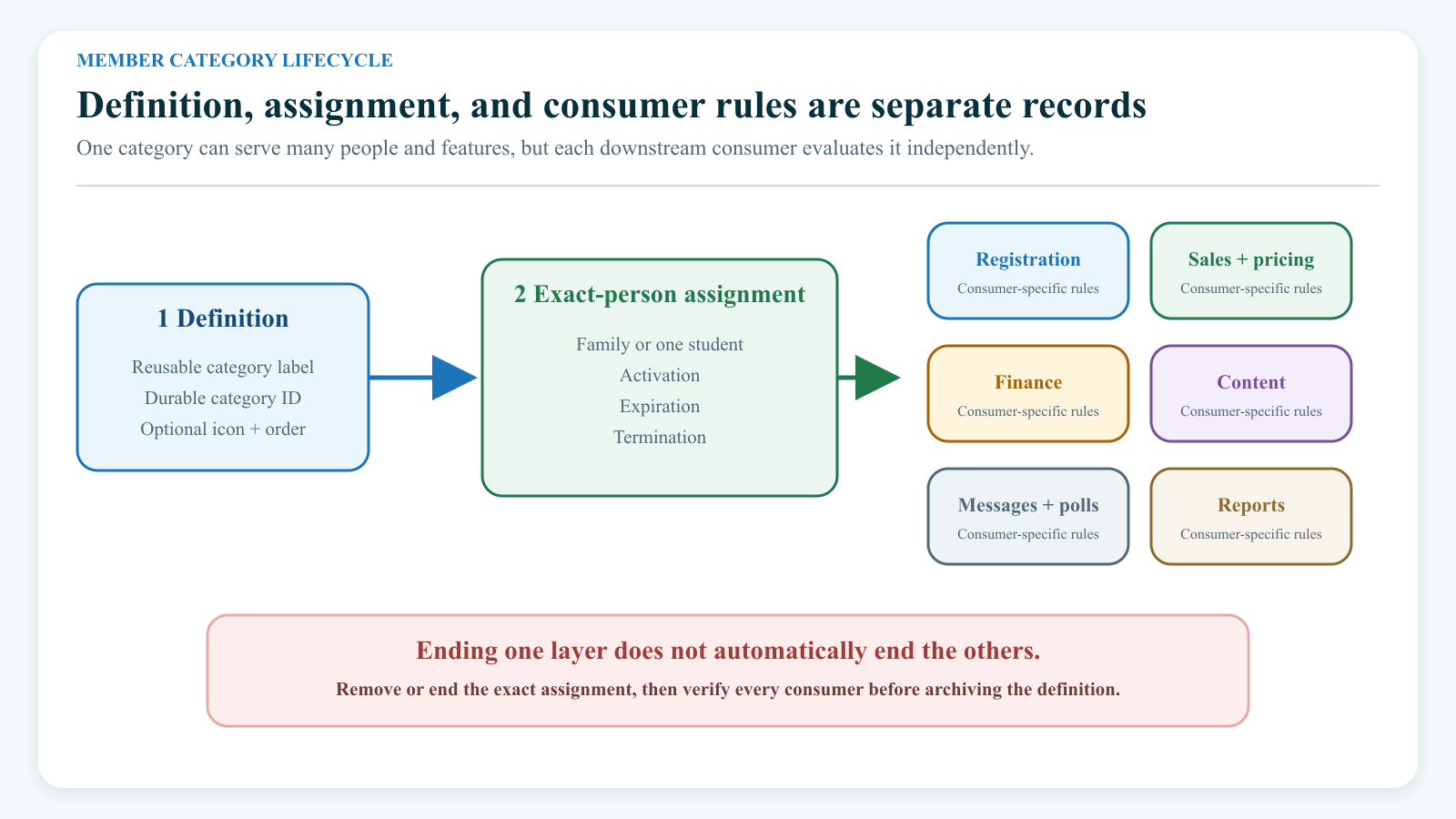
Important: Archiving a category definition does not reliably revoke its existing effects. It can hide the category from ordinary selectors and from the account display while saved assignments and rules still refer to its ID. End an assignment and verify every downstream consumer before archiving the definition.
#Understand the three layers
Keep the category definition, a person's assignment, and the rule that consumes it separate.
| Layer | Example | What it does | What it does not prove |
|---|---|---|---|
| Definition | Early Enrollment | Creates a reusable label under Member Categories | That any person has it or receives a benefit |
| Assignment | Avery Example has Early Enrollment from August 1 through August 31 | Associates one exact account or student record with the label and dates | That every feature treats the assignment as active |
| Consumer rule | A class allows only Early Enrollment students | Uses the category in one class, season, Sales Item, video, message, poll, trigger, charge, or report | That other features use the same audience or dates |
One definition can be assigned to many people and used by many rules. Removing a rule does not remove assignments. Removing one person's assignment does not delete the definition or change anyone else.
#Keep similarly named features separate
| Feature | Primary purpose | Relationship to a Member Category |
|---|---|---|
| Class, program, genre, level, content, purchase, charge, or message-template category | Organizes records in its own area | Does not give a client Member Category access |
| Purchase or membership | Records something acquired, including its units and term | Does not by itself prove the buyer has a Member Category in the current build |
| Pricing Level | A separate pricing value on a person | Can be combined with a Member Category in a Sales Item rate |
| Class prerequisite | Requires completed class visits | Does not classify the person as a member |
| Class enrollment | Associates a student with a class | Does not create a Member Category |
| Staff group or role | Controls staff permissions | Is not a client eligibility category |
| Member Category icon | Helps staff recognize a category visually | Does not control access, dates, or priority |
Do not create a Member Category merely to organize classes or content. Use it when a supported workflow truly needs a person-based audience, status, or benefit.
#Before you begin
- Write the category's purpose and the exact people who should receive it.
- Decide whether it belongs on the family account, one student, or each applicable person.
- Choose activation and expiration dates; do not depend on blank-field defaults.
- List every class, season, Sales Item, discount, charge process, video, message, trigger, poll, and report that should use it.
- List the same features from which the person must be excluded after the category ends.
- Search Settings > Categories for an existing or archived definition before creating a near-duplicate.
- Prepare one allowed and one denied fictional account, and a direct fictional Online Client login.
- Preserve the before-state, expected results, rollback action, and responsible reviewer.
Warning: Category changes can alter prices, registration, content visibility, recipient lists, and finance previews immediately. The reviewed assignment controls do not provide a dependency preview, change reason, audit trail, or one-step undo.
#Create the definition
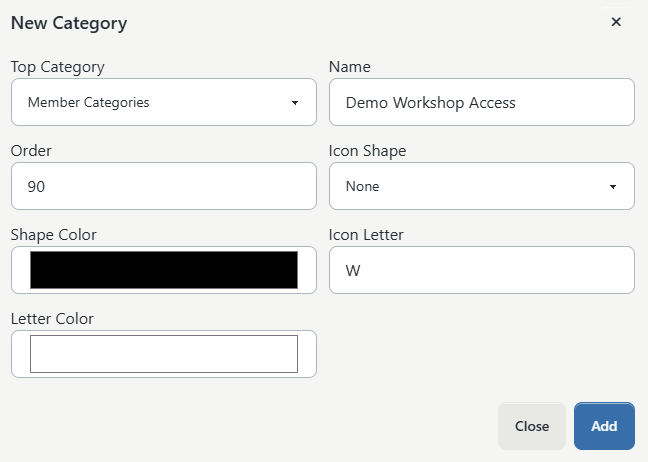
- Open Settings > Categories.
- Select Member Categories as the Top Category.
- Search active and archived values for the intended name.
- Select New Category.
- Confirm Top Category, then enter a short, durable Name.
- Enter Order if your studio uses ordered lists.
- If icon fields appear, choose an optional shape, background color, one-character label, and letter color.
- Select Add.
- Return to the Member Categories list and confirm the saved name, order, status, and icon.
Avoid names that promise more than the category itself does. For example, Paid in Full or Safety Approved can become false when payment or approval changes independently. Prefer a stable program or benefit name and verify its related records separately.
The icon is a display aid. Two categories can have similar icons, and an icon has no effect on eligibility or pricing.
See Create and maintain categories for general rename, move, archive, and restore procedures.
#Assign a category to the correct person
- Open the exact account or student record.
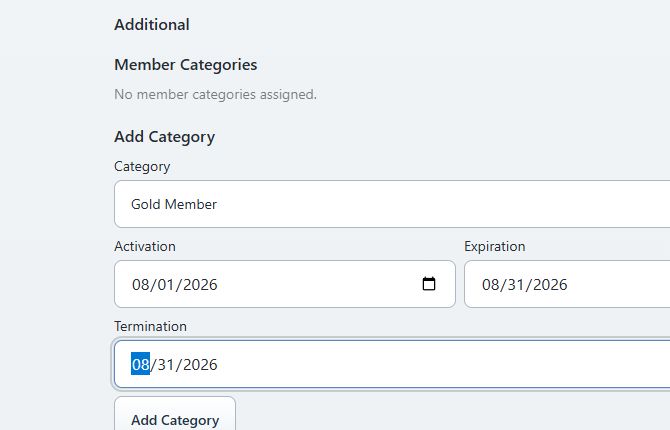
- Open Main Account > Additional.
- In the Member Categories area, choose Add Category.
- Select the approved Member Category.
- Enter the intended Activation, Expiration, and Termination values.
- Select Save Category.
- Reload the record and return to Additional.
- Confirm the category name and all three dates.
The current save path assigns the category to the record you opened. It does not automatically create the same assignment for a parent, child, sibling, or every person in the family.
When a blank value is accepted, the reviewed service can default Activation to today, Expiration to January 1, 2050, and Termination to no date. Those defaults may not match the intended agreement. Enter and read back explicit dates whenever a real term exists.
#Choose account or student deliberately
Household scope differs by feature:
- Class eligibility checks the exact student being registered.
- The client Sales Item catalog generally reads the signed-in person's categories.
- Videos, poll questions, and client questions can use categories from the signed-in account and active children as a family audience.
- Tuition filters and category discounts can consider a student and parent together in some paths.
- Direct Messaging can load every member record attached to the selected category.
Assigning a category only to the parent can therefore allow one family-scoped feature but fail a student-specific class rule. Assigning it only to a child can do the reverse for an account-scoped sale. Record the intended target for each consumer and test that exact identity.
#Understand the assignment dates
| Field or action | Intended meaning | Current operational caution |
|---|---|---|
| Activation | First date the assignment should be usable | Many Online Client and finance paths honor it; some cart, message, discount, and report paths do not |
| Expiration | Last date the assignment should be usable | Widely used, but not universal; some status-only paths still use an expired assignment |
| Termination | A recorded ending or termination date | Stored and displayed, but most reviewed current consumers ignore it |
| Remove Category | Makes that person's assignment inactive, or removes it on a limited legacy schema | Stronger than changing a date, but Direct Messaging and already-loaded recipient queues still require separate review |
| Archive definition | Removes the definition from normal selection | Not a revocation action; saved assignments and consumer rules can remain influential |
Treat Activation and Expiration as an inclusive date window where the feature supports them. Test the day before, the boundary date, and the day after. A Termination date alone is not an approved way to withdraw access in the reviewed build.
#Update dates
- Preserve the existing row and expected downstream results.
- Change only the intended date on the person's category row.
- Select Save Category.
- Reload and confirm the persisted values.
- Repeat the relevant Online Client, price, content, communication, finance-preview, and report checks.
Do not change a category date to repair a purchase, charge, payment, enrollment, or contract date. Correct the authoritative record for that separate layer.
#Remove an assignment safely
The current Remove Category action does not present a reviewed confirmation step. Preserve the row first, then confirm the exact person and category before selecting it.
- Record the person, category, dates, reason, expected results, and rollback instruction in the studio's protected change process.
- Confirm whether the category is assigned separately to other family members.
- Select Remove Category on the exact row.
- Reload the record and confirm the active assignment is no longer listed.
- Clear and reload any prepared Direct Messaging recipient selection.
- Verify each downstream consumer in the checklist below.
- Review purchases, billing, charges, enrollments, and agreements separately; category removal does not cancel them.
Re-adding the same category can reactivate an existing inactive relationship and replace its dates. It is not a historical restore with an automatic explanation or audit record. Read back the new dates and repeat the full test.
#Verify every downstream consumer
#Class registration and season early access
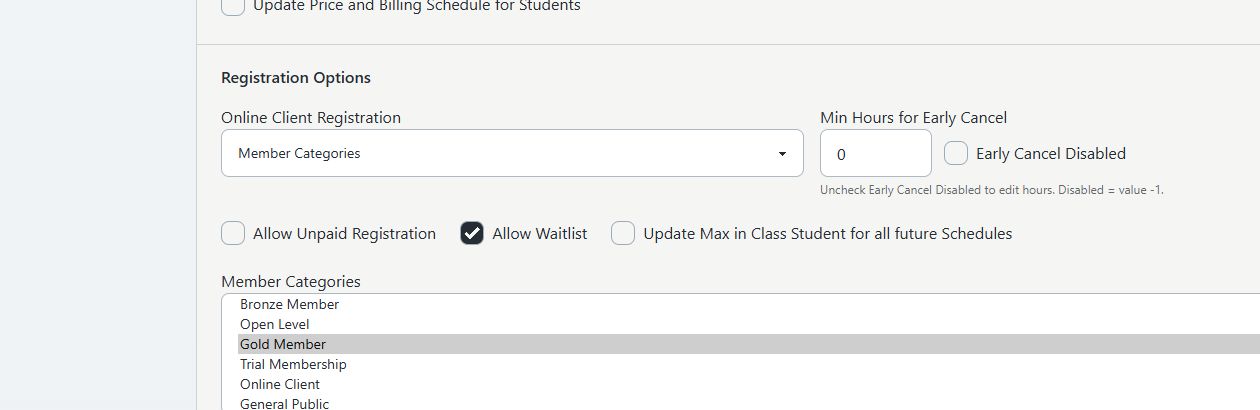
A group class can set Online Client Registration to Member Categories and select one or more allowed categories. For the normal signed-in registration flow:
- the exact student needs at least one selected category;
- the current check uses assignment status, Activation, and Expiration;
- blank or legacy zero dates can be treated as open;
- Termination is not used by the reviewed check; and
- an empty class category list does not create a category block.
If the student fails, the student-selection flow can show Restricted and explain that the student does not meet the class category requirements. Age, category, prerequisite, and enrollment-window results have their own order, so repair and retest one truthful issue at a time.
A season can also grant a selected Member Category an earlier enrollment date than the general season date. If general enrollment is already open, the category-specific start adds no restriction. Before general opening, an active matching category can use its earlier start.
Current selector caution: The reviewed season editor can display active categories outside the Member Categories group even though the section says Enrollment for Specific Member Categories. Select only a verified Member Category definition.
See Control who can register, Create and publish a season, and Launch a class for Online Client registration.
#Sales Item visibility, restrictions, and rates
On a Sales Item:
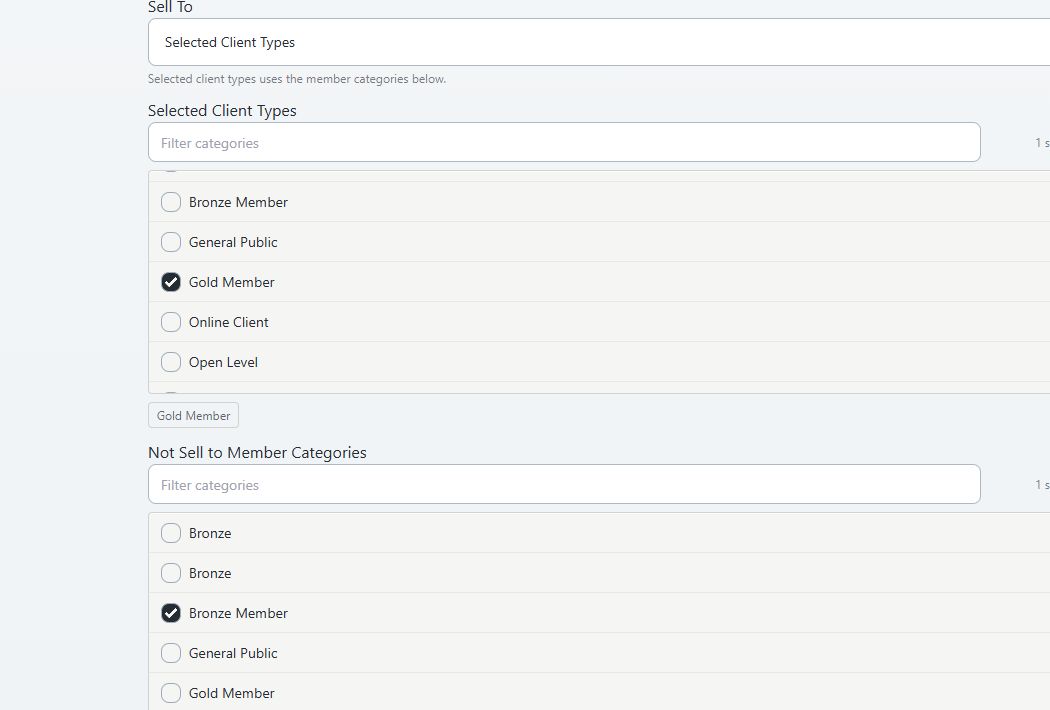
- Sell To > Selected Client Types can use Member Categories as the allowed audience.
- Do Not Sell to Member Categories blocks selected categories and takes precedence over an allow match.
- A rate can combine a Pricing Level, Member Category, adjustment type, value, and Valid Until date.
- When several applicable item rates exist, the reviewed client pricing selects the lowest resulting price rather than stacking every rate.
The client catalog usually evaluates the signed-in person's active category window. The cart's reviewed rate and automatic category-discount paths do not apply the same date checks. A future or expired assignment can therefore produce a catalog/cart discrepancy. Always continue a fictional item into the cart and compare the item, rate label, discount, quantity, tax, fees, and final amount before enabling online sale.
The Sales Item editor also contains Set Member Categories and Unset Member Categories choices. Those controls exist in current configuration, but the current DSM Next purchase-fulfillment path that applies them was not confirmed in this review. Do not promise automatic assignment or removal until a controlled purchase proves the before and after category rows, dates, target person, and rollback. Historical software behavior is not current proof.
Category discounts can be configured in studio data and applied to classes, private lessons, Sales Items, and packages. A current self-service editor for the discount values was not found. Ask support to identify the authoritative configuration, then test the exact student/parent combination and final cart.
See Create a Sales Item, Assign Sales Items and pricing options to a class, and Shopping cart and checkout.
#Tuition and miscellaneous charges
Member Category filters can narrow tuition and miscellaneous-charge previews. The reviewed paths commonly use assignment status, Activation, and Expiration and can consider either the student or parent, but some override and discount paths differ. Termination is generally ignored.
- Keep the category change separate from authority to create charges.
- Run View List Only or the applicable preview first.
- Reconcile every fictional person, category target, amount, description, and date.
- Compare an allowed, denied, future, expired, and removed assignment.
- Do not run real charges merely to verify a category.
A Charge Category classifies a financial entry. It is not a Member Category and does not select a client audience by itself.
See Run tuition safely and Add late and miscellaneous charges.
#Videos and on-demand content
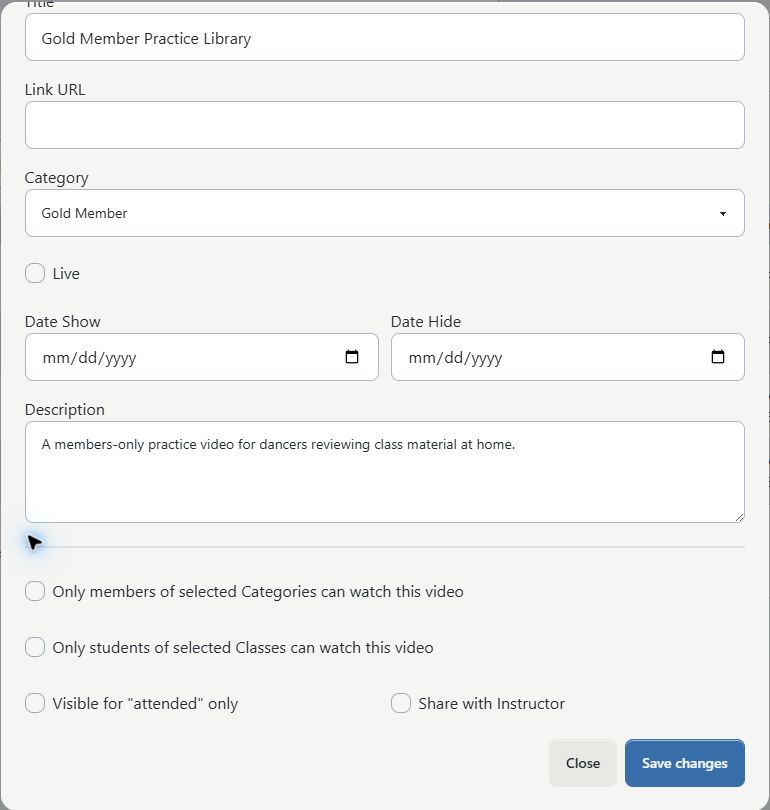
An administrator can limit a video to selected Member Categories. The client video check uses an active family audience: the signed-in account plus active children. It honors assignment status, Activation, and Expiration with open legacy dates, but ignores Termination.
Member Category restrictions are one dimension. If the same video also selects classes or schedules, the viewer must pass each selected dimension; one category match does not override a missing class or schedule match. Video show/hide dates and status also apply.
A video's content Category organizes the video. Its Member Category selection controls audience. Do not confuse them.
See Manage videos and on-demand content.
#Direct Messaging and Scheduled Triggers
Direct Messaging requires special care. The reviewed Member Categories recipient loader does not filter category assignment status, Activation, Expiration, Termination, or member status in the same way as Online Client access. Removing or expiring a category is therefore not proof that a person is absent from a category-loaded campaign. A recipient list that was loaded earlier is a separate saved selection and does not automatically update after the assignment changes.
For every category-based campaign:
- Use fictional recipients or a fully intercepted delivery path.
- Load the category audience.
- Review the recipient count and individual list.
- Remove, expire, or future-date the fictional assignment as required by the test.
- Clear the prepared audience and load it again.
- Confirm every intended inclusion and exclusion before sending.
Scheduled Triggers can also select Member Categories. Many reviewed event paths require the event's exact member to have an active assignment within Activation and Expiration; Termination is ignored. Trigger Activation Date and Expiration Date control the trigger itself and are separate from the person's category dates. Test each trigger event, template, recipient, channel, and duplicate-prevention behavior while the trigger is disabled or delivery is intercepted.
A Message Template Category organizes templates. It is not the Member Category recipient filter.
See Choose message recipients and send, Messaging overview, and Create and control Scheduled Triggers.
#Poll questions and client questions
A poll question can be limited to selected Member Categories. The reviewed client question and poll paths use an active family category audience, honor status, Activation, and Expiration with open legacy dates, and ignore Termination. Any matching selected category can satisfy that category restriction. Question status, season, and other relations still apply.
The family audience controls visibility; an answer is recorded for the signed-in client. Do not treat category visibility as legal consent, identity proof, or a substitute for an agreement or waiver.
See Manage poll questions and review answers and Answer polls and questions.
#Reports
Reports do not share one definition of an active Member Category. Examples from the reviewed build include:
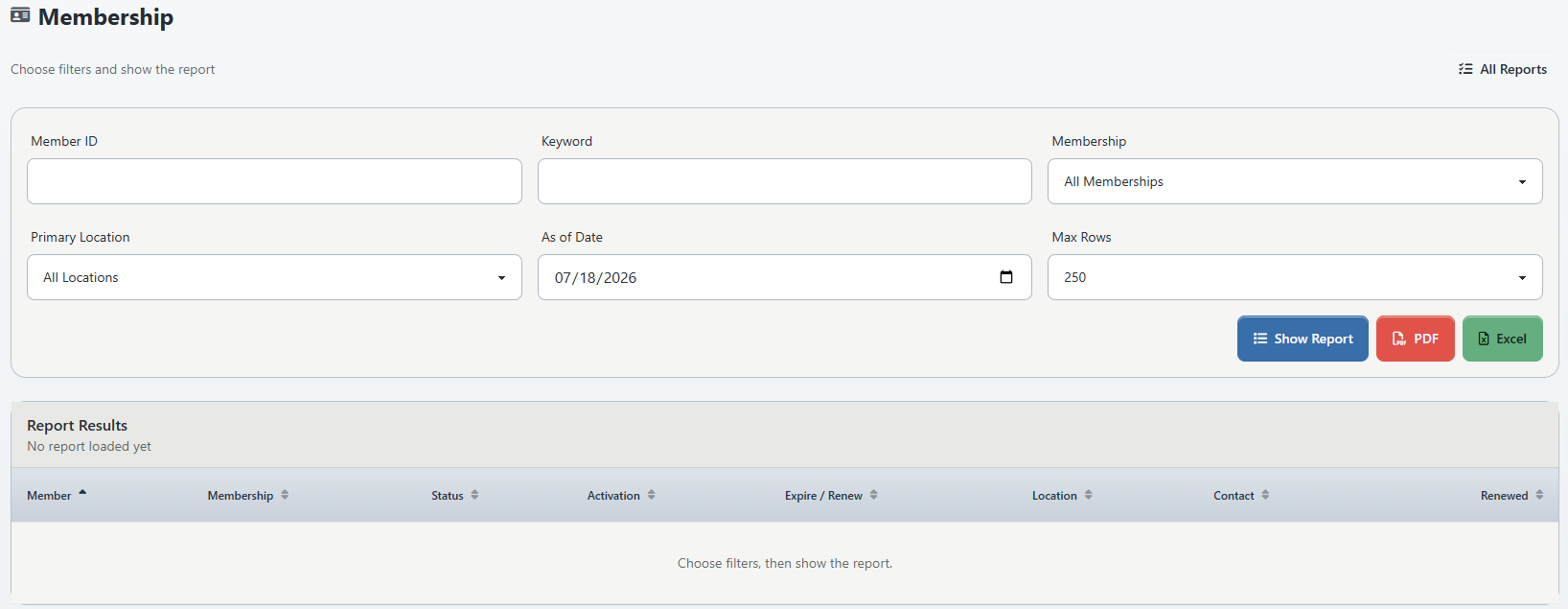
- the Membership report lists active assignment rows and calculates an as-of state from Activation and Expiration, while displaying but not using Termination for that calculation;
- prerequisite reports use status and a current Activation/Expiration window;
- Mailing Labels can use assignment status without the date window; and
- Cancellations can match an assignment without the same status or date checks.
Use the report that answers the business question, record its filters and as-of date, and reconcile surprising rows against the exact assignment. A report row is not proof that Online Client eligibility, catalog visibility, pricing, or messaging uses the same rule. Exports and report screens can contain contact, participation, and financial data; limit access and redact captures.
See Reports overview.
#End a category lifecycle safely
Expiration, termination, removal, and definition archive are not interchangeable. Use this sequence when a person's benefit or audience membership must end:
- Preserve the assignment and every known consumer rule before changing it.
- End related billing, purchases, holds, enrollments, agreements, or contracts through their own approved workflows.
- Remove the Member Category assignment from each exact account or student that should no longer have it.
- Reload each record and confirm the active assignment is absent.
- Inspect class and season restrictions, Sales Item allow/block lists and rates, category discounts, tuition and charge filters, videos, poll questions, Scheduled Triggers, and reports.
- Clear and reload any Direct Messaging audience that used the category.
- Test one formerly allowed fictional client and one still-allowed fictional client through the exact Online Client class, item, content, or question flow.
- Compare finance previews and reports without submitting real charges or sends.
- Archive the definition only after it is no longer needed for new selection and every saved dependency has an approved historical or replacement state.
- Record the outcome and cleanup evidence.
If a policy says that Expiration alone must remove the person from every audience, the current reviewed behavior does not meet that policy. Use removal plus downstream verification and raise the product gap.
#Verify the complete lifecycle
Use fictional people and future-dated, non-billable fixtures. Stop before any real send, charge, enrollment, or checkout submission.
| Assignment state | Class/category-gated Online Client expectation | Other checks required |
|---|---|---|
| Future Activation | Denied until the activation date | Cart discounts, Direct Messaging, and reports can differ |
| Active today | Allowed when all other rules pass | Confirm exact account/student scope and final price |
| Expired yesterday | Denied in date-aware Online Client paths | Cart, discounts, messages, and reports still need separate checks |
| Termination in the past | Do not expect reliable denial | Remove the assignment and retest |
| Removed assignment | Denied in status-aware paths | Clear/reload message audiences and inspect status-blind reports |
| Definition archived, assignment retained | Do not treat as revoked | Restore for investigation or migrate dependencies under an approved plan |
For each state:
- Record the category definition ID, exact person ID, assignment dates, status, consumer rule, role, route, build, and expected result.
- Sign in directly as the fictional Online Client; do not rely only on administrator impersonation.
- Test both an allowed and denied person.
- Continue a fictional Sales Item to the cart when pricing is in scope, then stop before payment.
- Review content and questions without submitting private answers.
- Use intercepted messaging and a disabled trigger.
- Use finance previews only.
- Run the intended report with narrow filters and a recorded as-of date.
- Recheck with the least-privileged staff role that performs the real task.
- Clean up the fixture and confirm the cleanup.
#Permissions, privacy, and financial safety
- Limit definition and assignment changes to staff authorized by the studio's policy.
- The reviewed category add/remove routes authorize access to view the person, not a distinct category-management permission. Instructors can be a view-capable role. Test restricted roles and escalate unexpected write access.
- Never use real minors, guardians, contact details, balances, health details, disciplinary facts, or membership disputes in screenshots, videos, or tests.
- A category name can expose sensitive status. Avoid medical, disability, safeguarding, debt, or disciplinary labels.
- Category assignment does not authorize a payment, charge, enrollment, message, or disclosure.
- Review message recipients individually and honor consent, opt-out, and communication policy outside the category mechanism.
- Use View List Only and fictional amounts for finance testing. Do not run tuition or miscellaneous charges as a category test.
- Crop tenant identity, browser identity, unrelated navigation, contact information, and financial data from media.
#Troubleshooting
#The category is not available on the account
Confirm that the definition is active, is a child of Member Categories, and is not already assigned to that exact record. Clear search and review Show Archived in Settings > Categories. Do not recreate it until the existing ID and dependencies are known.
#The category disappeared after it was archived
The account display joins active category definitions, so an archived definition can disappear even while its saved assignment influences another feature. Restore the definition for investigation if approved, inspect dependencies, and migrate or remove assignments deliberately.
#A client can see an item but gets a different cart price
Compare the category target person, assignment status and dates, Sales Item allow/block rules, pricing level, every Member Category rate, rate expiration, automatic category discount, and the final cart line. The catalog and cart do not apply identical category-date logic.
#A person still appears in a message audience
Clear the prepared audience and load recipients again. Then review the row individually. The category recipient loader does not use the same status/date rules as Online Client access. Do not send until the intended exclusions are confirmed.
#Termination did not remove access
That is consistent with most reviewed current consumers. Preserve the record, remove the exact assignment, clear/reload messaging audiences, and repeat every downstream check.
#A report and the Online Client disagree
Record the report, filters, as-of date, assignment row, exact account/student, and Online Client route. Different reports and consumers intentionally or historically use different status, date, and family-scope rules. Investigate the two paths separately rather than changing dates until they happen to match.
#Related articles
- Create and maintain categories
- Understand membership concepts and lifecycle
- Edit account and family details
- Control who can register
- Create and publish a season
- Create a Sales Item
- Run tuition safely
- Manage videos and on-demand content
- Choose message recipients and send
- Create and control Scheduled Triggers
- Manage poll questions and review answers
- Reports overview
- Register for classes
- Buy items and use the cart
- View messages, videos, and files